Chief Architect Interiors - New Features
Product Options
Chief Architect Interiors X5
New Features
3D Rendering & Visualization
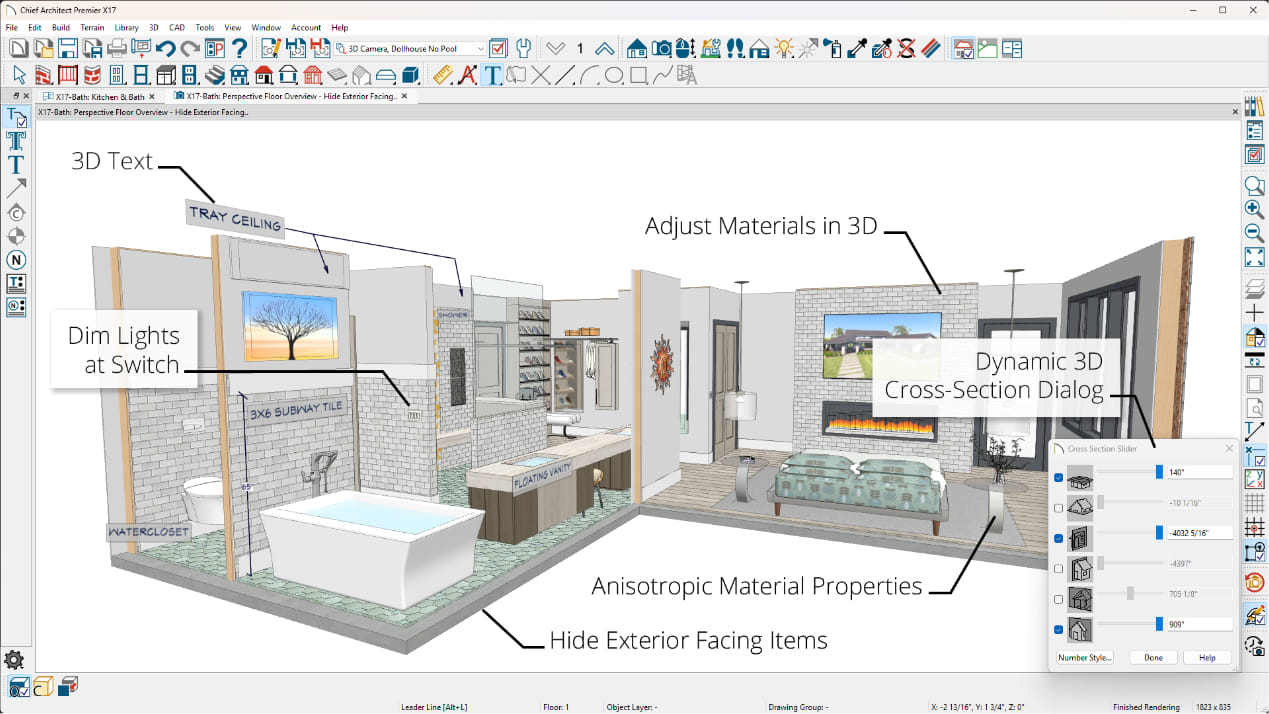
Display Lower Levels with the Floor Overview cameraA 3D display option allows lower floors to be viewed under a current floor, such as open below rooms used for stairways or lofts
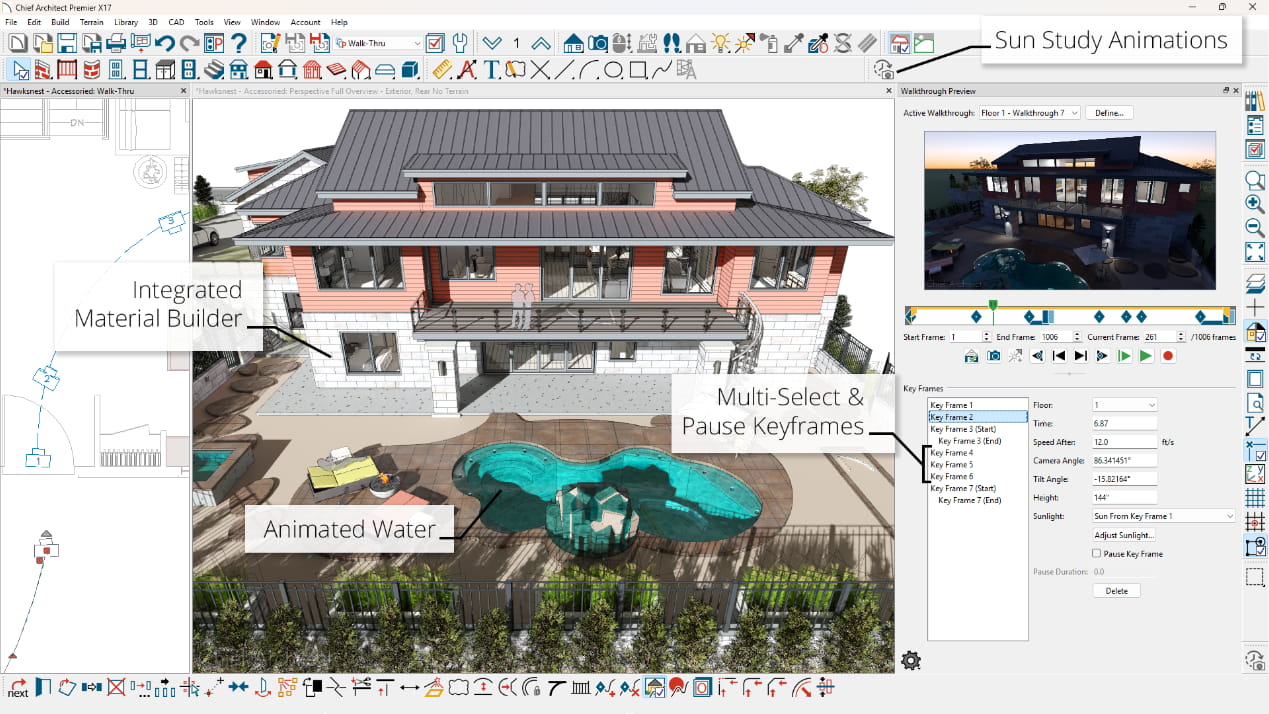
Improved Walkthrough ToolsCreate detailed walkthrough recordings along paths. Add key frames at any point on the spline to control view direction and speed; walk up or down stairs and to span walkthrough between floors
Progressive Ray TracingPreview ray trace renders as they refine and iterate image quality; export the image at any time or define the amount of time for the ray trace from 1 minute to 24 hours or an unlimited time
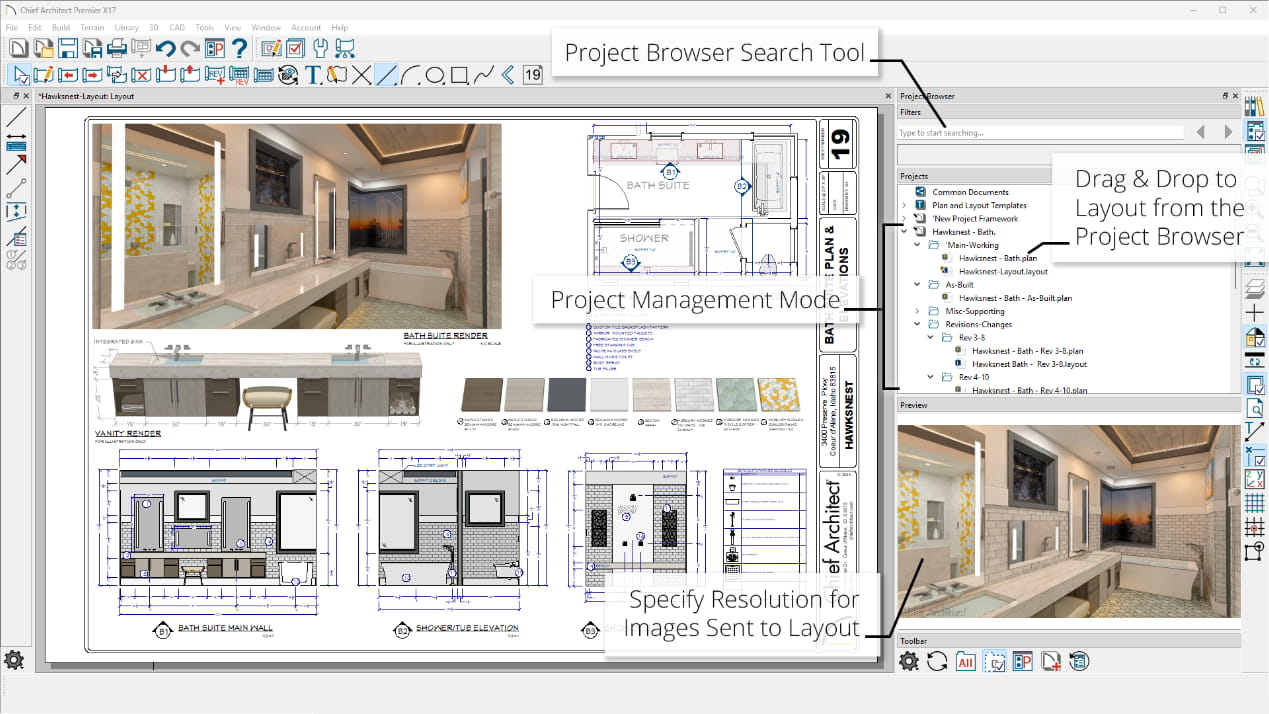
Specify Ray Trace Size in Inches or MillimetersSet the number of pixels per inch to specify High or Low Resolution
Improved Camera ControlCameras no longer ‘save’ automatically. Modify a 3D view angle or orientation and close the view without saving to retain the original settings
Enhanced Labels for CamerasLabel tab for cameras allow more control over the display of the labels
Watercolor Rendering Line ColorControl the color of lines generated in Watercolor Renderings with Line Drawing on Top turned On
Save Cross-Section Slider with CameraAdjustments to views using the Cross-Section Slider are saved with the view when the camera is saved
Cross Section Slider ControlControl the cut distance of the Cross-Section Slider with an input value in the dialog


Cross Sections & Elevations
Back-Clip Cross Section Distance ControlControl the cut distance of Back-Clipped Cross Sections with an input value in the dialog
Clip Cross-Section Views at SidesTurn on clipping for sides of cross-sections views
Automatic Labels in ElevationsGenerate schedule callouts and labels for windows, doors, cabinets, and other items in Cross-Section and Elevation views.
Show Cameras as CalloutsEasily set up view callouts directly from the camera object. Show Elevation, Section, and Cross-Section cameras as Callouts in Plan Views. Add callout labels and descriptions; callout remain when sent to layout


Walls
Shoe Control for RailingsControl the height off of floor for the bottom rail (shoe) for Railings and Ramp Railings.
Rail Controls on RailingsSpecify size, shape, and custom profiles for top rail, middle rail, bottom rail and beam.
Control Railing Beam MaterialsSet the material assigned to beams above railings separately from other railing components.


Cabinets
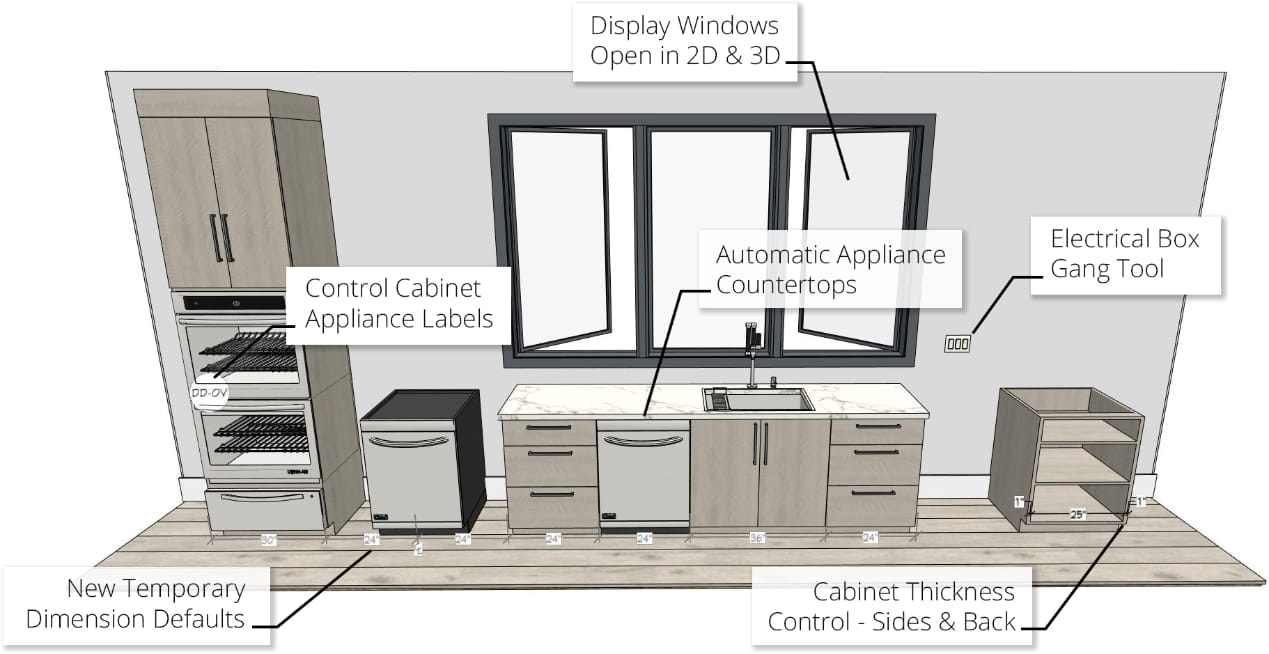
Place Multiple Appliances in a cabinetAdd an oven and a warming drawer to the same cabinet; adjust or replace the appliance type by editing it in the Cabinet Specification dialog.
Multiple Door and Drawer styles per cabinetAssign different door or drawer styles to a single cabinet; wall cabinets with glass doors on top; base drawer bases with slab and panel drawers.
Double False Drawer item typeShow double-false drawers for sink base cabinets


Doors & Windows
- Adjust the Hinge/Swing Amount for Bi-fold doors.
Window and Door Casings Display in Plan ViewDisplay or hide interior and exterior casings using the “Casings, Interior” and “Casings, Exterior” layers
Improved Window Display in Plan ViewMore accurate display of window sill, frame size, and mullions in Plan view. Better representation of multi-pane windows in Plan view.
Automatic Frame DepthSet window frame depth to automatically fit into wall.
Lintel and Sill ControlSeparately display Lintels or Sills for windows.- Improved smoothing of arched Windows, Doors, and Doorways


CAD Tools
Solid Pyramid ObjectPyramid can also be truncated to form a pedestal shape.


Layers
Control Placing Objects on Hidden and Locked LayersAbility to override the placement of objects on layers that are turned Off or that are hidden.

Dimensions
Running Dimension ToolDraw dimension with cumulative values from base item to each dimensioned object in a single dimension string.
Input Accurate Dimensions using a DISTO™ or other Laser Distance MeterUse a Bluetooth or Wireless compatible device to automatically measure a space then input the distances directly into dimension strings.
National Kitchen & Bath Association (NKBA) Automatic DimensionsAutomatically dimension interior rooms and elevations to the National Kitchen and Bath Association dimensioning standards.
Automatic Interior DimensionsAutomatically dimension interior rooms. Set defaults for locating objects.
Automatic Elevation DimensionsUse the Auto Elevation Dimension tool to add dimensions to Elevation and Cross Section views.
Automatic Dimension Parent ToolAll Automatic dimensioning features are located together under the Automatic Dimension parent tool.
Delete Automatic DimensionsUse the Delete Objects tool to delete Automatic Dimensions from a Floor or the Entire Plan. Manually edited or modified dimensions will remain.
Dimension Location Snaps for Furniture ItemsSet dimensions to snap to the centers and/or sides of furniture objects for Manual and Automatic Dimensions.


Library / Catalog
Catalog MigrationCore, Bonus, Manufacturer and User Catalogs from previous installs automatically migrate and update to latest version at install time; User Catalog automatically migrates from previous installs. Use the catalog migration dialog to specify which catalogs to bring forward.
Automatic Catalog UpdatesCheck for updates for catalogs distributed by Chief Architect and automatically update to the latest version.

Text / Annotation / Scripting
Rotate LabelsSelect and rotate labels independently in Plan view. Set default label rotation and offset; set label rotation to be relative or absolute to the rotation of the object.

Import / Export
Import DefaultsShare default settings between plans for a variety of objects, including: Windows, Doors, Cabinets, Schedules, Stairs.
Import PDF filesImport Adobe® PDF file formats into plans, layouts, and CAD Details; retain print resolution and quality when printing final documents with embedded PDF files.


My Cart