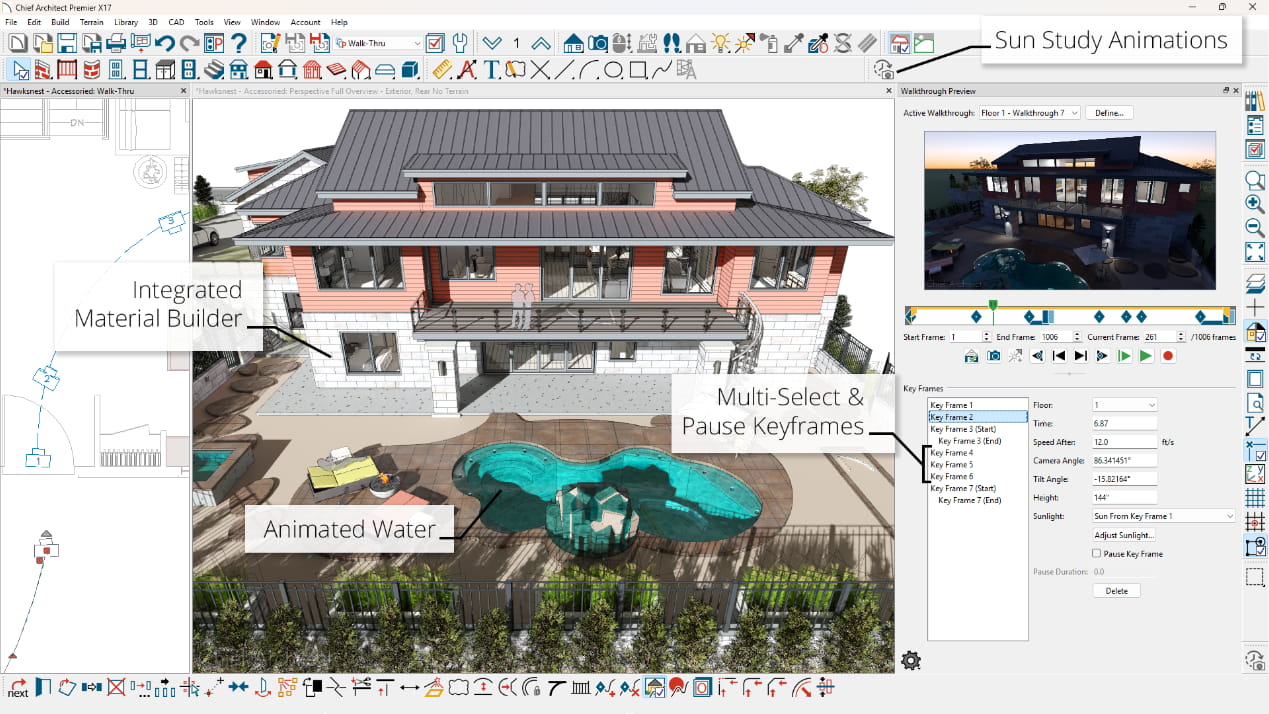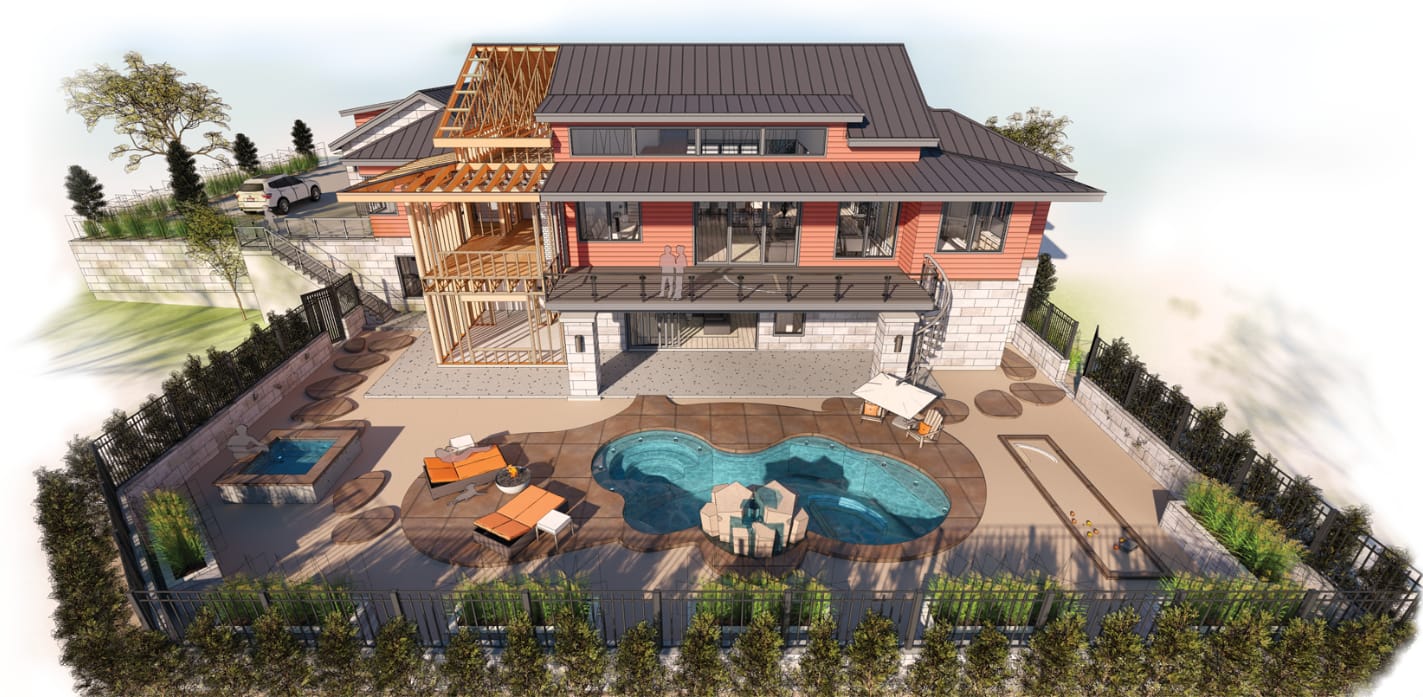
Video: Chief Architect Overview

Product Options

New Add'l Upgrade Renewal
  • Product Learn More

    x

    Select the product you are purchasing. For secondary or multiple licenses, choose Add'l above. Please call for additional information.

  • SSA Learn More

    x

    Support & Software Assurance Offers the best value and includes Free Upgrades, Access to Training Videos, Discounted Training Webinars, Premium Catalog Downloads and Premium Technical Support. Learn More.

  • Media Learn More

    x

    Chief Architect software is provided standard via electronic download and includes an electronic Reference Manual / User's Guide and Software Lock security. A backup / installation DVD is available.

Buy Now

US $1,904.95


View Features by:

Chief Architect Lite X5
New Features

Cross Sections & Elevations

  • Back-Clip Cross Section Distance Control
    Control the cut distance of Back-Clipped Cross Sections with an input value in the dialog
  • Clip Cross-Section Views at Sides
    Turn on clipping for sides of cross-sections views
  • Show Cameras as Callouts
    Easily set up view callouts directly from the camera object. Show Elevation, Section, and Cross-Section cameras as Callouts in Plan Views. Add callout labels and descriptions; callout remain when sent to layout

Walls

  • Shoe Control for Railings
    Control the height off of floor for the bottom rail (shoe) for Railings and Ramp Railings.
  • Control Railing Beam Materials
    Set the material assigned to beams above railings separately from other railing components.
  • Auto Place and Delete Corner Boards and Quoins
    Automatically add trim details to wall corners. Option to delete all corner boards and quoins on a per floor or per plan basis through the Delete Objects dialog

Cabinets

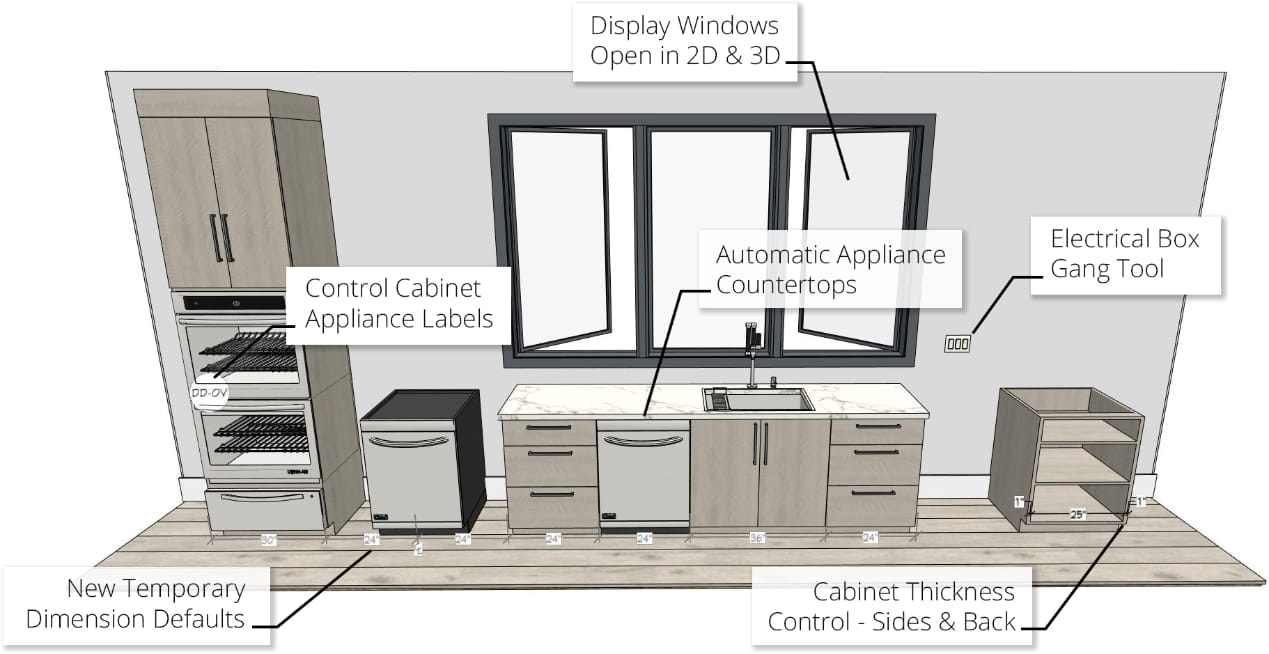
  • Place Multiple Appliances in a cabinet
    Add an oven and a warming drawer to the same cabinet; adjust or replace the appliance type by editing it in the Cabinet Specification dialog.
  • Multiple Door and Drawer styles per cabinet
    Assign different door or drawer styles to a single cabinet; wall cabinets with glass doors on top; base drawer bases with slab and panel drawers.
  • Double False Drawer item type
    Show double-false drawers for sink base cabinets

Doors & Windows

  • Adjust the Hinge/Swing Amount for Bi-fold doors.
  • Window and Door Casings Display in Plan View
    Display or hide interior and exterior casings using the “Casings, Interior” and “Casings, Exterior” layers
  • Improved Window Display in Plan View
    More accurate display of window sill, frame size, and mullions in Plan view. Better representation of multi-pane windows in Plan view.
  • Automatic Frame Depth
    Set window frame depth to automatically fit into wall.
  • Lintel and Sill Control
    Separately display Lintels or Sills for windows.
  • Improved smoothing of arched Windows, Doors, and Doorways

Roofs & Ceilings

  • Actual and Projected Area of Roof Planes
    Find macros and references to both the Actual and the Projected square footage of Roof Planes in the roof dialog’s Polyline tab
  • Control Rafter Spacing per Roof Plane
    Specify rafter spacing values for individual roof planes in a design.
  • Ridge Caps
    Automatically generate Ridge Caps on roofs; turn ridge caps on/off on a per roof basis; assign custom ridge cap profiles.

    * Non-Editable Ridge Caps

  • Dormer Overhang Controls
    Separately control the eave and gable overhang distance for automatic dormers

Foundations

  • Display cutout indicators for Garage Doors in foundation stem walls and curbing
    Choose to show or hide foundation cutouts in Plan view through the window or door’s dialog
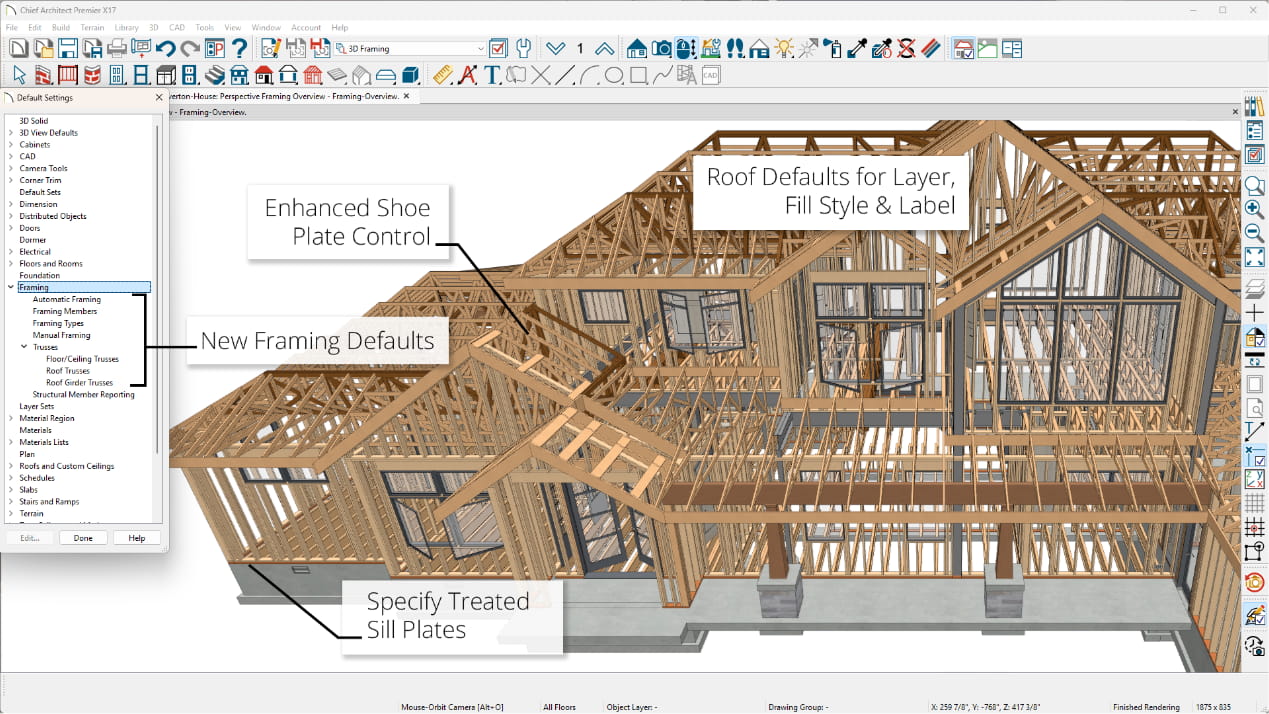
  • Treated Bottom Plates
    Any wall over concrete foundation or flooring automatically generates a treated bottom plate.
  • Slab Footing Offset Default
    Specify a default offset distances for footings under slab foundations

Layers

  • Control Placing Objects on Hidden and Locked Layers
    Ability to override the placement of objects on layers that are turned Off or that are hidden.

Dimensions

  • Running Dimension Tool
    Draw dimension with cumulative values from base item to each dimensioned object in a single dimension string.
  • Input Accurate Dimensions using a DISTO™ or other Laser Distance Meter
    Use a Bluetooth or Wireless compatible device to automatically measure a space then input the distances directly into dimension strings.
  • Automatic Interior Dimensions
    Automatically dimension interior rooms. Set defaults for locating objects.
  • Delete Automatic Dimensions
    Use the Delete Objects tool to delete Automatic Dimensions from a Floor or the Entire Plan. Manually edited or modified dimensions will remain.
  • Dimension Location Snaps for Furniture Items
    Set dimensions to snap to the centers and/or sides of furniture objects for Manual and Automatic Dimensions.

Text / Annotation / Scripting

  • Rotate Labels
    Select and rotate labels independently in Plan view. Set default label rotation and offset; set label rotation to be relative or absolute to the rotation of the object.