I need to manually modify deck framing that Chief Architect generated in my plan. What are my options?
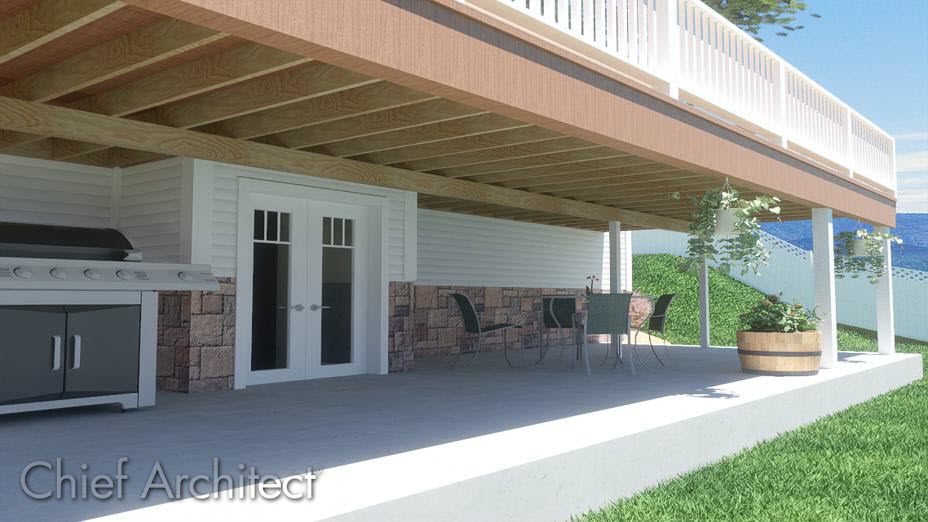
When a room is defined as a Deck in Chief Architect, framing is generated automatically. This is a fast way to generate posts, beams, joists and planking, but sometimes manual modifications may still need to be made.
By default, the various deck framing layers will not be displayed in plan view. Before making adjustments to your deck framing, you will want to enable the display of the various "Framing, Deck..." layers. To learn more about controlling layers, please see the Related Articles section below.
We first recommend using the automatic deck framing settings to reduce the amount of manual modifications needed. For more information about how to customize the automatic deck planking and framing, see KB-00794: Customizing Deck Planking and Framing Automatically.
In Chief Architect X16, the ability to control the count and position of beams, the post to beam alignment, and the plank blocking under border planks using automatic deck framing were introduced. To learn more about these features, please see the Related Articles section below.
In this article, we will cover the following topics for manual modification:
Note: Chief Architect is not an engineering program and will not calculate loads or other important structural considerations. Always have your designs approved by a licensed engineer before building.
 tool, click in an empty space in the Deck room to select it, then click the Open Object
  edit tool.
Note: Grayed out options on this panel indicate that the Room Type is set to something other than a Deck. For framing to generate, define the room as a Deck, click OK, then open the room back up to specification to disable the setting mentioned in this step.
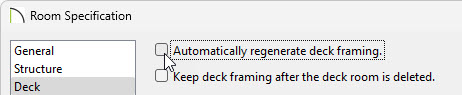
tool.
Hold down the Shift key on your keyboard and click on another framing member to add it to the selection set. For more information on group selecting objects, please see the Related Articles section below.
edit tool.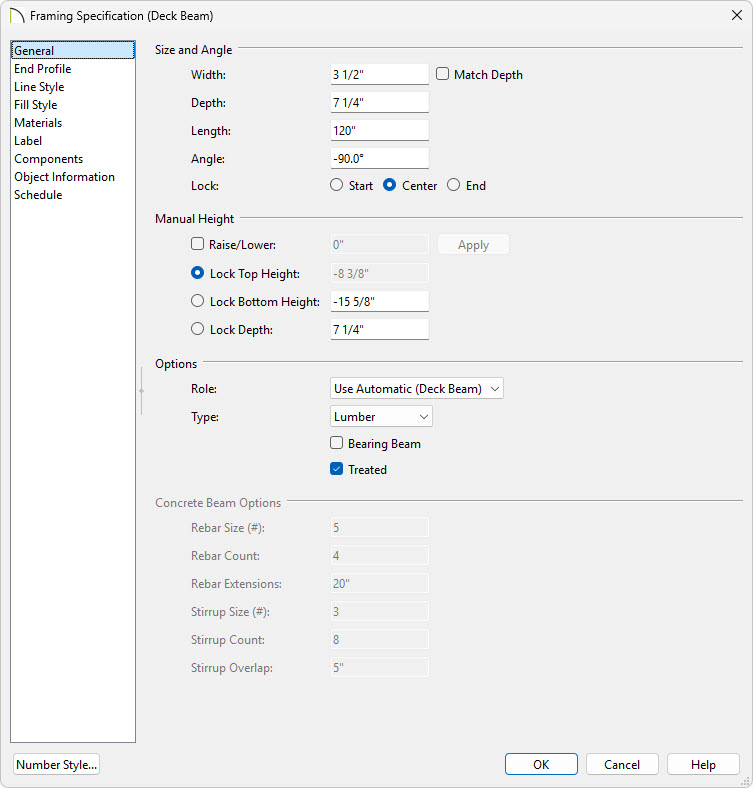
Note: For more information on the options located on this panel, click the Help button at the bottom of the dialog to open your software's Help documentation.
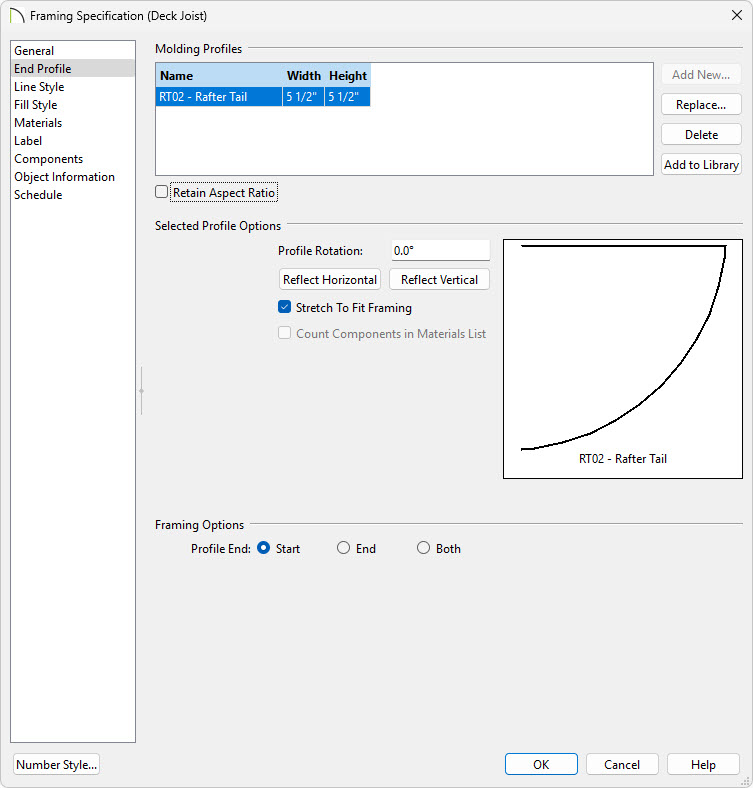
Note: For more information on the options located on this panel, click the Help button at the bottom of the dialog to open your software's Help documentation.
tool.
Hold down the Shift key on your keyboard and click on another framing member to add it to the selection set. For more information on group selecting objects, please see the Related Articles section below.
 and Extend Object(s)
  edit tools. Examples of using each of these tools are below. edit tool is used to make the connection. edit tool.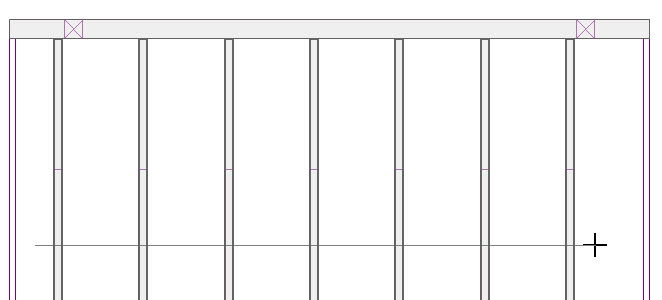
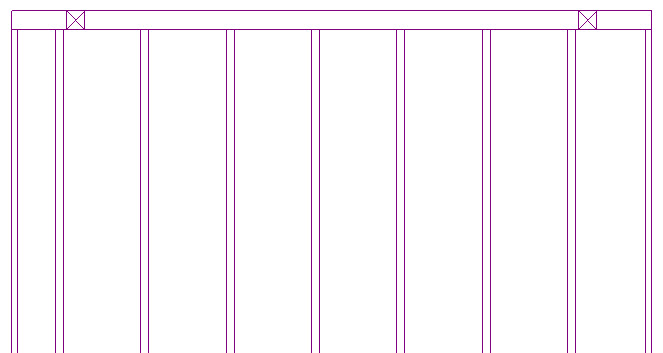 edit tool to mitre multiple deck planks along an edge.
 tool, create a line at the corner where the miter should be. edit tool.

 edit tool will allow you to remove any deck joists/beams that aren't necessary.
  edit tool will allow you to create additional deck joist/beams by copying and pasting.
 edit tool can be used to create copies of selected deck framing objects at set intervals.
 edit tool can be used to first mitre the ends of your deck joists/beams, and can be used again to connect those ends together.
 edit tool can be used to make deck framing meet at a lapped intersection.
Note: For more information on these tools, please consult your software's Help documentation.
 to see the results.
tool, select any posts that need to be edited, then select the Open Object edit tool.
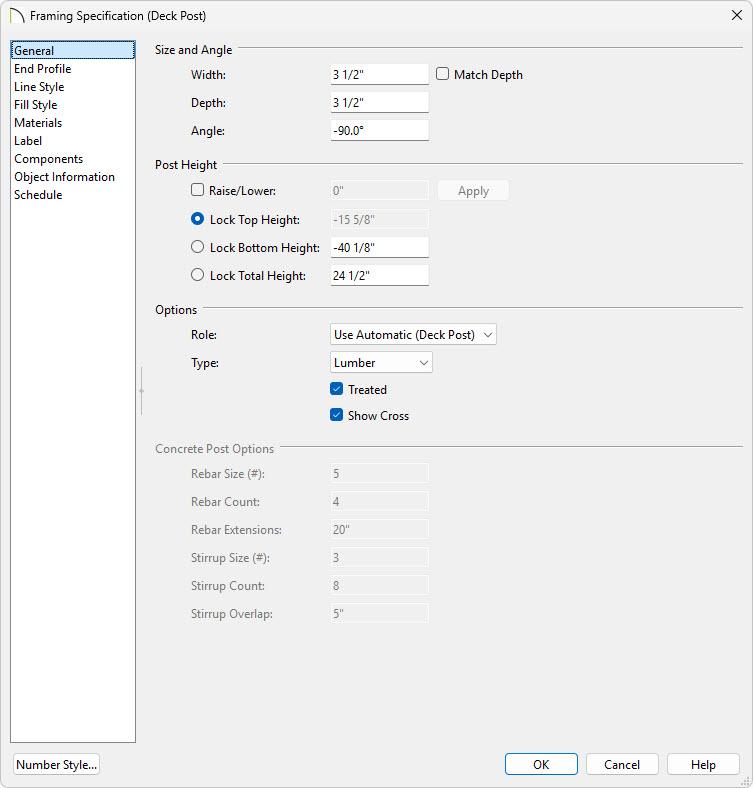 , Multiple Copy , Delete , and other various edit tools to modify your deck post layout.
 , click where the camera view should start, then drag through the deck.

