Chief Architect Help Database - Article Number: 1079
Message: The main layer of existing walls will be moved to accommodate this wall type change.
The information in this article applies to:- Chief Architect X5
- Chief Architect X4
- Chief Architect X3
When I edited the layers of one of my wall types, this message displayed:
Information: The main layer of existing walls will be moved to accommodate this wall type change.
What does it mean?
This warning indicates that you have changed the Main Layer for one of the wall types that exists in your current plan and that walls will be moved to accommodate the change. Double check to make sure this is what you really intended to do, and if not, follow the instructions below to restore the Main Layer.
Recall that in most circumstances, the Main Layer should be specified as the structural layer of the wall, particularly when the wall is a framed type.
The Main Layer determines many things, including:
- Floor and ceiling platforms and automatically built foundation walls normally build to the outer edge of the Main Layer.
- At intersections, walls join at the interior surfaces of their Main Layers.
- Exterior walls on different floors are aligned by the exterior edges of their Main Layers.
- Roof baselines are placed at the outer edge of the Main Layer when roofs are automatically generated.
- Roof base lines and gable/roof lines that are manually drawn snap to the edge of this layer.
- When wall framing is generated, stud depth is based on the thickness of each wall’s Main Layer.
- By default, walls resize about the exterior surface of their Main Layer when their wall type or Wall Type Definition is changed.
- By default, Object Snaps locate the exterior surface of a wall’s Main Layer.
All of this information is reliant on the Main Layer, so creating your wall type definitions accurately before creating your floor plan and specifying the Main Layer correctly is very important.
To restore the Main Layer
- Select Build> Wall> Define Wall Types
. to display the Wall Type Definitions dialog.
- From the drop-down menu, select the Wall Type that you just modified which generated this warning.
- Use the Main Layer radio button to restore the Main Layer back to the Framing (often the thickest) wall layer.
- Click OK.
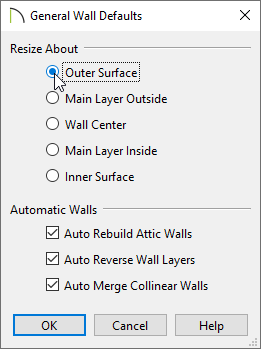
If you want to be able to adjust the Main Layer of your walls without having them move, you first need to adjust your General Wall Defaults, then you can make modifications to the Wall Type Definitions.
To adjust change the Default behavior for resizing walls
- Select Edit> Default Settings
, then click on the plus + sign next to Walls, highlight General Wall and click OK to display the General Wall Defaults.
- Under Resize About, move the radio button to Outer Surface, then click OK.
These radio buttons determine what part of a wall retains its position when its wall type or wall type definition is changed.
The Resize About location is also where any snap points will be located along a wall as it is drawn or connected to other walls, and is where a wall's length is measured. - Now you can go in to your Wall Type Definitions dialog and modify the Main Layer for your wall types without it moving the outside surface of the walls.
Last updated on: Feb 07, 2013
My Cart
