Chief Architect Help Database - Article Number: 1203
How to Create a Custom Sink Hole
The information in this article applies to:- Chief Architect X5
- Chief Architect X4
- Chief Architect X3
I need to do a special, one of a kind, custom countertop hole for a sink I'm placing from my library. How can I create one?
When you use a sink symbol from the library, it will cut its own hole in the countertop when placed in a cabinet. In some instances, you may want to replace this countertop hole with your own.
To create a custom sink hole
- Begin by using the Base Cabinet
tool to place the base cabinet the sink will be placed in and resize it appropriately. In this example, the width is 42".
- Locate the sink you want to use in the Library Browser and place one in your cabinet.
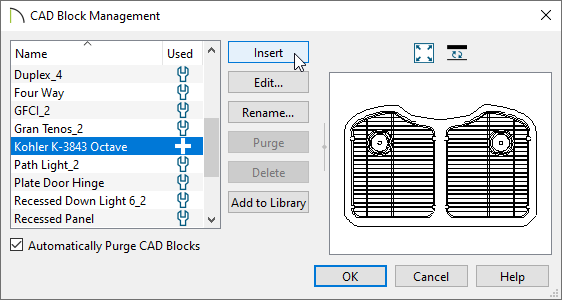
- Next, we need to create a CAD block that will be used for both the 2D representation of this sink in floor plan view and the countertop hole.
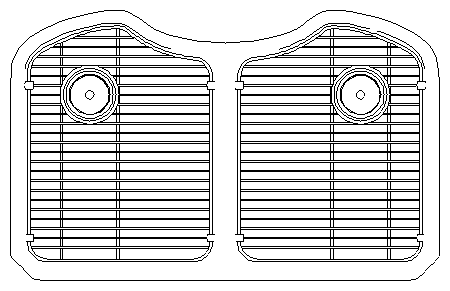
- In this example, the CAD Spline
tool is used to draw the shape over the existing sink to ensure the size is correct.
- In this example, the CAD Spline
- Select the polyline and use the Transform/Replicate Object
edit tool to move the CAD object away from the sink and cabinet.
- In this example, the polyline is moved 48" along the X Delta, which is to the right.
- We need 2 identical copies of this polyline, one for the countertop hole and one for the 2D representation of the sink.
- With the polyline selected, click on the Copy and Paste in Place
edit tool.
- This places a second polyline in the exact same location as the original.
- With the polyline selected, click on the Copy and Paste in Place
- Splines can not be converted to a Countertop Hole, so while the polyline is selected, click on the Convert Spline To Polyline
edit tool.
- With the converted polyline still selected, click the Convert Polyline
edit button.
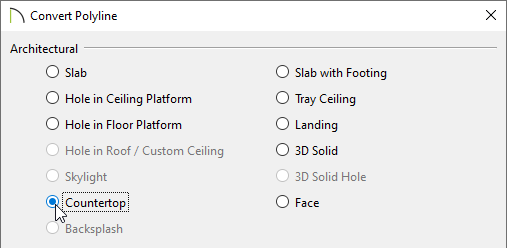
- Select Countertop in the Convert Polyline dialog and click OK.
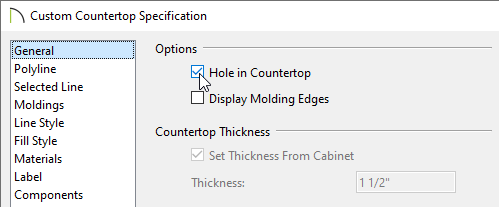
- The Custom Countertop Specification dialog will open.
- Place a check mark beside Hole in Countertop to designate that this polyline will be a hole and click OK.
- Select Countertop in the Convert Polyline dialog and click OK.
- Draw in any additional items you wish to appear in this CAD block when it is used with the sink. In this example, a CAD circle is added to represent the drain.
- Next, all of these objects need to be blocked together.
- Click the Select Objects
button, then hold down the SHIFT key on your keyboard and click and drag a rectangular marquee around your CAD objects.
- With the CAD objects all selected, click the Make CAD Block
edit tool.
- Select the CAD block and click the Open Object
edit button. In the give your CAD block a name. In this example, we've used Custom Sink.
- Click OK
- Click the Select Objects
- Finally, select the sink you have placed in the cabinet.
- When you click to select it the cabinet will select first. Press the TAB key or click the Select Next Object
edit button to move to the sink.
- The Status Bar at the bottom of the program window should indicate that you have a CAD Block Instance selected.
- When you click to select it the cabinet will select first. Press the TAB key or click the Select Next Object
- Click the Open Object
edit button to open the Symbol Specification dialog for the sink.
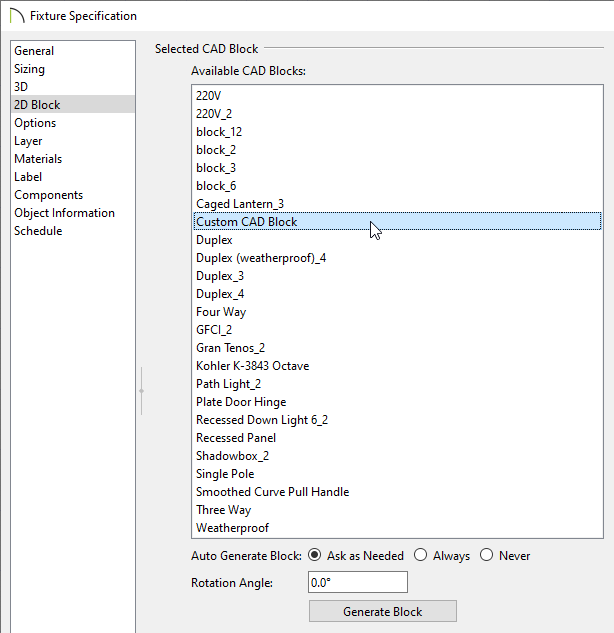
- On the 2D Block tab, in the list of Available Blocks, you will see the new block you just created.
Select it and click OK. This block will now be assigned to the sink.
- On the 2D Block tab, in the list of Available Blocks, you will see the new block you just created.
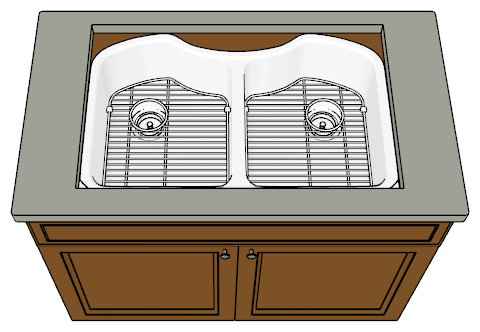
In this example, the selected sink has no fixtures so they have been added from the Library Browser. When you are finished, create a perspective camera view of your new custom sink.
Last updated on: Mar 29, 2013
My Cart