This article also applies to the following legacy products:
Pro | Architectural
DESCRIPTION
I edited a wall type and now receive the following message:
-
"#272010055 - The Main Layers for this wall type are unusually thin. It is recommended that the Main Layers include the wall's structural layer."
What does it mean, and how can I correct my plan so I no longer receive this message?
RESOLUTION
This message may display if you have specified the Main Layer(s) for a wall type to be less than 1" / 25mm thick. Double-check to make sure this is what you really intended to do. If not, follow the instructions below to fix the Main Layer(s).
In most circumstances, the Main Layer(s) should be specified as the structural layer(s) of the wall, and be at least 1" / 25mm thick, particularly when the wall is a framed type.
The Main Layer(s) of a wall are important and determine many things, including:
- Floor and ceiling platforms and automatically built foundation walls normally build to the outer edge of the Main Layer(s).
- At intersections, walls join at the interior surfaces of their Main Layer(s).
- Exterior walls on different floors are aligned by the exterior edges of their Main Layer(s).
- Roof baselines are placed at the outer edge of the Main Layer(s) when roofs are automatically generated.
- Roof base lines and gable/roof lines that are manually drawn snap to the edge of the Main Layer(s).
- When wall framing is generated, stud depth is based on the thickness of each wall’s Main Layer.
- By default, walls resize about the exterior surface of their Main Layer(s) when their wall type or Wall Type Definition is changed.
- By default, Object Snaps locate the exterior surface of a wall’s Main Layer.
All of this information is reliant on the Main Layer(s), so creating your wall type definitions accurately and specifying the Main Layer(s) correctly before creating your floor plan is very important.
To fix the Main Layer(s)
- Navigate to Build> Wall> Define Wall Types
 .
.
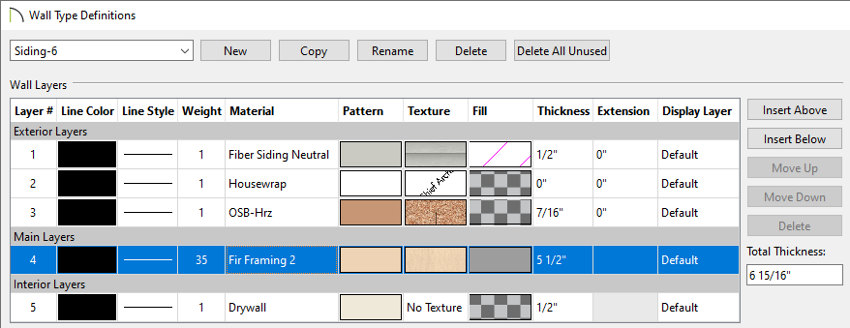
- In the Wall Type Definitions dialog that opens, use the drop-down menu in the top left corner to select the Wall Type that is causing this message to display.
- Ensure that the layers located in the Main Layers section within the Wall Layers table are at least 1" / 25mm thick. If they aren't, double-click in the Thickness cell to change the value.
Alternatively, if the Main Layers section does not contain the proper structural layer(s), it's possible that they got moved to the Exterior or Interior Layers section. If this is the case, use the Move Up and Move Down buttons to restore the structural layer(s) so that they are contained in the Main Layers section.
- Click OK to close the dialog and apply the changes.
