How do I rotate the pattern or texture associated with a material?

In Chief Architect, materials display a pattern in Vector Views and a texture in most other rendering techniques, including Standard and Physically Based. Both the pattern and texture associated with a material can be rotated to your liking by accessing the Define Material dialog. Alternatively, in X17 and newer versions you can use the Interactive Material Editor to edit a material's texture in real time.
 .
.
Note: If the material you're wanting to rotate is not located in the plan that's currently open, you will instead want to access the Library Browser and search for the material you want to rotate. With the correct material selected, right-click on it, select Copy, then Paste it into your User Catalog. With the copied material in the User Catalog, right-click on it one last time and select Open Object.
On a Mac, hold down the Control key while clicking to initiate a right-click command. More information about right-click commands on Apple input devices can be found in the following Apple resource: Right-click on Mac.

To learn more about the various settings listed here, select the Help button at the bottom of the dialog to open your program's documentation, or see the Related Articles section below.

 or by opening the object's specification dialog and accessing the Materials panel.
*Applies to X17 and newer versions.
 and clicking and dragging in the area you'd like to create 3D view.
 .
.Note: The Interactive Material Editor is only available in Rendering Techniques that support material textures. Although not supported in views that use material patterns, patterns are nevertheless affected by the Interactive Material Editor provided that the material has Keep Pattern/Texture in Sync checked in the Define Material dialog.
 , Object
  , Room
  , or Floor Mode
  . If you'd like to edit the material everywhere it's used, select Plan Mode
  ., Object , Room , or Floor Mode you will receive the Create Copy of Material dialog asking if you want to Create a Copy of the Material or Edit the Source Material. If choosing to create a copy, fill out the Copy Name section and click OK to add the new material to your Plan Materials . Choosing Edit the Source Material will not create a copy, and will instead edit the existing material in your Plan Materials .
For more information on the various scoping modes, please see the "Using the Different Material Painter Modes" resource in the Related Articles section below or access your software's Help documentation.
tool active, click on the material you'd like to adjust and the following symbol will display.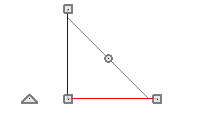
Press the Tab key while dragging this edit handle to open the Enter Texture Angle dialog where you can enter a precise value.
For more information regarding the various edit handles that display along this symbol, please access your software's Help documentation.
Note: If your cursor displays a red circle icon with a slash when hovering over a material with the Interactive Material Builder tool, the material you're attempting to adjust does not have a texture applied to it, and cannot be edited.
