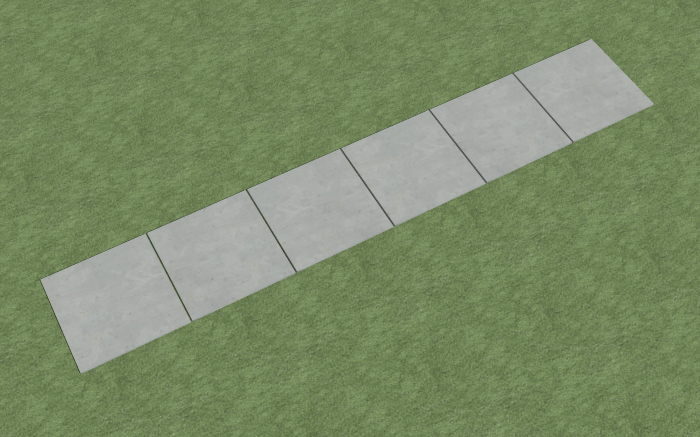
When I draw a sidewalk using the Sidewalk tool, it is created as a continuous slab. I would like to know how to create a sidewalk with expansion joints.
To model expansion joints in a sidewalk, create a single section of sidewalk, then replicate it with small gaps in between each section.
 from the menu to create a terrain perimeter in your plan.
 from the menu, then click-and-drag to draw the first section of sidewalk.
 edit button to open the Terrain Path Specification dialog. The Width and Thickness can be adjusted on the General panel, while the Length can be adjusted on the Selected Line panel.
 or Manual Dimensions
  .
. edit button.
 secondary edit button to open the Multiple Copy dialog, specify the Primary Offset value for General Objects, then click OK.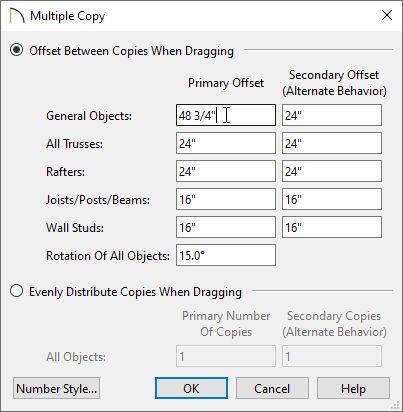
 cursor displays, then click-and-drag in your desired direction to make copies.
 view to see the results.