Chief Architect Help Database - Article Number: 347
How to Save a View of my Plan as a Picture
The information in this article applies to:- Chief Architect X5
- Chief Architect X4
- Chief Architect X3
- Chief Architect X2
- Chief Architect X1
How do I save a 2D or 3D view of my plan as a graphic, or picture file, such as a .bmp, .jpg or .png?
In Chief Architect, any view can be exported out of the program and saved as a graphic file that can be opened in a variety of other applications.
To export a picture
- Open the Chief Architect plan in which you would like to save a view as a picture, then either open the desired view window or create the needed view using the 3D or CAD Tools.
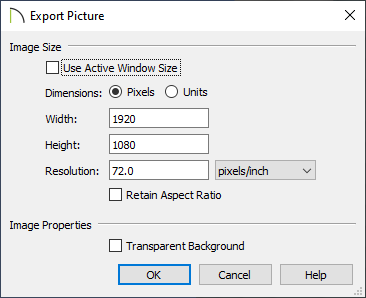
- With the desired view active, select File> Export> Picture (BMP,JPG,PNG)
from the menu.
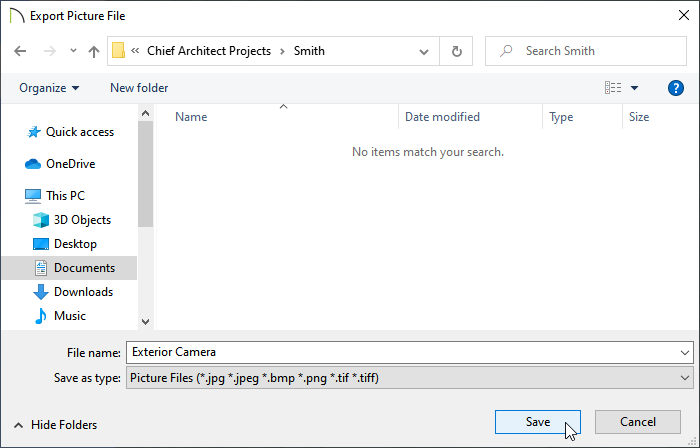
- In the Export Picture File dialog:
- Click the Save in drop-down arrow and browse to the location on your computer where you would like to save your graphic file.
- In the File name field, type a short, descriptive name for your graphic file.
- Click the Save as type drop-down list and select a file format for your picture.
Note: The choices that are available vary depending on program version.
- Click the Save button to close the dialog and save your graphic file as specified.
- Click the Save in drop-down arrow and browse to the location on your computer where you would like to save your graphic file.
When other graphics file types, such as .jpg files, are resized, we often see pixelation becaused the images are pixel-based. This, however, does not occur with Windows Metafiles, which are a type of vector graphics file that are very useful in situations where zooming in on the image is necessary. To learn how to export a view as a Windows Metafile, see article 611 in this database: How to create a Windows Metafile.
Last updated on: Mar 28, 2013
My Cart