Chief Architect Help Database - Article Number:  4

How to Blend Colors with Materials

The information in this article applies to:
  • Chief Architect X5
  • Chief Architect X4
  • Chief Architect X3
  • Chief Architect X2
QUESTION

I want to be able to apply a solid color to a surface displaying a pattern, or texture, and blend the two. How do I do that?

ANSWER

Instead of using the Material Painter to replace a material with a new one, we can use it with the Blend Colors With Materials feature to blend a color with a textured material.


To Blend Colors with Materials

  1. Create a 3D view of your plan.


  2. Click on the 3D menu, go down to Materials> Material Painter and select the Material Painter option.


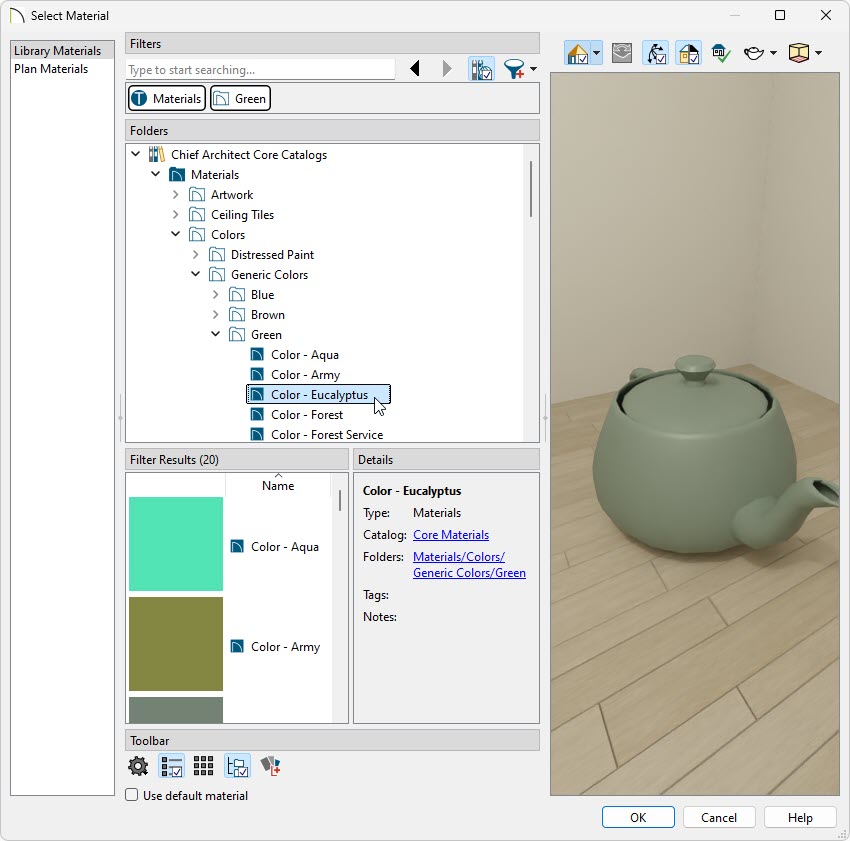
  3. Select a solid color material from the Select Library Object dialog.


  4. Select a Material Painter Mode from the edit toolbar, which displays at the bottom of the program window when the Material Painter is enabled.


  5. Click the Blend Colors With Textures edit button to turn this feature on or off, depending on your needs.


    Note: When both the Material Painter and the Blend Colors With Textures are active, the cursor displays a paint roller icon . However, if only the Material Painter is active, and the Blend Colors With Textures is not, the cursor displays a spray can icon .


  6. Click on the object to blend the selected color with the current texture. The result is a new material, with the textured appearance of the initial material, and the color that you have selected.


  7. If either the Component or Object Mode is active, you can continue to click on surfaces to apply the selected material. When you are finished, select a different tool.

    Remember: When you apply a material to a wall using the Material Painter, the material is applied to the entire room if the Select Room Before Wall in 3D is enabled in the Architectural section of the Preferences dialog.


Last updated on: Mar 28, 2013


The Chief Architect support team has compiled a list of articles with common questions and answers.


Find answers on ChiefTalk

Answers to many how-to and technical questions can be found 24 hours a day, 7 days a week on our online forum, www.ChiefTalk.com. ChiefTalk is visited not only by our software users, but also by members of our training, support, and engineering teams who are well-versed in using the software and are happy to help you. On ChiefTalk, you can discover tools and techniques to bring your design ideas to life.