When generating a 3D overview of my plan, some of my walls do not display, and are not set to invisible, or the the inner layers of my walls are showing. Why is this occurring?
The most common reason for a wall to not generate correctly in 3D views, or if part of the exterior layer of the wall appears to be missing, is that a roof or ceiling plane is cutting into the wall preventing it from building upward.
 in on it.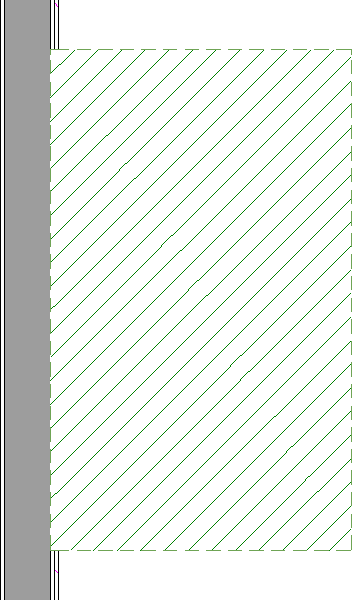
 tool, select the edge of the roof plane that touches the wall.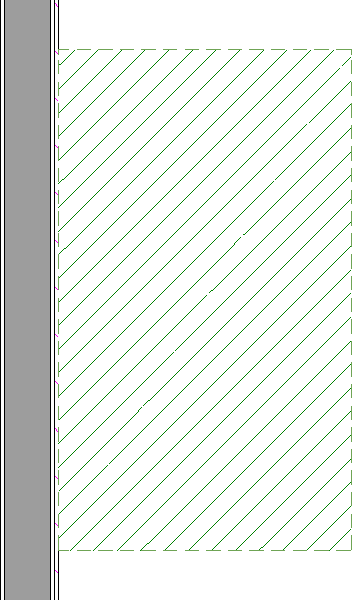
If the roof plane is on a different floor than the wall it cuts in to, then you may want to select the roof plane and use the Display on Floor Above edit tool to temporarily show this roof plane on the same floor as the wall before editing. Once it no longer cuts in to the wall, you can use the Display on Floor Below edit tool to display it back on the original floor.
 view of your model. Your missing wall should now display correctly.
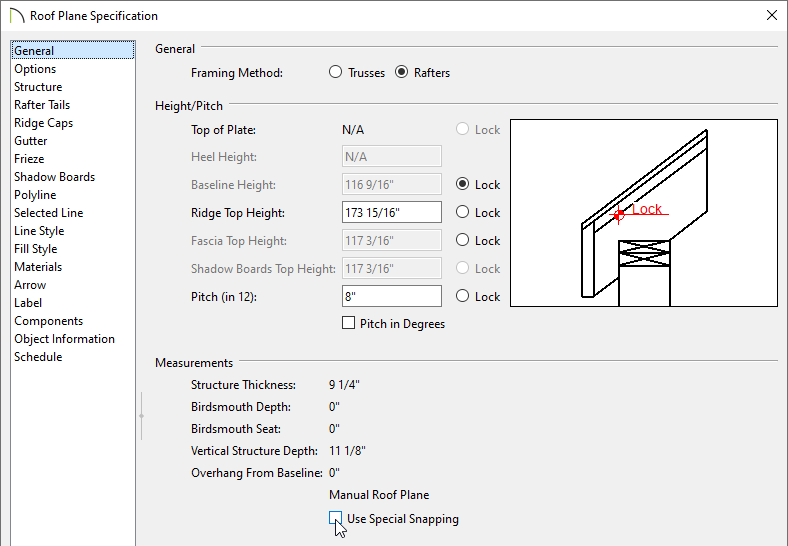
 the Roof Plane Specification dialog for the problem roof plane and on the General panel, uncheck the Use Special Snapping box, then click OK.