How can I create decorative exposed roof trusses in a room with a cathedral ceiling?
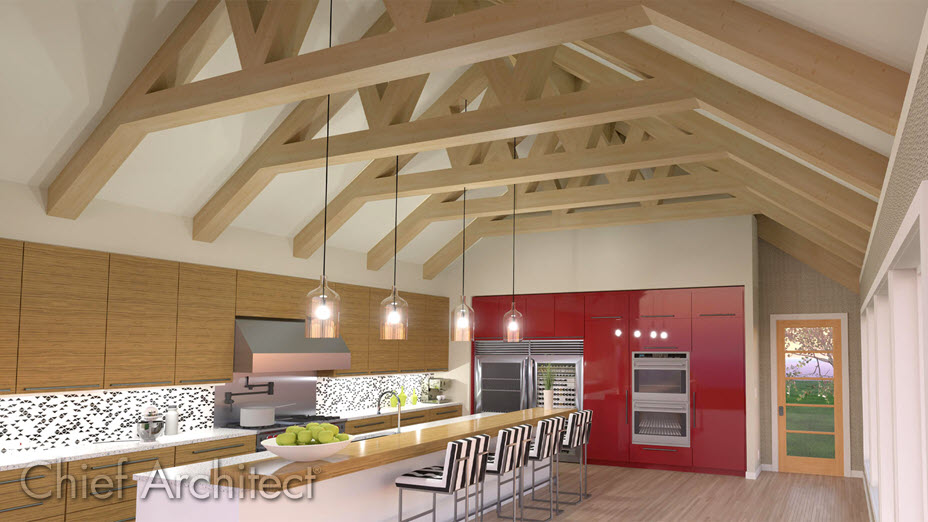
The recommended process for creating decorative, or faux, exposed trusses involves removing the flat ceiling from the area, generating a single truss manually, adjusting the shape,or envelope, of the truss to your liking, then duplicating the modified truss across the room.
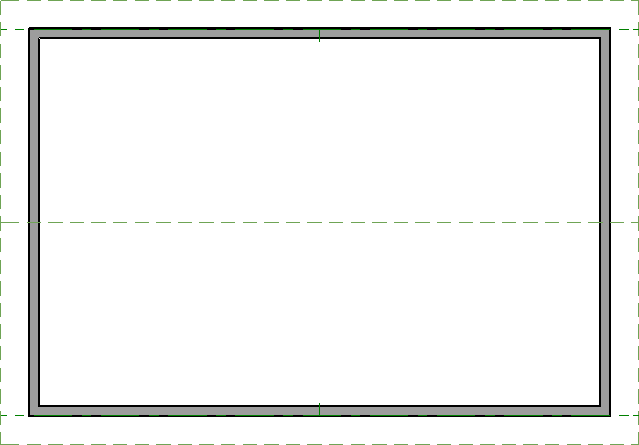
 tool, click in the center of the room that will contain the exposed trusses, then click the Open Object
  edit button.
 , then click and drag in your design to create a single truss.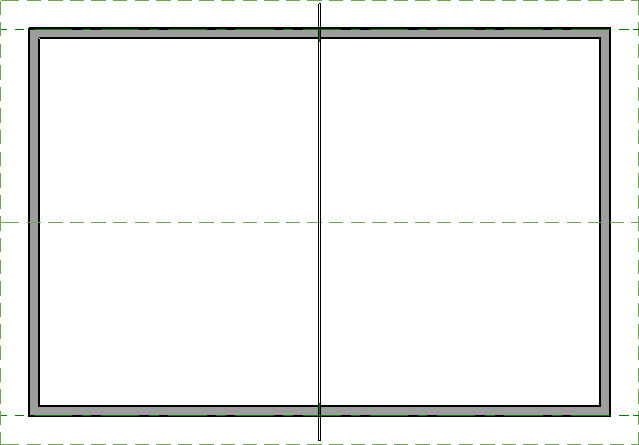
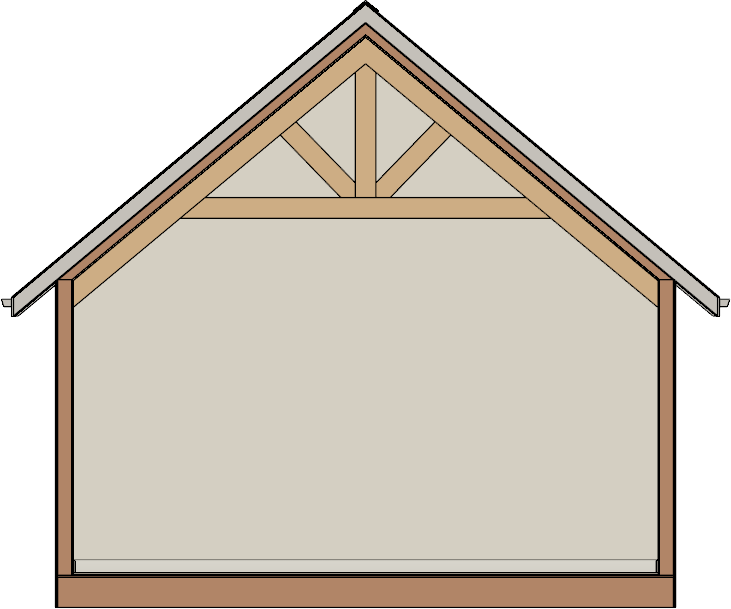
 , then click and drag towards the newly created truss to generate a cross section view.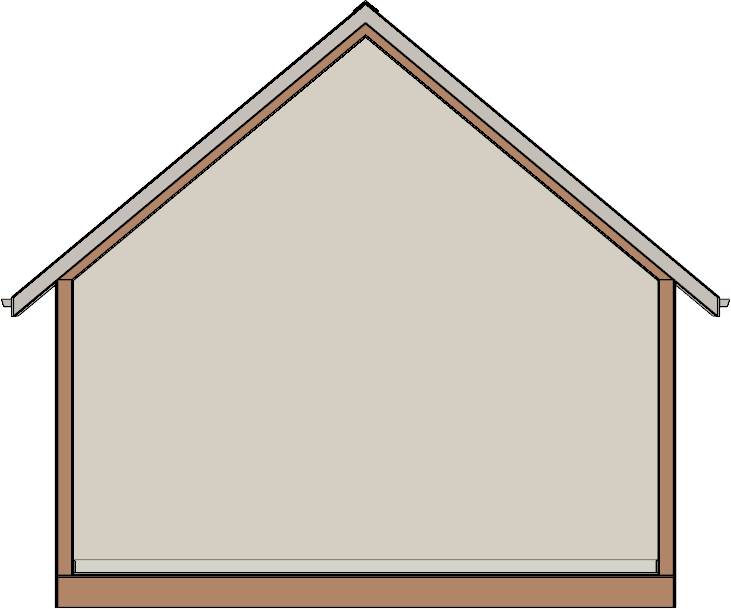
 or access the Active Layer Display Options*
  side window, then turn on the display of the "Framing, Roof Trusses" layer.
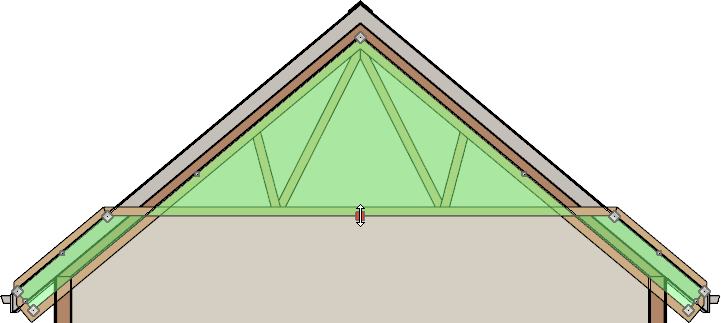
 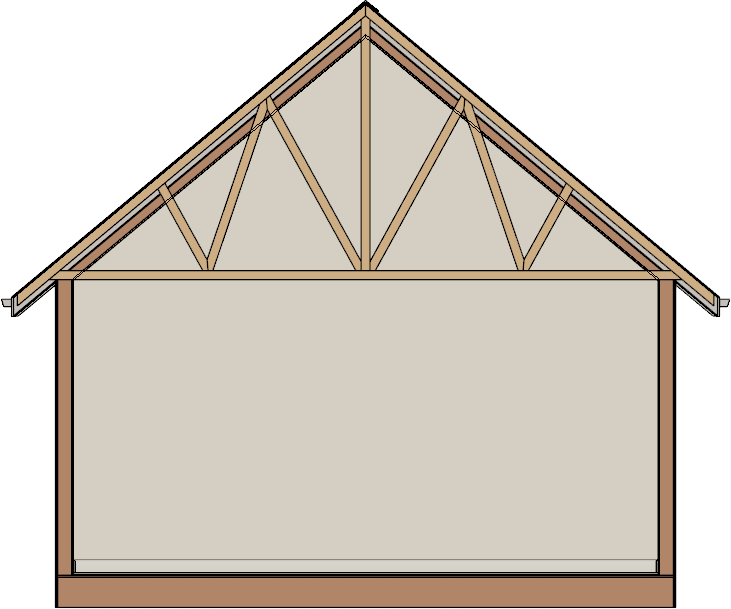 tool, click on one of the top chords of the truss to select main truss envelope, then use the Reshape edit handle along the chord's edge to adjust its position so it sits just under the roof surface layer.
  to be a bright green color. This is not necessary; however, you may find it helpful to better distinguish what component is selected when multiple objects are located in the same space.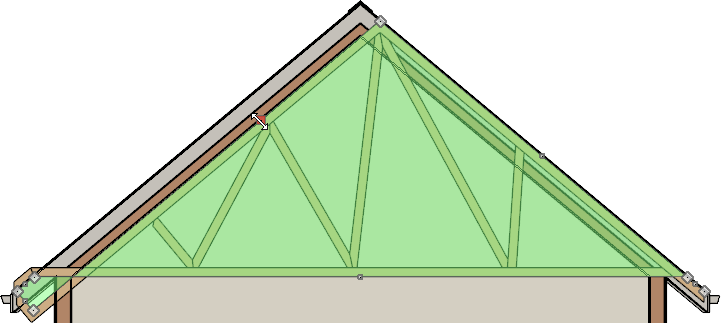
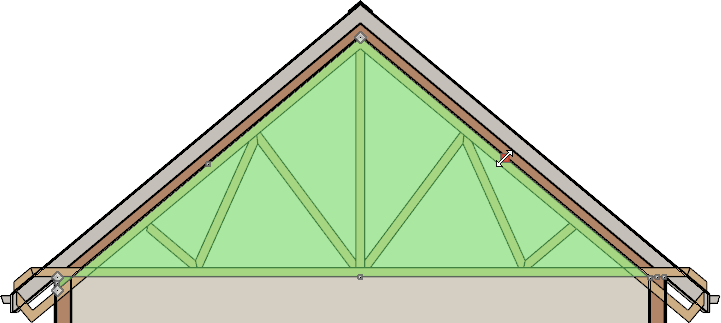
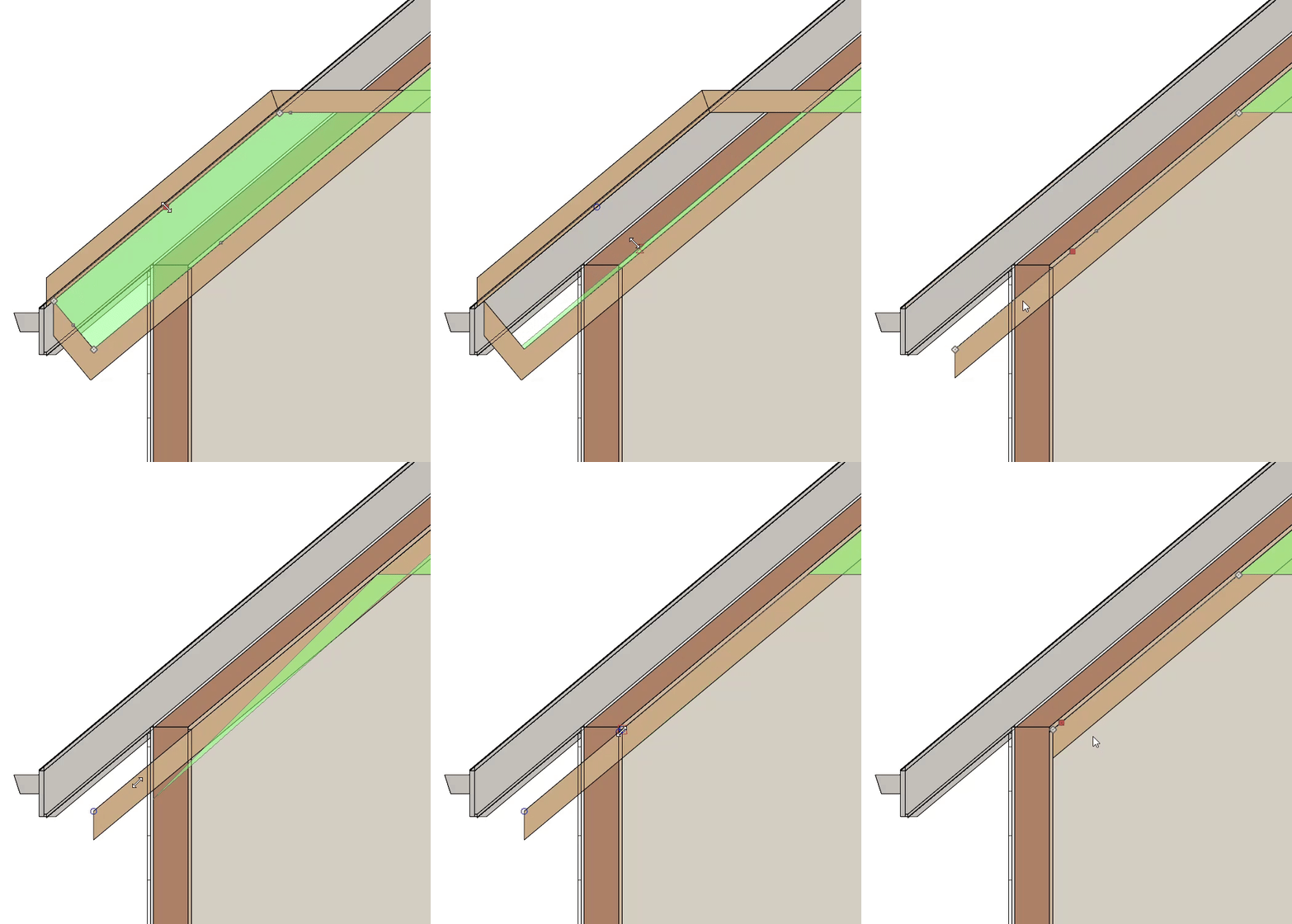
In Chief Architect Premier, you can press the Tab key on your keyboard while dragging an edit handle to open the Enter Coordinates dialog, where the Y value can be changed to your liking; this allows you to precisely move the bottom chord/edge a specified distance.
Note: If you're wanting the bottom chord of the truss to consist of two separate framing members, of which are both sloped, you can place a break point at the center of the bottom chord, then reshape the bottom chord using the newly generated edit handle. For more information on adding breaks, see Video # 303: Using the Break Tool or refer to your program's documentation.
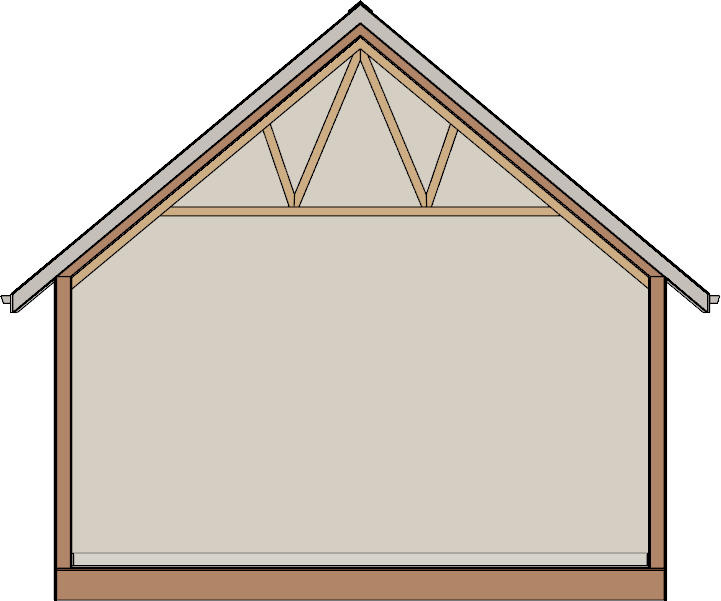 it, Open it up to specification, define the Top Chord, Bottom Chord, Webbing, Thickness, and other settings to your liking, check the Force Truss Rebuild box, then click OK.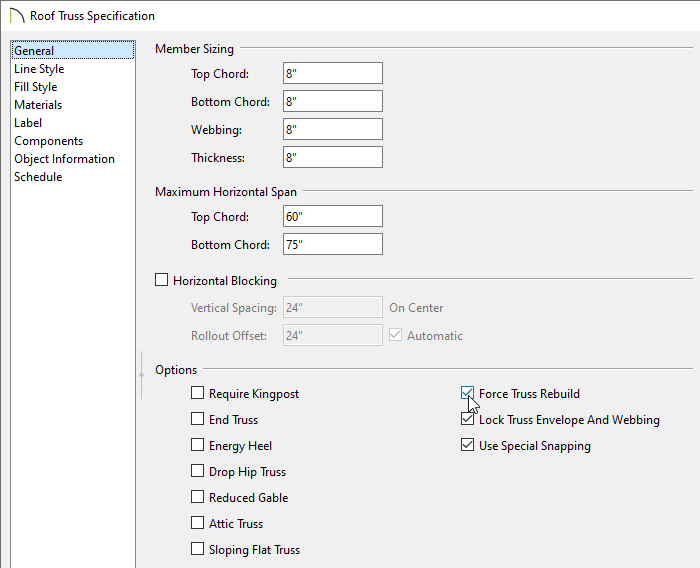
 are toggled on, Select the truss, then use one of the temporary dimensions to move the truss precisely towards one end of the structure.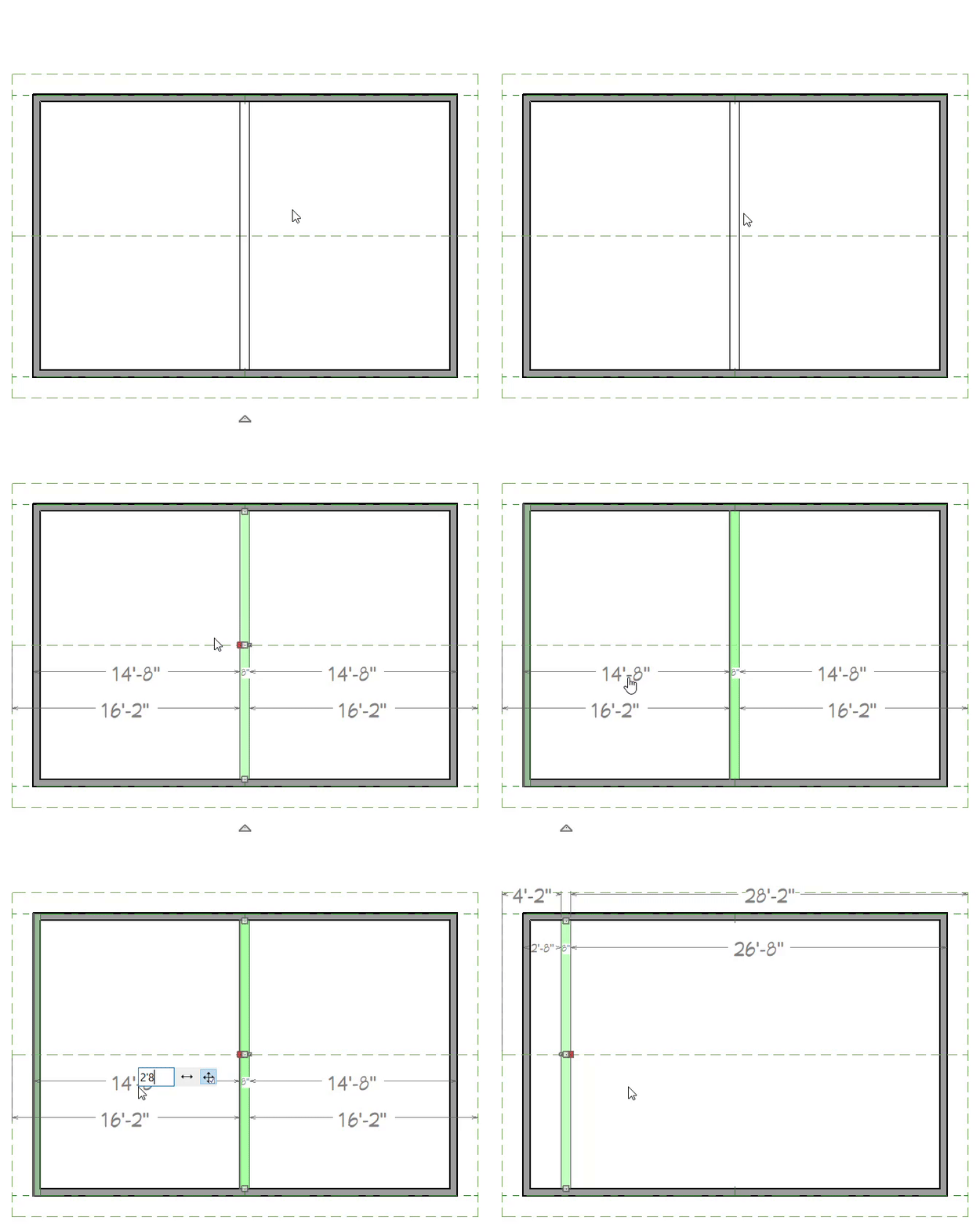
 edit button, click on the Multiple Copy Interval
  secondary edit button, specify the desired Primary Offset value for All Trusses, then click OK.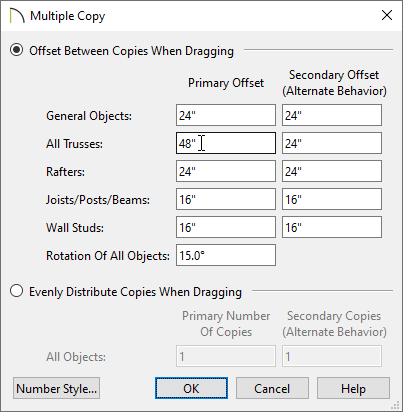
 edit handle on the truss until you see the Multiple Copy
  cursor display, then click and drag across the structure. As you drag, new trusses will be created at regular intervals. Release the mouse button to complete the command.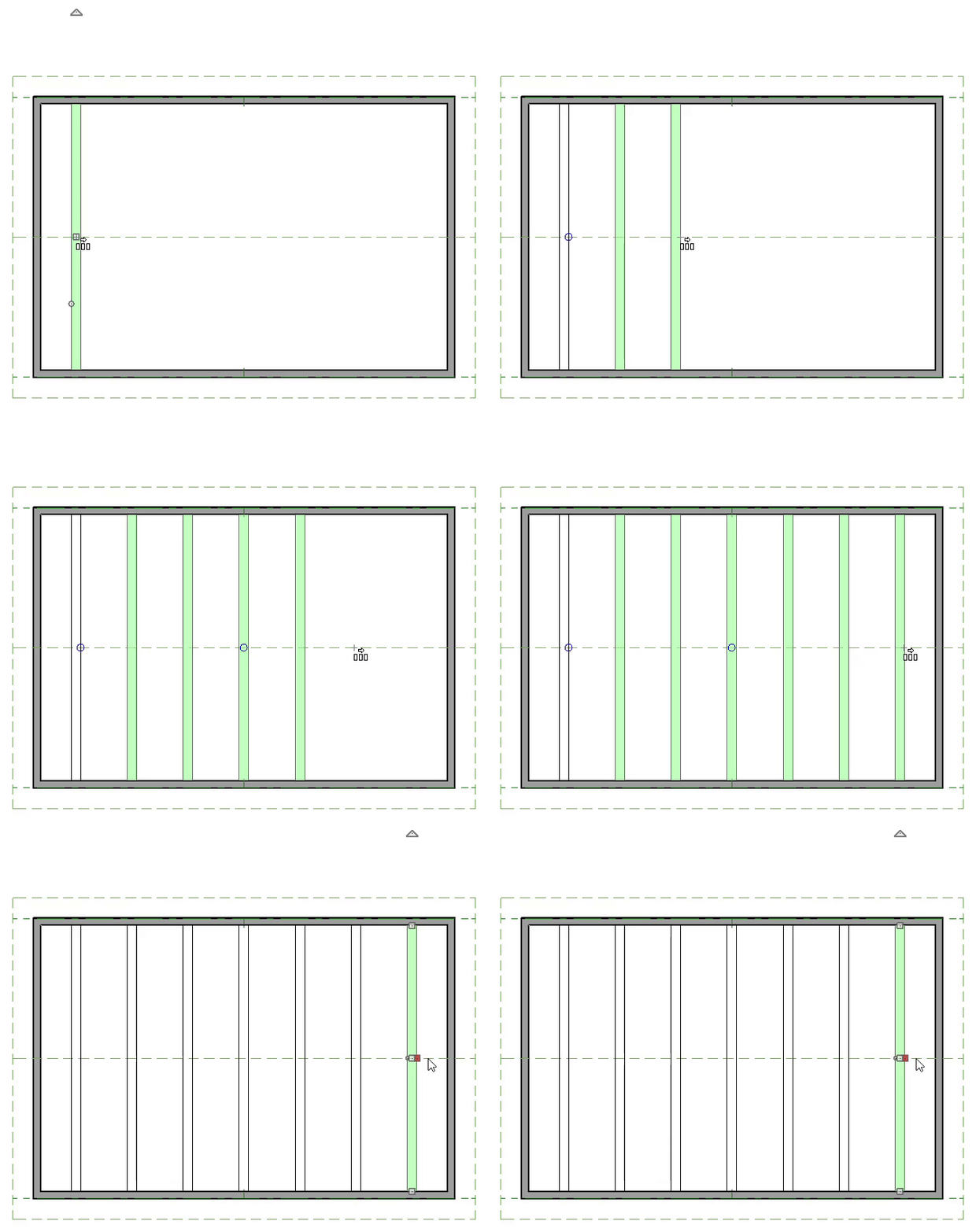
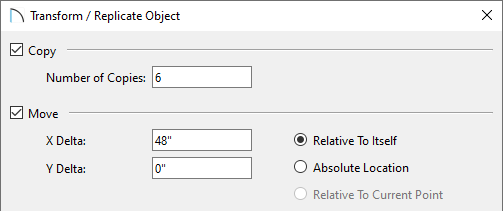
 edit button, and in the dialog that displays, check the Copy box, specify a desired Number of Copies, check the Move box, set the X Delta to an offset value that you want to use, then click OK.