I need to create a basic table of text notes contained in a grid, such as for a legend. How can I accomplish this in Chief Architect?
There are a number of ways to approximate the look of tables in Chief Architect, including using the CAD tools to create boxes, lines, and Rich Text. In this article, however, we will discuss creating a basic table using the Text tool.
 , then click in plan to open the Text Specification dialog.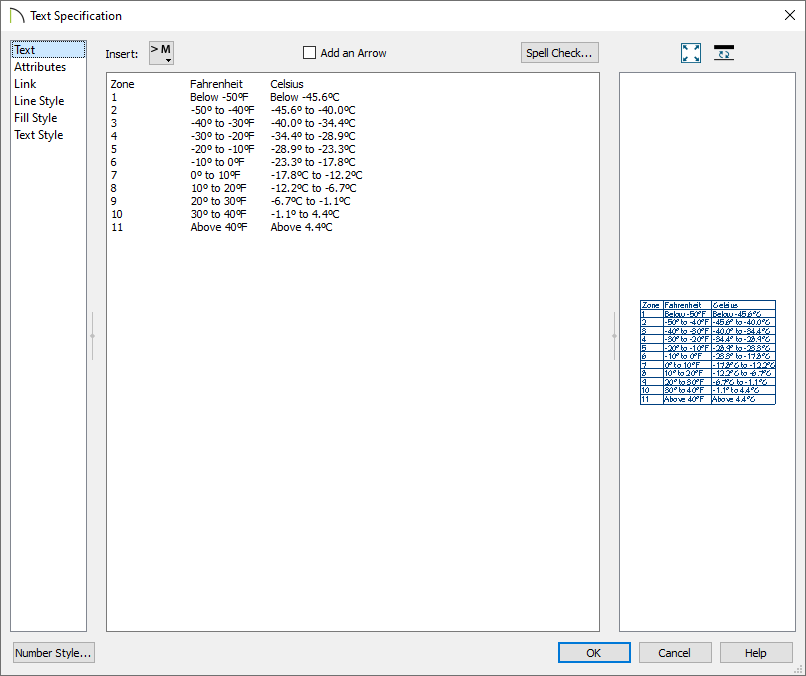
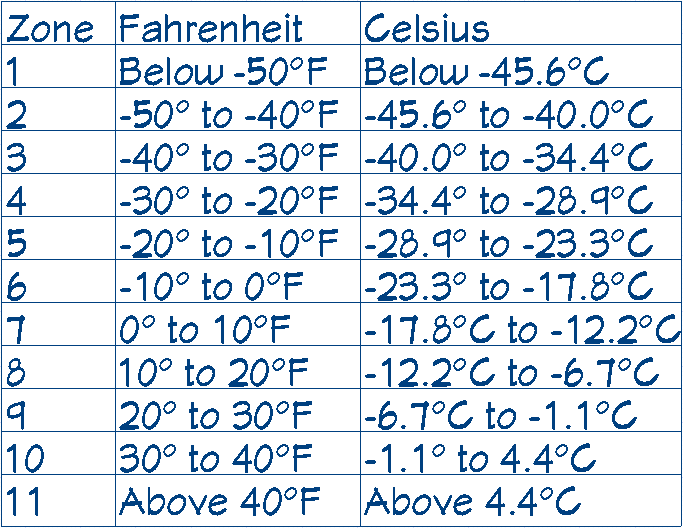
 edit button.
 edit button, then click the Add to Library edit button.
If you are creating a custom legend key, or want to modify a legend that exists in the library, such as the Electrical Legend or Plumbing Symbols, then you will likely also want to place CAD blocks representing the 3D objects.
 .
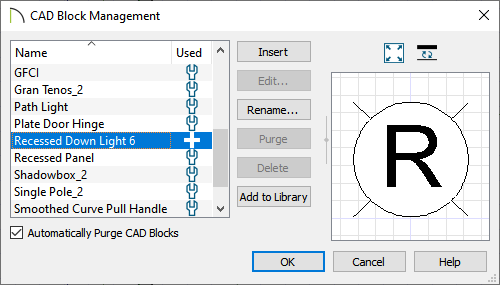
.
 edit button to open a separate window. Notice that the CAD block is no longer a single, non-editable unit. Instead, you will be able to select and modify each individual CAD line, polyline, and text object.
 edit button instead. Do note that a separate window will not open when selecting this tool.
It is possible to nest a CAD block within another CAD block. If, after clicking Edit CAD Block or Explode CAD Block tool, you find an object that you cannot edit as expected, click on it to select and then check the Edit toolbar for the Explode CAD Block edit button. If you find this button, click on it and continue editing.
 in X13 and newer versions. You may be prompted with a Question dialog asking if you'd like to replace all instances of the block with the copy you have modified. Choose your desired option to proceed.
 tool, then use the Make CAD Block edit button to block it back together. edit button.