Chief Architect Help Database - Article Number:  443

How to Change an Existing Wall's Type

The information in this article applies to:
  • Chief Architect X5
  • Chief Architect X4
  • Chief Architect X3
  • Chief Architect X2
  • Chief Architect X1
QUESTION

I have already placed a wall in my plan, but now realize I used the wrong wall tool or wall type.  Do I have to delete and redraw the wall, or is there an easy way to change the wall type?

ANSWER

To change an individual wall

  1. First, launch Chief Architect and Open  the plan that has the wall that you want to modify.


  2. Next, using the Select Objects  tool, select the wall.


  3. Click on the Open Object  edit button to display the Wall Specification dialog.


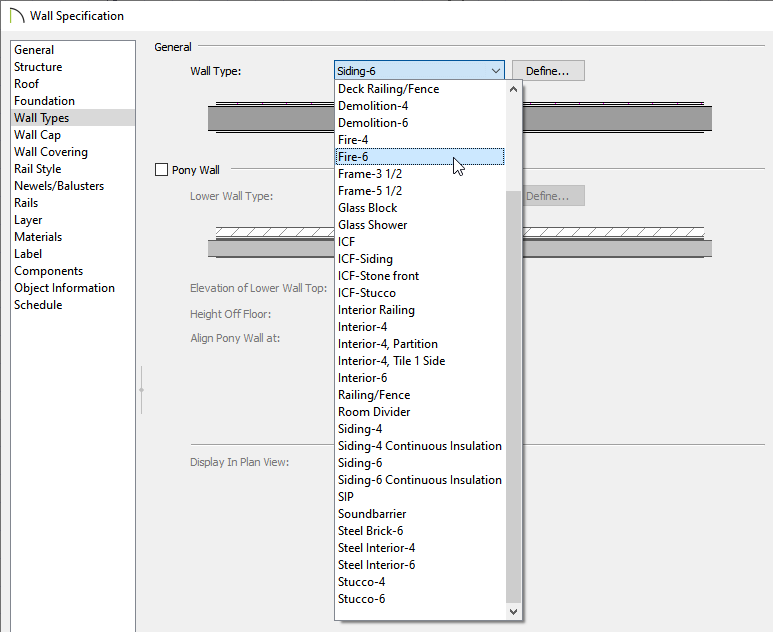
  4. On the Wall Types tab, use the drop-down menu to select the appropriate wall type.


  5. Once you have selected the appropriate wall type, click OK to apply this change.

Sometimes you need to change the type of multiple walls such as if you have accidentally drawn all of your interior walls using an exterior wall type.


To change multiple walls at once

  1. First, launch Chief Architect and Open  the plan that has the wall that you want to modify.


  2. Next, using the Select Objects  tool, select one wall, then hold down either the Shift, or Control key, on your keyboard, and click to select the remaining walls in the plan that you want to change.


     The status bar at the lower left will show the number of objects selected.

    If you have trouble selecting walls because of other objects in the same area, you may find it helpful to have a wall tool active when clicking on the walls to group select them, or to create a custom layer set in which only your wall layers are displayed.


  3. Click on the Open Object  edit button to display the Wall Specification dialog for all of these walls.


  4. On the Wall Types tab, use the drop-down menu to select the appropriate wall type.


  5. Once you have selected the appropriate wall type to change these walls to, click OK to apply the change.
MORE INFORMATION

Article Number 716: How to create a new wall type


Last updated on: Mar 29, 2013


The Chief Architect support team has compiled a list of articles with common questions and answers.


Find answers on ChiefTalk

Answers to many how-to and technical questions can be found 24 hours a day, 7 days a week on our online forum, www.ChiefTalk.com. ChiefTalk is visited not only by our software users, but also by members of our training, support, and engineering teams who are well-versed in using the software and are happy to help you. On ChiefTalk, you can discover tools and techniques to bring your design ideas to life.