How do I create a manual dormer, such as a wall dormer in Chief Architect?

Many dormer types can be created automatically using the Auto Dormer tools. There are, however, some situations where dormers must be drawn manually. A wall dormer is a prime example.
To learn more about the Auto Dormer tools to create various types of roof dormers, please view the "Creating an Automatic Dormer" resource in the Related Articles section below.
For information about creating a Cape Cod or a story and a half roof, see the Related Articles section below.

 from the menu to go to the second floor.
 or Display on Floor Below
  edit tool(s).
Note: The dashed lines in the image above represent ceiling break lines and will display when the pitch of the ceiling changes. Ceiling break lines cannot be selected, however, they can be hidden by turning off the "Ceiling Break Lines" layer.
 and draw two walls that will serve as the dormer's side walls, making sure that the exterior layer of each wall is facing outward.
 Note: If a wall is not oriented correctly, select it using the Select Objects tool, then click on the Reverse Layers edit tool.


 edit button, and in the Wall Specification dialog that displays: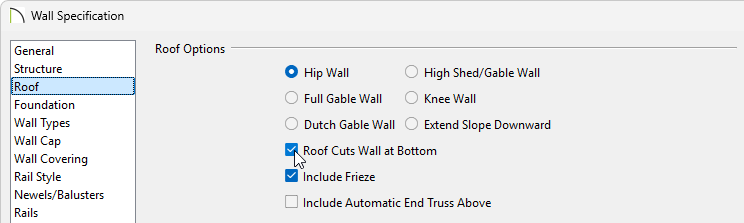
 tool, click on the existing roof plane that is currently above the dormer walls, then select the Add Break
  edit tool.
Note: Diamond-shaped edit handles will appear designating a break point in a polyline-based object.


 to verify that the dormer walls are exposed and are not covered by any roof planes.


 , and draw a small roof plane over each of the dormer side walls.
 edit button.
  edit tool, then click the corresponding angled edge of the roof plane that was adjusted in step 6 above. The roof planes will now be parallel to each other. Perform this same procedure for the the opposite dormer roof plane.
 to see the results.
Note: It may be necessary to shorten or extend the length of the dormer walls depending on the pitch of the roof and how the ceiling is defined in this area.
You are now ready to add a window and other finishing touches.
