I live in the Southeastern United States and regularly build CBS structures. How do I model a CBS wall that is block on the bottom and has a tie beam on top?
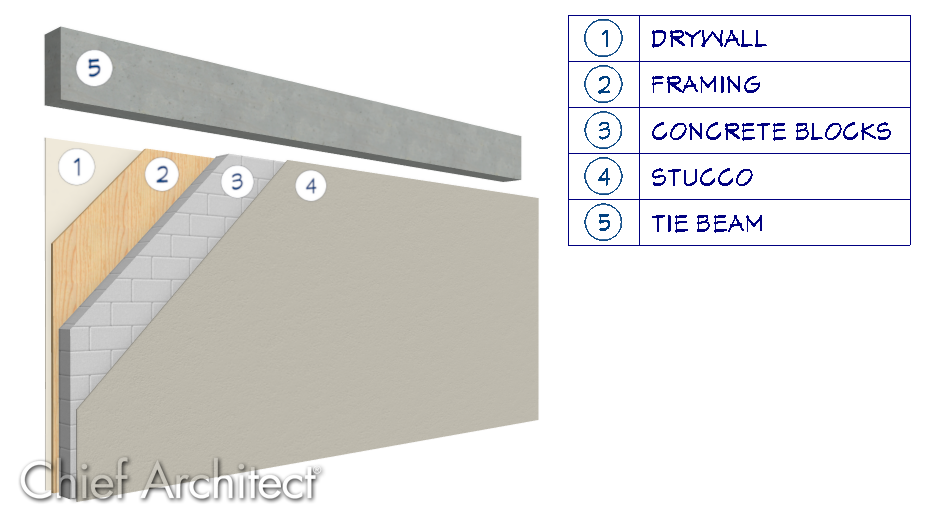
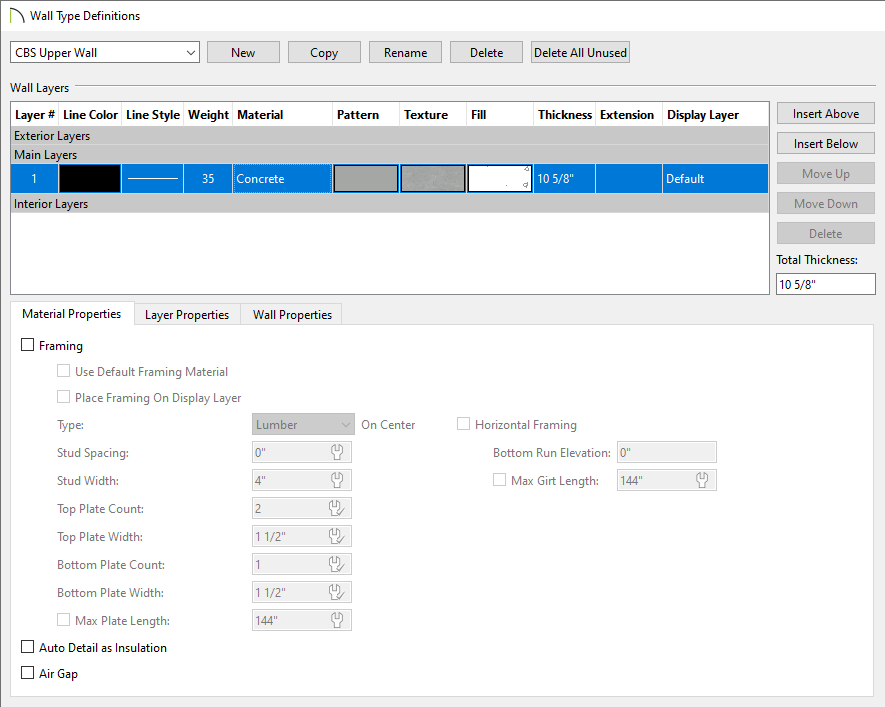
A CBS, or concrete, block and stucco wall with a tie beam on top can be modeled using pony walls. The bottom wall type typically has a stucco exterior, then a layer of eight inch concrete block, followed by a thin framing stud, and finally a layer of half-inch sheetrock. Along the top of this block wall is tie beam composed of a continuous pour of concrete all the way around the top of the structure.
A pony wall can be used to model both of these walls in the same wall section.
 to open the Wall Type Definitions dialog.
Please see the Related Articles section below for more information on creating and defining wall types.
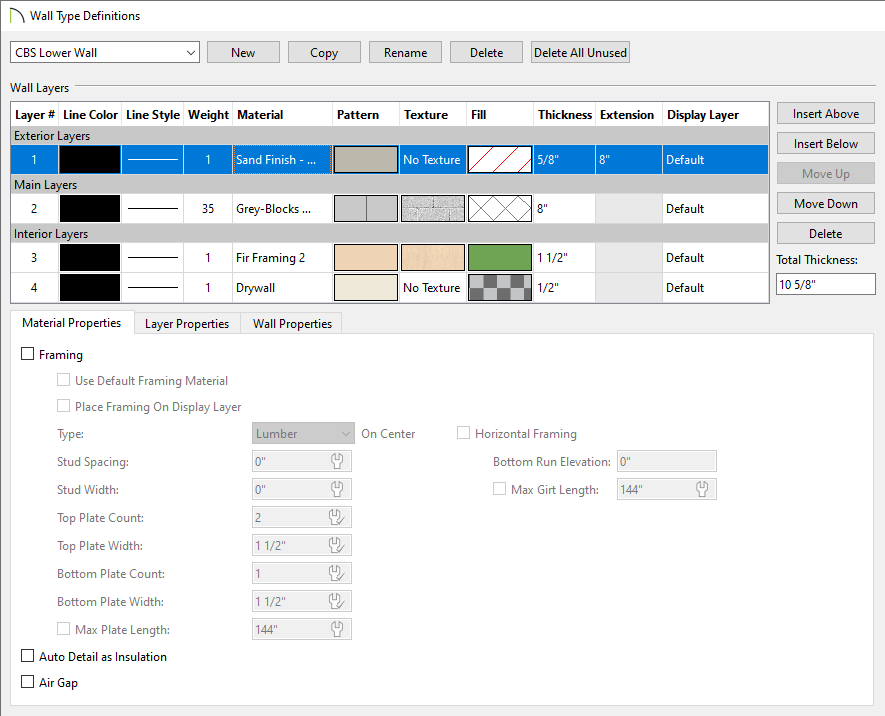
If you choose to modify a wall type that is already in use in your plan, all existing walls in the file that are using that wall type will update when you make changes to the wall type. This is why it's recommended to create a copy of an existing wall type.
 from the menu, and in the Default Settings dialog that displays, expand the Walls category, click on Pony Wall, then click Edit.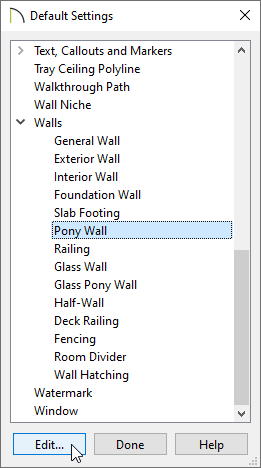
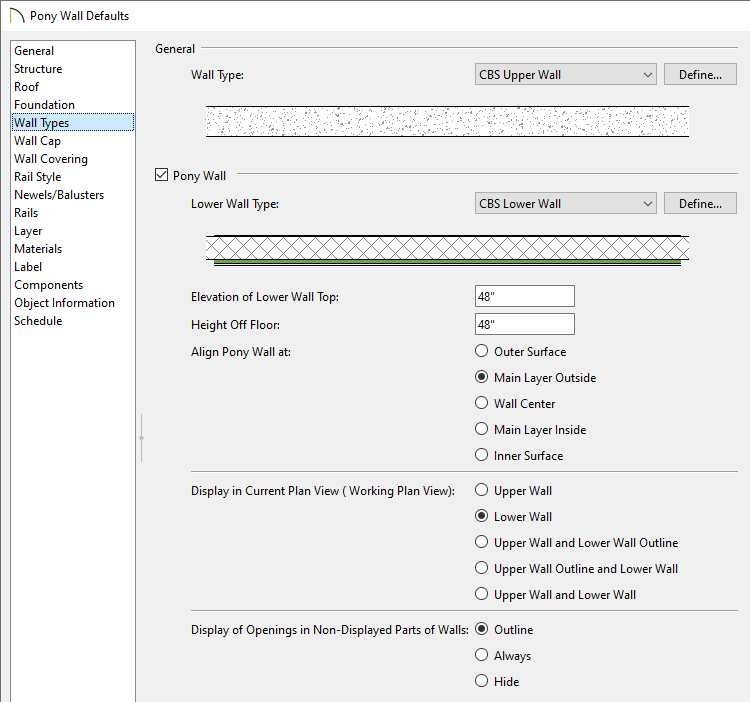
 from the menu, then click and drag to create a custom CBS wall.
