I have been working with architectural blocks from the Chief Architect Library Browser, but they are not exactly meeting my requirements. How I can edit these to better suit my needs?
The architectural blocks included in the Library Browser are intended for inspiration and dissection. If you find one that is useful but requires a number of changes, you can explode the block and make alterations to it.
 from the menu to open the Library Browser side window if it's not already open, then navigate to and select the architectural block you wish to modify.
 icon. Click once in your plan to place the architectural block in your plan.
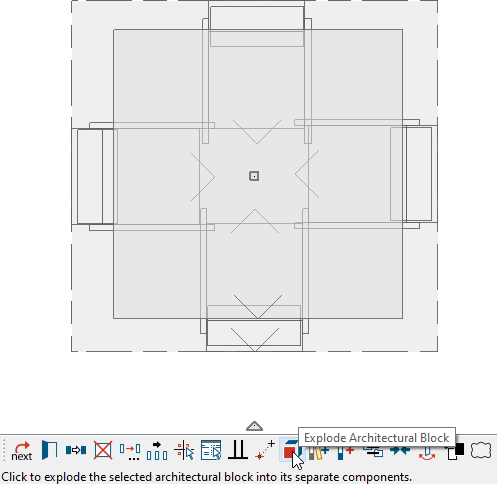
  tool, click on the architectural block to select it, then click the Explode Architectural Block
  edit button.
  tool, hold down the Shift key on your keyboard, then click and drag a rectangular selection marquee around the objects. When you release the mouse button, the objects will be selected as a group.
  edit button to combine the objects into a single architectural block.
 edit button.
If you do not make an architectural block prior to adding a grouped selection to the library, each uniquely different object will be added separately to the library and not as a single object.
On a Mac, hold down the Control key while clicking to initiate a right-click command. More information about right-click commands on Apple input devices can be found in the following Apple resource: Right-click on Mac.
