I have been looking at the CAD details in the Chief Architect CAD Blocks library folder, and these are not exactly what I'm wanting. Is there a way to edit one of these drawings to make it meet my particular needs?

The CAD Blocks library folder contains generic details that are intended to be a starting point for you to create the exact detail drawing that you're after.
When you find one that is similar to what you need but requires some changes, use the procedure below to explode the block and edit it as needed.
Additional CAD details can also be located in the CAD Blocks and Details bonus catalog. For more information on obtaining additional catalogs, please refer to KB-00090: Obtaining Library Content.
 from the menu.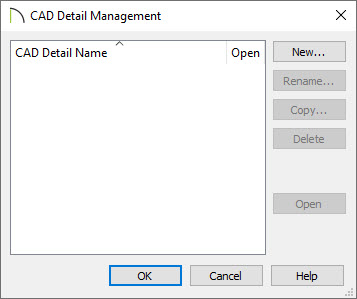
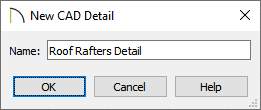
 .
. icon. Click to place the selected CAD block at that location.
 tool, click on the newly placed CAD block to select it.
 edit button to open a separate window. Notice that the CAD block is no longer a single, non-editable unit. Instead, you will be able to select and modify each individual CAD line, polyline, and text object.
 edit button. Do note that a separate window will not open after activating this tool.
It is possible to nest a CAD block within another CAD block. If, after clicking the Edit/Explode CAD Block tool, you find an object that cannot be edited as expected, select the object, then click on the Edit/Explode CAD Block edit button once more to continue editing.
 or Active Layer Display Options
  to change what layers are set to display in the default "CAD Block Detail Set".
 . You may be prompted with a Question dialog asking if you'd like to replace all instances of the block with the copy you have modified. Choose your desired option to proceed. tool, then click the Make CAD Block
  edit button to block it back together.
 edit button to add the block to the User Catalog folder within the Library Browser.