Chief Architect Help Database - Article Number:  503

How to Create a Mantle Using Crown Molding

The information in this article applies to:
  • Chief Architect X5
  • Chief Architect X3
  • Chief Architect X2
  • Chief Architect X1
QUESTION

I would like to create a fireplace mantle using built-up crown molding.  How do I do this?

ANSWER

In Chief Architect X4, multiple moldings can be assigned to objects like cabinets, rooms, and molding polylines - and both vertical and horizontal offsets can be specified to produce built-up moldings.

In Chief Architect versions 10 through X3, there are a couple of ways to draw built-up crown molding.  One way is to create a single, large crown molding profile that incorporates all of the elements of the configuraton.  Another way is to use a series of Molding Polylines to arrange the individual molding elements.  This second method is powerful because you can plan and experiment with how the stacked molding will actually be built.

Note: Using the methods described here, you can also create a cornice, or built-up crown molding, around a room.


To create a molding polyline

  1. Open the Chief Architect plan in which you would like to create a custom mantle using crown molding.

    • In this example, a fireplace insert is placed against the wall. 

    • Pilasters on either side are of the insert are created using specially edited base cabinets.


  2. Zoom  in on the area of your plan where you would like to draw the molding.


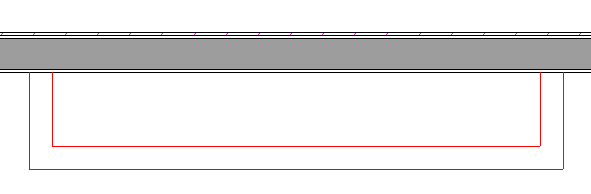
  3. Select CAD> Line> Draw Line  from the menu, then click and drag to draw one or more lines that follow the edges of the mantle that will face the room.


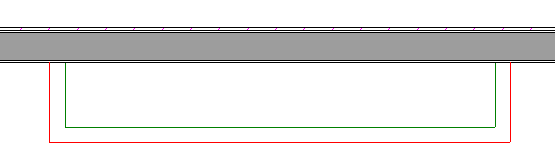
    • In this example, the polyline displays in red around a fireplace insert and pilasters so that it can be easily seen.

    • You may find it helpful to draw the edges longer than necessary to start with, and then use the edit handles to adjust the shape and size of the polyline once it is drawn.

    • Depending on your plan, you may also find it helpful to temporarily toggle off Object Snaps .


  4. Click on the line or polyline to select it, then click the Convert Polyline  edit button.  In the Convert Polyline dialog, select Molding Polyline and click OK.


  5. In the Molding Polyline Specification dialog, which opens next:

    • On the General tab, specify the Height of the polyline.  This height will represent the bottom edge of the mantle when finished.  In this example, the Height is 72".

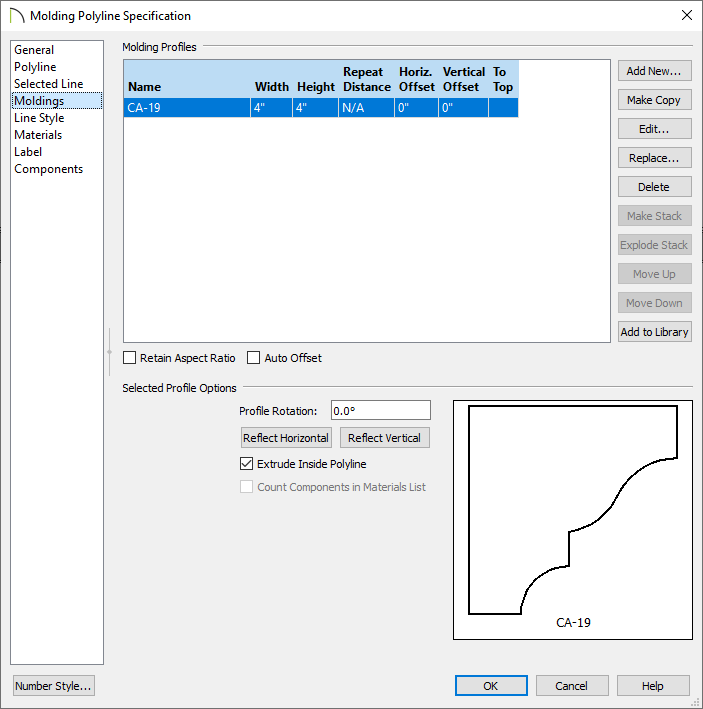
    • On the Molding tab, click the Add New button and browse the Moldings library to select a molding profile for the bottom part of the mantle.

    • Also on the Molding tab, specify the desired Height and Width.  Keep the Offset value at 0", make sure that the radio button beside To Bottom is selected, and uncheck the box beside Inside.


    • On the Line Style tab, select a distinctive Color and increase the Line Weight to 5. 

    • In this example, frieze molding CA-F3 is assigned a Height and Width of 2" with red lines.

    • Click OK to close the dialog and finish creating the first molding polyline that will form your mantle.


  6. Select 3D> Create Orthographic View> Backclipped Cross Section  from the menu, then click and drag a camera arrow towards the fireplace to see the results so far. 
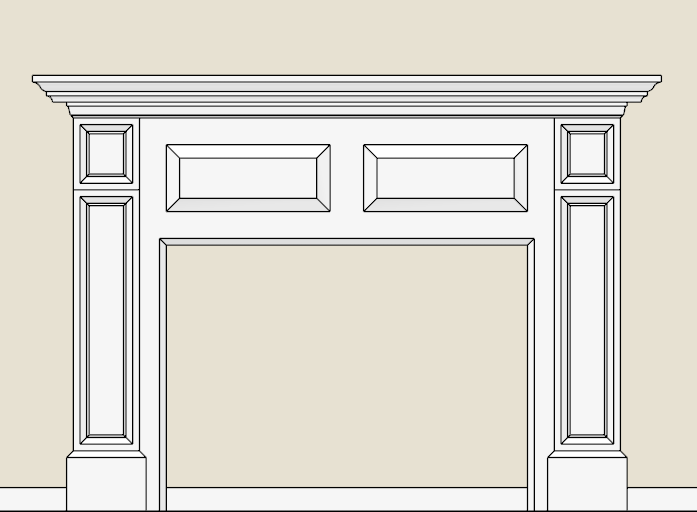
    In Chief Architect X1 and prior, select 3D> Create Vector View> Backclipped Cross Section.


To build up multiple molding polylines

  1. Close the cross section view to return to plan view.


  2. Select Edit> Preferences  from the menu to open the Preferences dialog.  On the Behaviors panel:

    • Click the radio button beside the Concentric Edit Type.

    • Specify a Jump distance, which is the increment that an object will jump as it is being resized.

    • In this example, a Jump distance of 1" is used; however, depending on the dimensions of the molding profiles you select, you may prefer a smaller distance such as 1/2" or 1/4".

    • Click OK to close the dialog and apply your change.


  3. Click on the molding profile created above to select it, then click the Copy/Paste  edit button.


  4. Zoom  in on a corner, then carefully drag the corner edit handle outward. 

    • As you drag, notice that when you reach the Jump distance from the original, an image of the polyline displays.

    • Continue dragging until you reach the outside edge line of the original polyline.  Release the mouse button and a copy of the molding polyline will be created at that location.

    • In this example, the copy is dragged two Jump increments because the original molding profile has a Width of 2".

    • Once a copy is created, you can use the corner edit handle to resize it, if needed. 


  5. With this new copy selected, click the Open Object  edit button to open the Molding Polyline Specification dialog.

    • On the General tab, specify a Height for this polyline equal to the Height of the first polyline plus that first polyline's Height.  In this example, the height is 72" + 2", or 74".

    • On the Molding tab, click the Specify button and browse the Moldings library to select a molding profile for the second tier of the mantle's molding.

      Also on the Molding tab, specify the desired Height and Width of this second molding profile.  As before, the Offset should be 0" To Bottom and Inside should be unchecked.

    • On the Line Style tab, select a new, distinct Color for this polyline.

      In this example, frieze molding CA-19 is assigned a Height and Width of 3" and blue lines.
    • Click OK to close the dialog and apply your changes.


  6. Select 3D> Create Orthographic View> Backclipped Cross Section  from the menu, then click and drag a camera arrow perpendicular to the front of the fireplace to see how the molding profiles are stacked. 

    • In Chief Architect X1 and prior, select 3D> Create Vector View> Backclipped Cross Section.


    • If needed, make any needed changes to the Height of either polyline in its specification dialog or modify its position using a corner edit handle.


  7. Repeat steps 1 through 5 as many times as needed to produce the desired mantle.


    • In this example, a third crown molding, CA-65, is added above the second and is assigned a Height of 3 1/2", a Width of 2", and green lines.


  8. Remember to select Edit> Edit Behaviors> Default  when you are finished editing your molding polylines.

    • You can also select the Default Edit Type in the Preferences dialog.


  9. Add a hearth and accessories to your fireplace, then select 3D> Create Perspective View> Full Camera  from the menu, then click and drag a camera arrow towards it.

    In Chief Architect X1 and prior, select 3D> Create Render View> Render Full Camera.


MORE INFORMATION

For information about upgrading your Chief Architect license so that you can assign multiple, built-up moldings to individual objects, see http://www.chiefarchitect.com/products/upgrade.html.

For more information about creating a custom fireplace surround, see article 58 in this database:  How to create a custom chimney and fireplace.

To learn how to create a custom molding profile, see article 166:  How to create a custom molding.

Last updated on: Mar 29, 2013


The Chief Architect support team has compiled a list of articles with common questions and answers.


Find answers on ChiefTalk

Answers to many how-to and technical questions can be found 24 hours a day, 7 days a week on our online forum, www.ChiefTalk.com. ChiefTalk is visited not only by our software users, but also by members of our training, support, and engineering teams who are well-versed in using the software and are happy to help you. On ChiefTalk, you can discover tools and techniques to bring your design ideas to life.