QUESTION
When I create a materials list, a complete list of all the materials and objects in my plan file is created. How do I control what information displays in a materials list?
ANSWER
The Materials List Defaults dialog allows you to control the categories and columns that are included in a Materials List before it's created. If you're using X14 or a prior version, you will instead want to access the Preferences dialog to make these same adjustments. If you have already created a Materials List, you can control this information using the Materials List Specification dialog.
In addition to these options, you can specify what layers are displayed in a Materials List, as well as change the structural member reporting method used for framing members.
To set up Materials List Defaults/Preferences
- In your desired plan, navigate to Edit> Default Settings
 , expand the Materials Lists category, select the Materials List option, then click Edit.
In X14 and prior versions, navigate to Edit> Preferences  from the menu on a Windows PC or Chief Architect> Preferences on a Mac instead.
- On the Categories panel of the Materials List Defaults dialog, uncheck the boxes beside any category that you do not wish to include in a Materials List when it is first created.
In X14 and prior versions, access the Materials List panel of the Preferences dialog that opens instead.
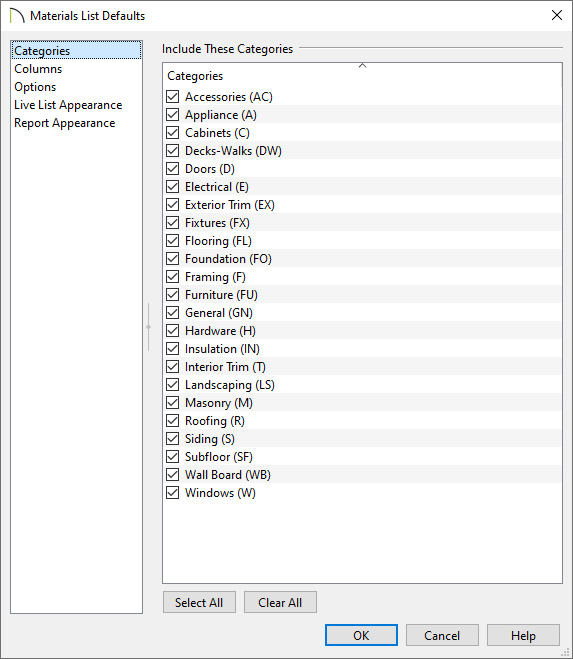
- On the Columns panel, uncheck the boxes beside the name of any Column that you do not wish to include in a Materials List when it is first created.
In X14 and prior versions, access the Report Style panel instead.
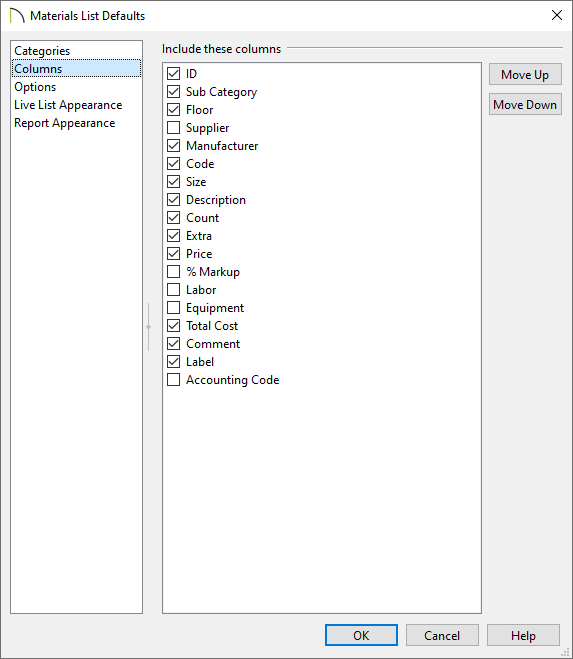
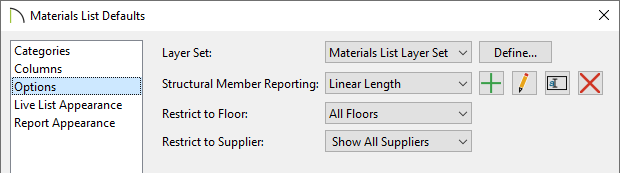
- In X15 and newer versions, an Options panel is available, where you can specify the Layer Set used, the Structural Member Reporting method, as well as what floors and suppliers are displayed for Materials Lists.
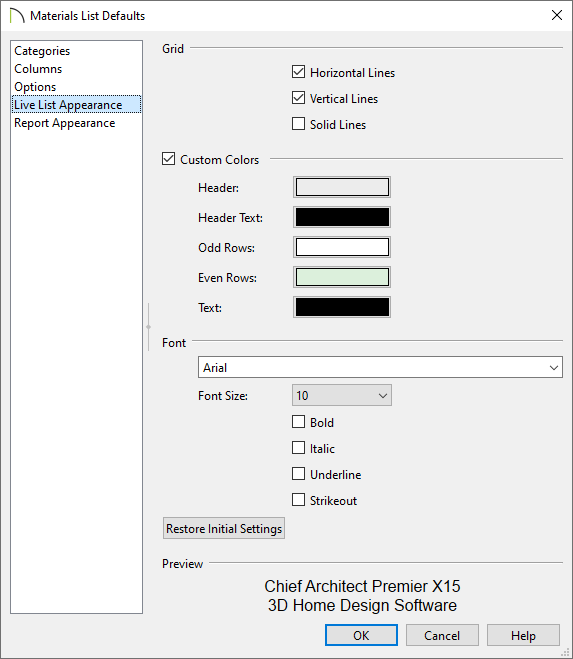
- Access the Live List Appearance and Report Appearance panels to adjust Grid, Color, and Font properties for Materials Lists.
In X14 and prior versions, these settings are located on the Report Style panel.
- Make any other desired changes, then click OK and/or Done to close the dialog(s).
The Materials List Specification dialog lets you control what is included in a Materials List after it's created.
To use the Materials List Specification dialog
- In order to generate a Materials List, your plan should include at least one architectural object.
- Select Tools> Materials List> Calculate Materials for All Floors
 from the menu to generate a Materials List for the entire plan.
- In the Materials List window, select Tools> Active View> Edit Active View
 to open the Materials List Specification dialog.
- On the Categories panel, check the box beside each category that you would like to include in the current Materials List.
- On the Columns panel, check the box beside each column name that you wish to use. Click the Move Up and Move Down buttons to change the columns' order.
- On the Options panel, you can specify the Layer Set used, the Structural Member Reporting method, as well as what floors and suppliers are displayed in the Materials List.
- In X15 and newer versions, an Appearance panel is available, in which you can adjust the Grid, Color, and Font properties for the Materials List.
Layers that are associated with the plan file in which the Materials List was generated from can also be used to control what is displayed in the Materials List.
To control what is displayed in the Materials List using layers
- Navigate to Tools> Layer Settings> Display Options
 from the menu.
- Remove the checkmark from the Display column, or checkbox, to exclude all objects on that layer from being reported to the Materials List.
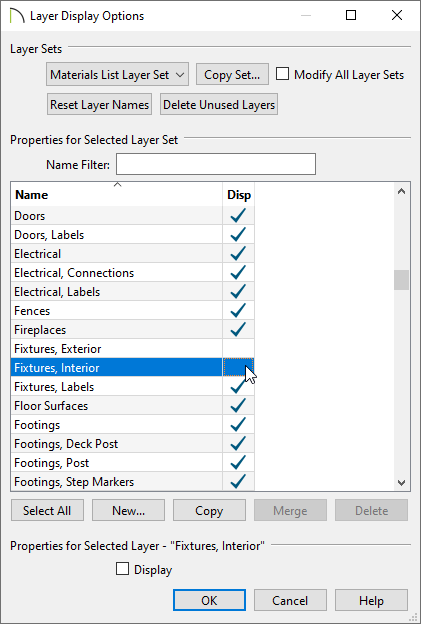
- Once all of your desired changes have been made, click OK.
The Materials List will update in real time to reflect the changes that were made.
You can also control the way framing members are reported in the Materials List.
To use the Structural Member Reporting Control drop-down
With the Materials List window active, use the Structural Member Reporting Control drop-down menu located near the top left corner to choose your desired reporting method for framing members.

You can also change the reporting method used for a Materials List by accessing the Options panel of the Materials List Defaults or Materials List Specification dialog.
- Select Buy List to calculate the framing materials by counting individual pieces and matching them to items in the list of Buy List Board Sizes.
- Select Cut List to calculate framing materials by counting the individual pieces present in the model.
- Select Linear Length to calculate framing materials in linear feet.
- Select Mixed Reporting to calculate framing materials using a combination of lineal lengths and piece counts.
