I would like Chief Architect to default to a specific folder on my local machine's hard drive when opening unmanaged files. How can I do this?
In Chief Architect, you can specify the location on your computer that the program opens when unmanaged plan and layout files are opened or saved using Save As. This is also used when importing unmanaged plan and layout files into a new project using Project Management.
Note: To learn more about Project Management, which is available in X17 and newer versions, please see the Related Articles section below or refer to your program's documentation.
Working on files over a network server, external hard drive, or USB flash drive device is not supported as this can lead to file corruption and data loss. You should always copy the file from a network server, external hard drive, or USB flash drive location to your computer's hard drive before opening it in the software. Then, make your changes, save the file, exit the program, and then copy the file back to its network server, external hard drive, or USB flash drive location. See the Related Articles section below to learn more.
 if you're on a Windows PC or Chief Architect/Home Designer> Preferences if you're on a Mac.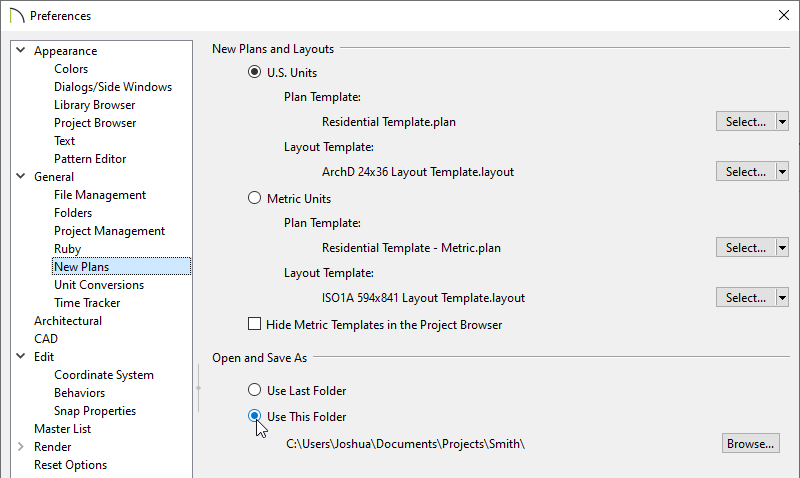
 , Open Layout
  , and Save As
  are used when using Traditional File Management, or when Open Plan/Layout
  (unmanaged files) and New Project From Legacy Folder/Import Legacy Folder
  are used when using Project Management. , Open Layout and Save As when using Traditional File Management, or Open Plan/Layout (unmanaged files) and New Project From Legacy Folder/Import Legacy Folder when using Project Management.