How do I change the height of the walls in my plan?
Wall height is determined by the distance between the floor and ceiling of a given room. In order to raise or lower the height of the walls within a room, the ceiling or floor of that room must be adjusted accordingly.
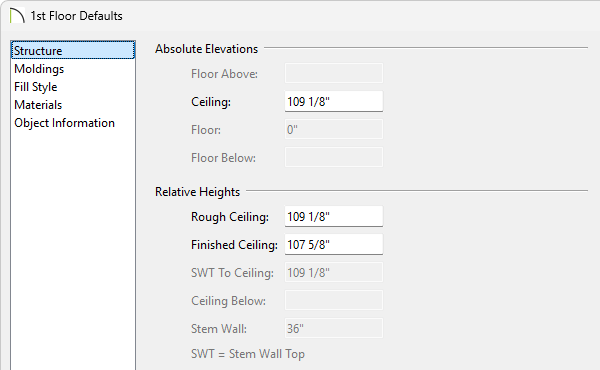
The Relative Heights - Rough Ceiling value is the height to the wall top plate. Ceiling and floor elevations can be specified for an entire floor as well as for individual rooms. In some special situations, the default wall top/bottom heights of walls can be manually adjusted, when creating a stepped foundation for example, however, more commonly you may need a short or half-height wall.
Before making adjustments, it's important to understand the difference between Absolute Elevation and Relative Height values.
Note: For more information on understanding Absolute Elevation and Relative Height values, please refer to your program's Documentation.
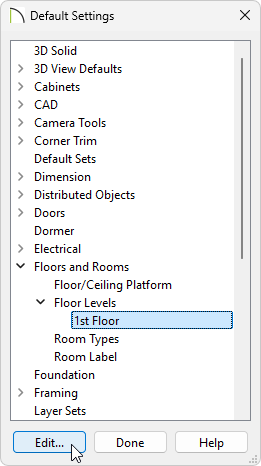
In most situations, the floor or ceiling platform(s) should be adjusted in order to specify the height of all walls throughout the entire floor.
 .
.
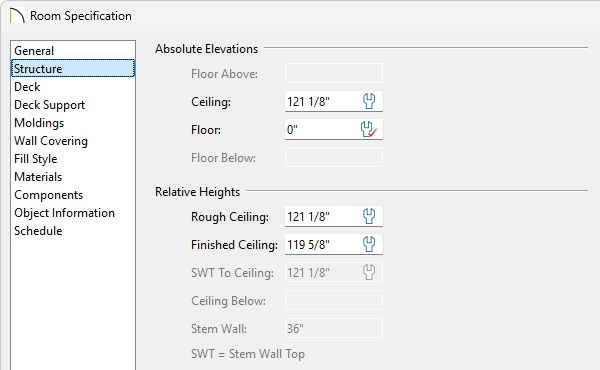
In some cases, only a single room needs to be adjusted, such as a raised entry room or a sunken living room.
 tool, select the room you wish to edit, then click the Open Object
  edit button.
If a wrench icon with a check next to it is displayed for any given setting, the value is following what's set within the Default Settings. If this value is modified and you'd like to reset it back to what is set within the Default Settings, click on it once and notice that a check will display and the value will change accordingly.
You can use the Half-Wall tools to create partial height walls.
 or Curved Half-Wall
  from the menu, then click and drag to draw a half-height wall. tool, select the half-wall and click on the Open Object edit button.
You can specify the default height for all half-walls in the Half-Wall Defaults dialog located in the Default Settings.
In most instances, modifying a wall's height manually is not necessary. Oftentimes, issues involving a wall's height is a side effect of a much larger problem. Please review the settings relating to your rooms, walls, and roofs before resorting to the steps listed below.
 from the menu, then click and drag an elevation camera arrow directly towards the wall you'd like to modify manually.
If you select the room instead of the individual wall, you can press the Tab key on the keyboard or press the Select Next Object edit button on the Edit Toolbar to cycle to the next object.
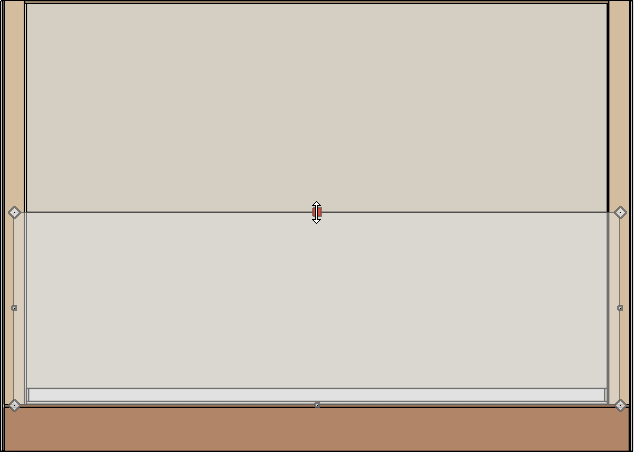
You can also click on the temporary dimension line that displays along the wall and enter an exact value, if you wish.
tool to select the wall, click the Open Object edit button, and on the Structure panel of the Wall Specification dialog that displays, check the Default Wall Top Height and/or Default Wall Bottom Height boxes, then click OK.
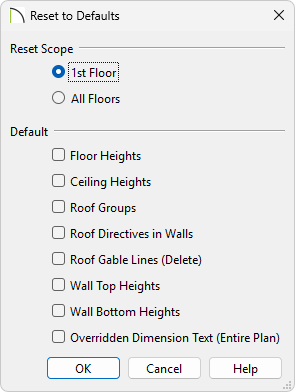
If you are having trouble setting individual room heights, or if the top/bottom edges of walls have been manually adjusted and you'd like to reset them, use the Reset to Defaults tool.