QUESTION
When I search the Library Browser, sometimes the results contain a lot of content that I'm not looking for. How can I refine my search results to more efficiently find what I'm looking for?
ANSWER
Depending on how much content is in your Library Browser, the number of objects in your search results can be quite large. Advanced Search allows you to refine your search by creating library filters for temporary or repeated use.
Library filters do not remove content from the library database. However, some of the content in the Library Browser may be hidden when a library filter is active.
To create, save, and activate a library filter
- If the Library Browser is not already open, select View> Library Browser
 from the menu.
- Click on the Advanced Search
 button in the Filters panel of the Library Browser.
In X14 and prior versions, this button was called Manage Library Filters.
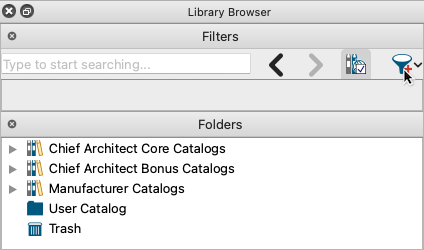
- In the Advanced Search dialog that displays:
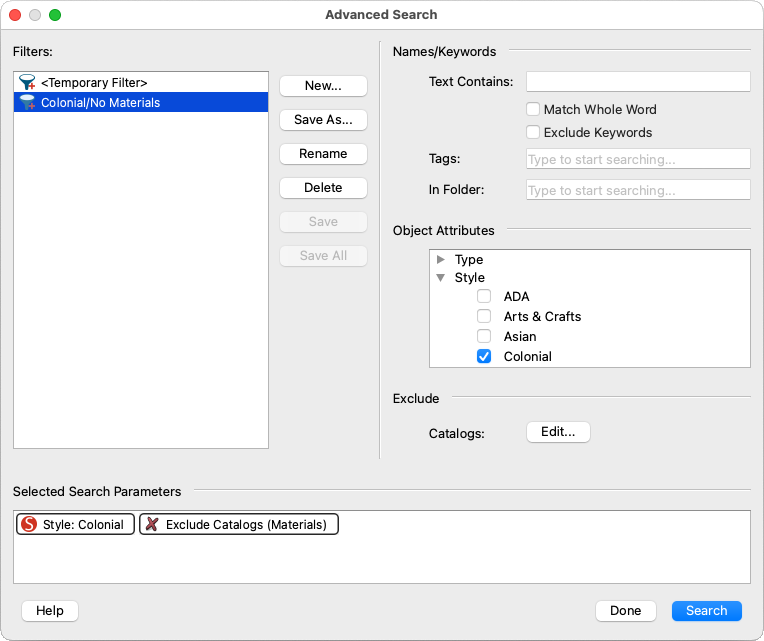
- Type in the Text Contains, Tags, and/or In Folder fields to use specified text, tags, and/or folders as search parameters.
- Expand one or more of the Object Attributes categories and select attributes to use them as search parameters.
- Click Edit to the right of Catalogs, then expand one or more of the categories, select catalogs, and click OK to exclude them from your search.
- If you would like to save this filter for repeated use, click Save As, type a descriptive name in the Name field of the New Library Filter dialog that displays, and click OK.
- If you would like to create additional filters, click New.
- When you are done, activate the selected filter by clicking Search, or close the dialog without activating a filter by clicking Done.
In X14 and prior versions:
- Type a descriptive name for the filter in the Selected Filter Name field.
- Select catalogs that you wish to hide from your Library Browser when the filter is active.
- If you would like to create additional filters, click New.
- If you would like to activate a filter now, use the Active Filter drop-down menu.
- When you are done, click OK.
- If you would like to quickly switch between saved filters, you can use the Advanced Search drop-down menu.
In X14 and prior versions, you can use the Active Filter drop-down menu located at the top of the Library Browser instead.
Select <Not Filtered> to browse and search all content in your Library Browser, revealing any content that was previously hidden by an active filter.

