QUESTION
How do I save changes I have entered into a materials list for later use?
ANSWER
In Chief Architect, you can create materials lists that calculate the materials for part or all of your plan. Once created, you can make changes to line items and save the materials list for future use. In addition, you can add this information to the Master List so that it is available in all plan files.
In X15 and newer versions, live materials lists are dynamically linked to the plan and update as changes are made. In prior versions, materials lists do not update as the plan is changed, so each materials list you generate serves as a snapshot of the plan at the moment it was created.
To create, edit, and save a materials list
- Select Tools> Materials List> Calculate Materials for All Floors
 from the menu to create a materials list.
- Make changes as needed to information in the materials list by double-clicking in the cell you would like to change, then typing in it.
- When you have made necessary changes to your materials list, navigate to Tools> Active View> Save Active View
 .
.
- In the Save Materials List dialog that appears, type a meaningful name for the materials list, then click Save.
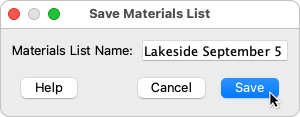
Your saved materials list is now available to access whenever this plan file is open.
To access a saved materials list
- Select Tools> Materials List> Materials List Management
 from the menu to open the list of saved materials lists associated with the current plan.
- In the Materials Lists Management dialog, click on the materials list that you would like to open, then click the Edit button.
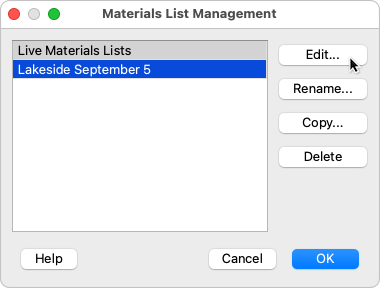
- The selected materials list will open, and can be edited, printed, or exported for use in a spreadsheet program.
To save information to the Master List
- Open a materials list that contains information you would like to make available in all plans.
- Browse to a line item that you have customized and would like to add to the Master List, then click once on the row number in the far left column to select the entire row.
- Select Tools> Materials List> Update to Master List
 from the menu, or select the Update to Master List toolbar button.
- To confirm that the information has been updated to the Master List, select Tools> Materials List> Master List
 from the menu and browse to the line item that you updated.
- To use information in the Master List, select the row in your materials list you would like to update by clicking once on the number in the far left column, then select Tools> Materials List> Update from Master List
 , or select the Update from Master List toolbar button.
