How do I create an 'L' shaped structure with automatic gable ends?
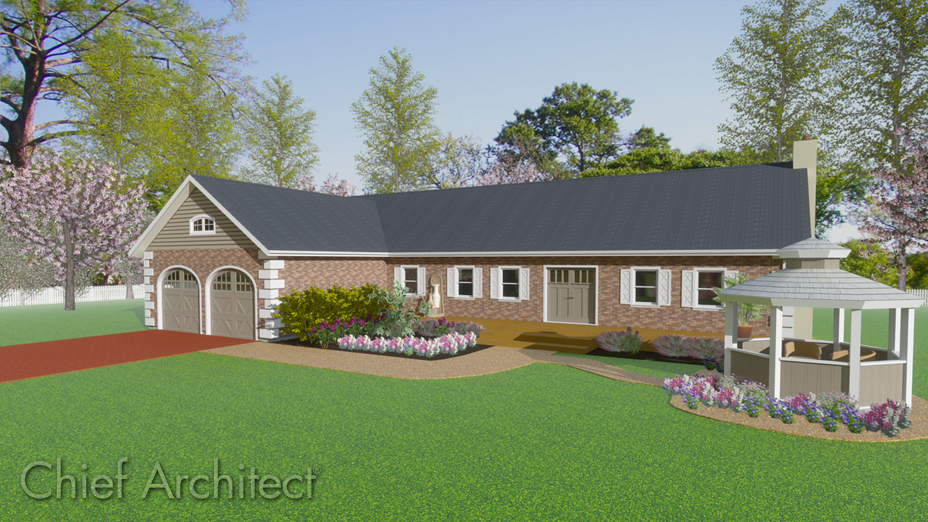
A reverse gable, sometimes called an opposing gable, is perpendicular to the main gable roof. A reverse gable can join the main roof anywhere along the main roof. In this example, it joins the main roof at one end.
 from the menu, then click and drag to draw the walls for your L-shaped structure in a clockwise fashion.

 and then on the Edit toolbar, choose the Add Break
  edit tool. Click to place a break in the wall where the baseline wall meets the gable.
 tool on the Edit toolbar.
 from the menu to open the Build Roof dialog.
 from the menu to see the results.
