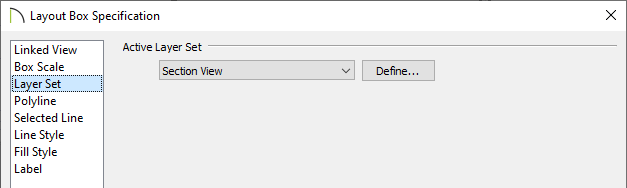
I want to toggle the display of a particular layer on/off in a view that I've already sent to my layout. How can I make this change without deleting and resending the view?
Most all views in Chief Architect are associated with a particular Layer Set. If you're unfamiliar with how Layer Sets work, especially in relation to plan views, please see KB-00765: Understanding Layer Sets and review the Saved Plan Views, Layers & Annotations video playlist.
The steps outlined in this article will explain how to quickly access the Layer Display Options dialog for a view that has been sent to a layout. These steps will not apply to views that have been sent to a layout using the "Current Screen As Image" option.
 and open the layout file that contains the view that you want to modify.
 tool, click on the view in the layout to select it, as demonstrated in the image below.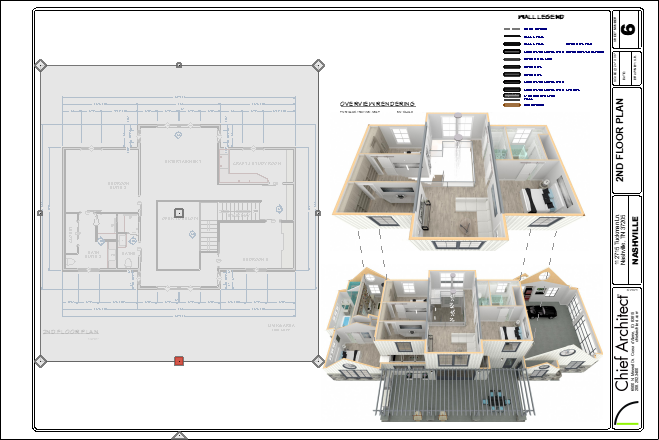
 edit button.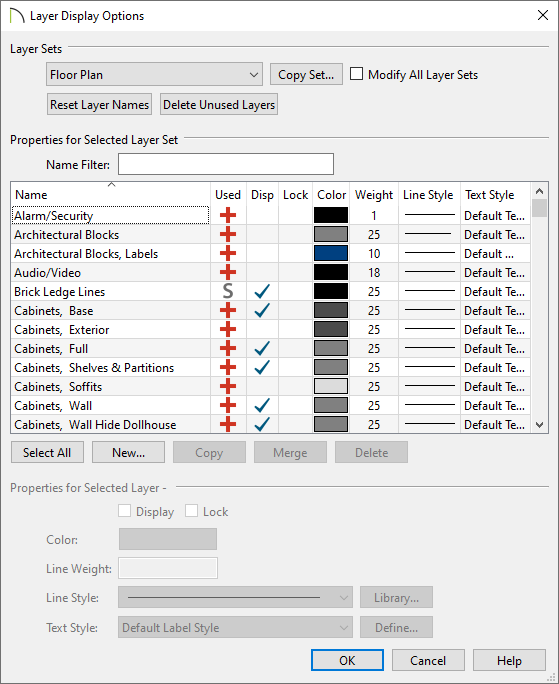
*Applies to Chief Architect X14 and newer program versions.
tool, click on the view in the layout to select it, then click on Open Object  on the Edit toolbar.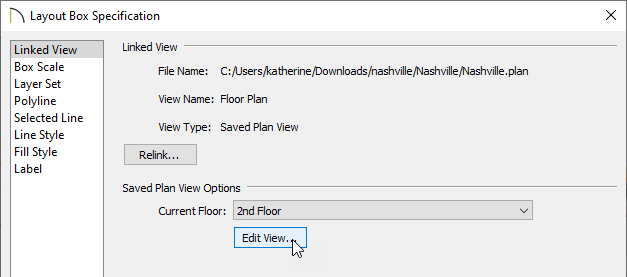
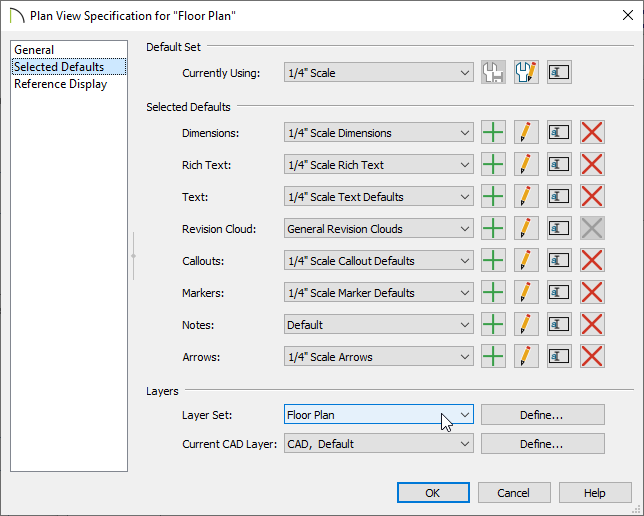
To learn more about layer sets and their relationship with saved plan views, please see the Related Articles section below.