QUESTION
I am designing a kitchen for a client with a disability and would like to know how I can create kitchen cabinets that meet his needs. How can I do this?
ANSWER
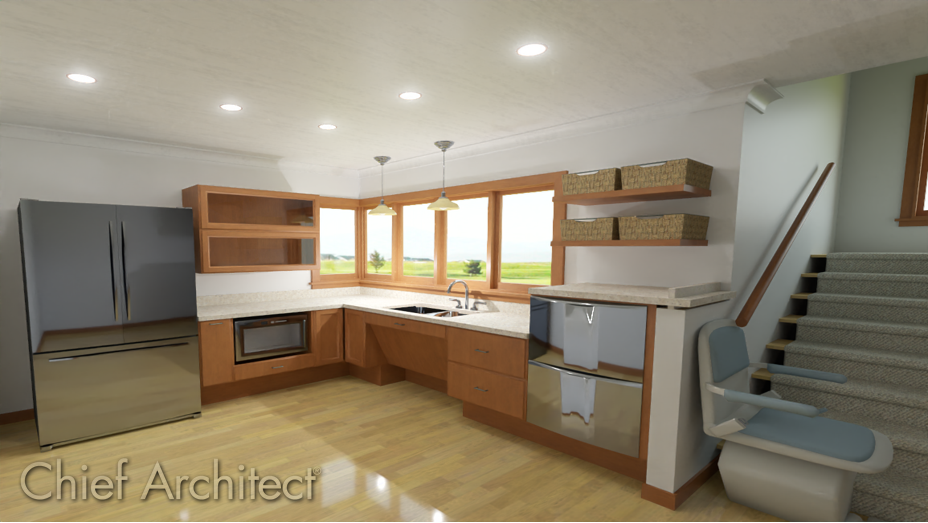
There are a number of ways to customize cabinets so that they meet the needs of individual clients.
The steps in this article will teach you how to design your own accessibility cabinets. However, you can also download and install the Accessible Design bonus catalog from the Chief Architect 3D Library. This catalog is available for free for all users.
To create base cabinets that accommodate wheelchairs
- Access the plan file in which you would like to design barrier-free cabinetry.
- Select Edit> Default Settings
 from the menu. In the Default Settings dialog, click on the Cabinets drop down arrow, select Base Cabinet and click the Edit button.
- On the General panel of the Base Cabinet Defaults dialog:
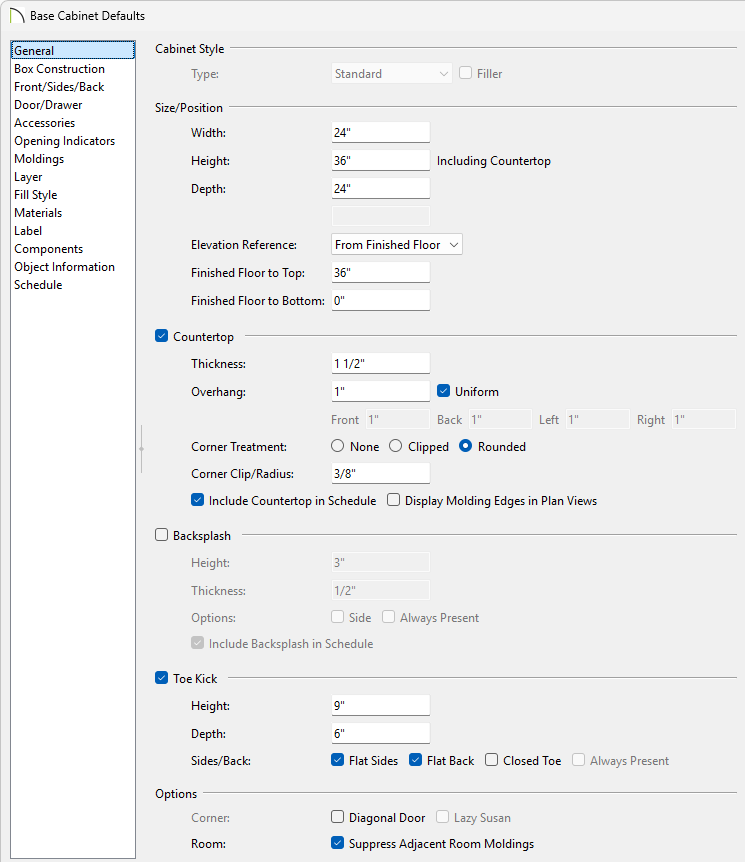
- Specify the desired Height including the countertop.
In this example, 36" is used.
- Specify the Toe Kick Height and Depth.
In this example, 9" and 6", respectively, are used.
- Click OK to close the dialog and apply your changes; then, click Done to close the Default Settings dialog.
- Select Build> Cabinet> Base Cabinet
 from the menu, then click in your plan to place a base cabinet with your modifications at that location.
To create base cabinets with accessible storage
- Select Edit> Default Settings from the menu. In the Default Settings dialog, click on the Cabinets drop down arrow, select Base Cabinet and click the Edit button.
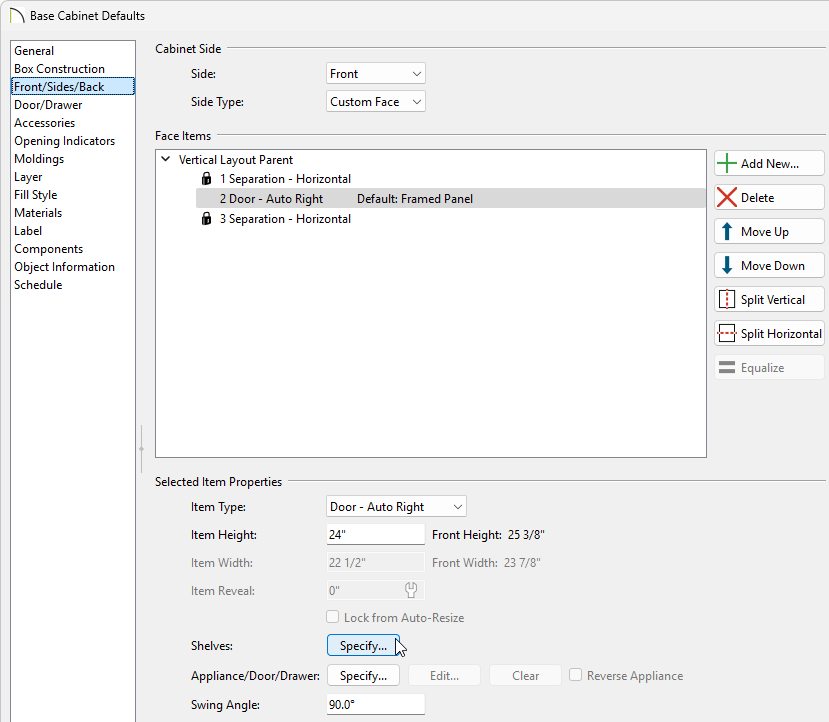
- On the Front/Sides/Back panel of the Base Cabinet Defaults dialog, click on the drawer in the preview image, then click the Delete button.
- Next, click on the door in the preview image to select it or select the Item Number drop down list and pick the number that correlates with the Auto Right Door.
- Find Shelves under Selected Item Properties and click the Specify button.
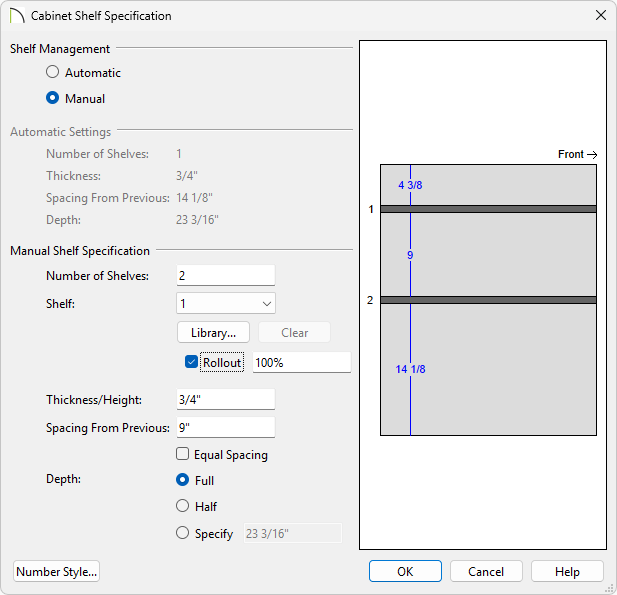
- In the Cabinet Shelf Specification dialog, which opens next, click the radio button beside Manual to enable the Manual Shelf Specification options.
- Uncheck Equal Spacing, then specify the desired Number of Shelves.
In this example, 2 shelves are used.
- Select 1 from the Shelf drop-down list, then:
![]()
![]()
- Select Rollout from the Type drop-down list.
- Specify the Spacing From Previous value.
In this example, a value of 9" is specified. In the case of Shelf 1, which is the top shelf, this value is the distance from the bottom of the shelf to the top surface of the second shelf.
- Press the Tab key on your keyboard to update the preview image on the right.
- Select 2 from the Shelf drop-down list, then:
![]()
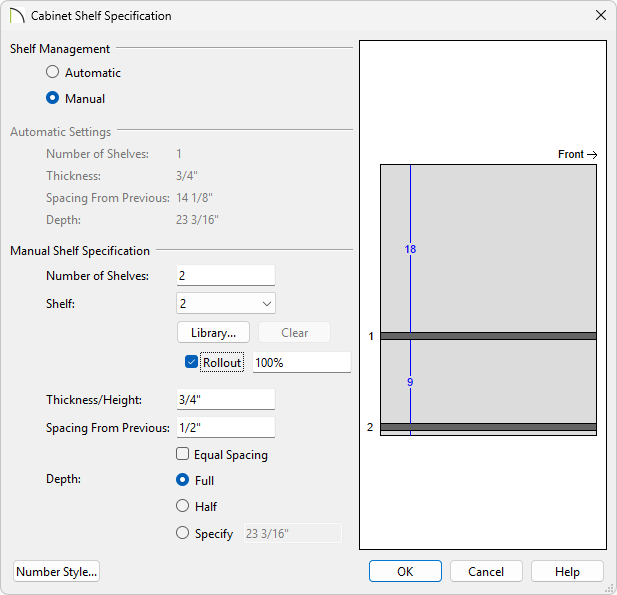
- Select Rollout from the Type drop-down list.
- Specify the Spacing From Previous value.
In this example, a value of 1/2" is specified. In the case of Shelf 2, which is the bottom shelf, this value is the distance from the bottom of the shelf to the top surface of the bottom of the cabinet box.
- Press the Tab key on your keyboard to update the preview image on the right.
- When you are satisfied with your shelves, click OK to close the Cabinet Shelf Specification dialog, click OK once more to close the Base Cabinet Defaults dialog, then click Done to close the Default Settings dialog.
- Select Build> Cabinet> Base Cabinet from the menu, then click in your plan to place a base cabinet with these additional modifications in your plan.
To create a barrier-free sink or cooktop base
- Select a base cabinet that you would like to use as a sink base and click the Open Object
 edit button.
- On the General panel of the Base Cabinet Specification dialog:
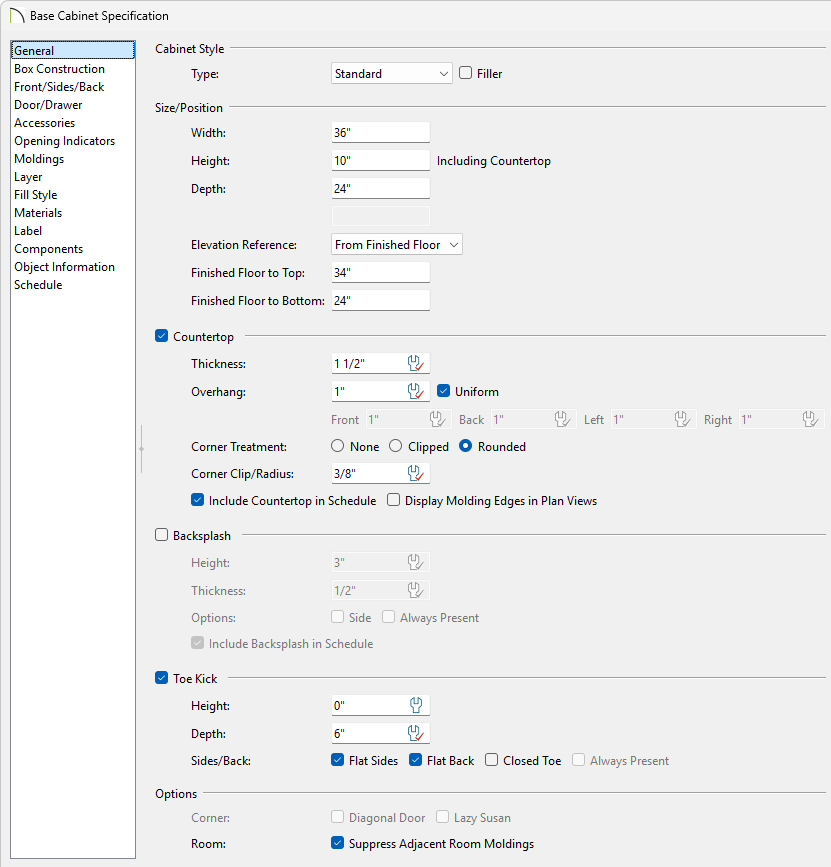
- Specify a Width sufficient to hold the sink that you wish to use. In this example, 36" is used.
- Specify the Height of the cabinet, measured from the bottom to the top. In this example, 10" is used.
- Specify the desired Floor to Bottom distance, measured from the bottom of the cabinet down to the floor. This value should be enough to accommodate a wheelchair user's knees. In this example, 24" is used.
- Make sure the Toe Kick Height is reduced so that there's room to fit a face item, in this example 0" is used.
- Select Drawer - False from the Item Type drop-down list.
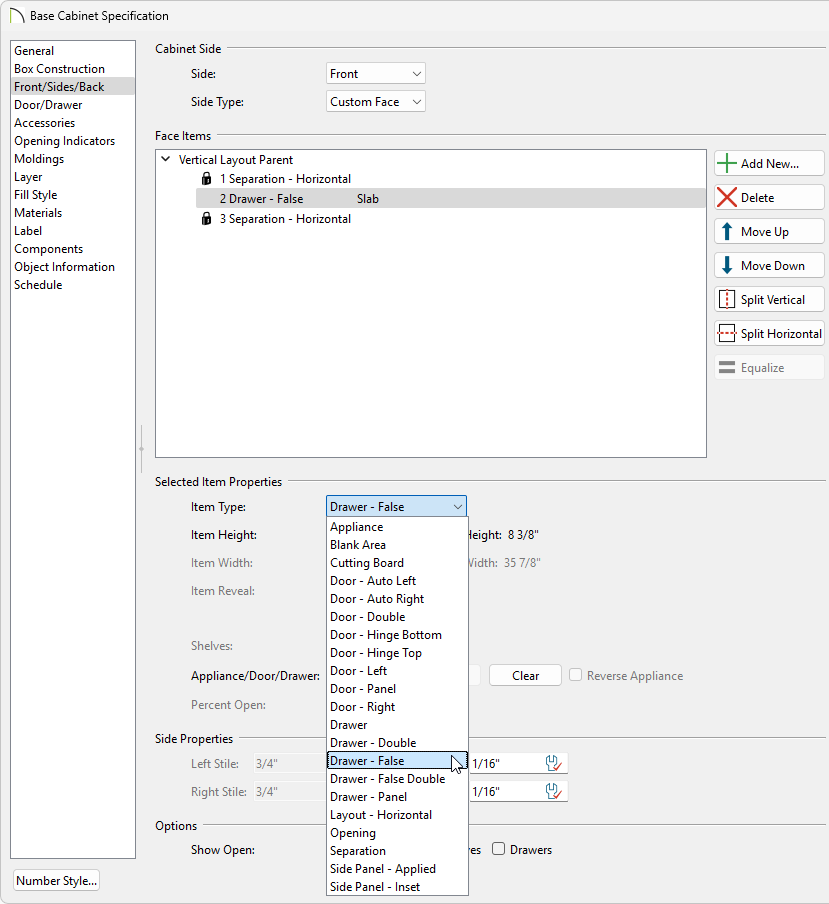
- Adjust the Item Height of your False Drawer if necessary.
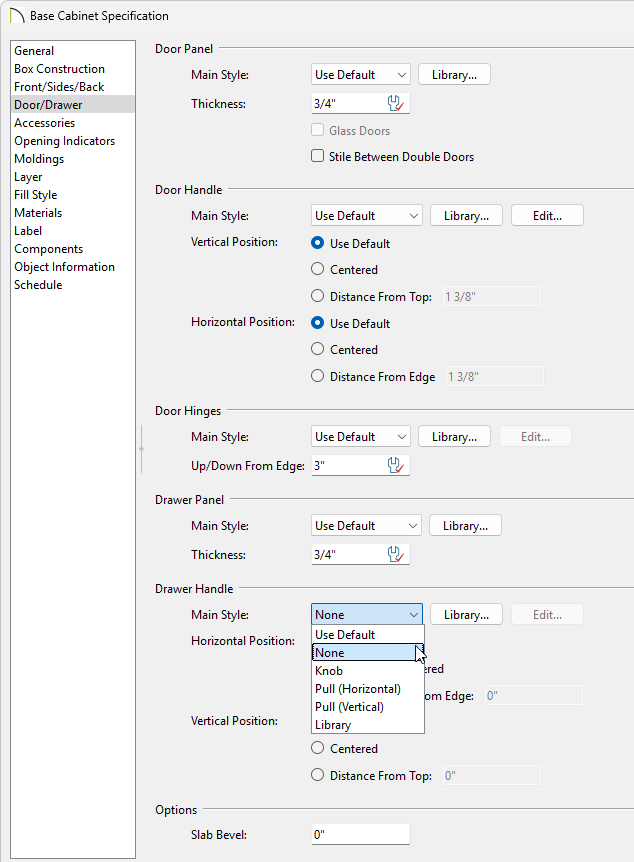
- On the Door/Drawer panel, select None from the Drawer Handle drop-down list, then click OK.
- If your Library Browser is not already displayed, select View> Library Browser
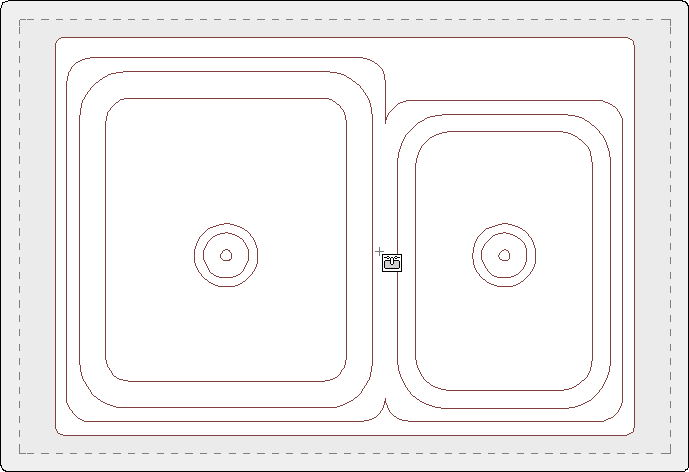
 from the menu, then browse to Core Catalogs> Architectural> Plumbing Fixtures> Sinks> Kitchen Sinks> Drop-In and click on a kitchen sink to select it.
- In this example, the Offset Sink is used.
- Alternatively, you can browse to Core Catalogs> Architectural> Appliances> Cooktops & Rangetops and select your desired cooking appliance.
- When you move your cursor into the drawing area, it should display a fixture icon
 .
.
- Click on the sink base to place the selected sink or cooktop in this cabinet.
![]()
- Next, browse to Core Catalogs>Architectural>Plumbing Fixtures> Faucets> Kitchen Fixtures> Single Control and click on a faucet to select it. You can also find hot water taps in the Accessories subfolder.
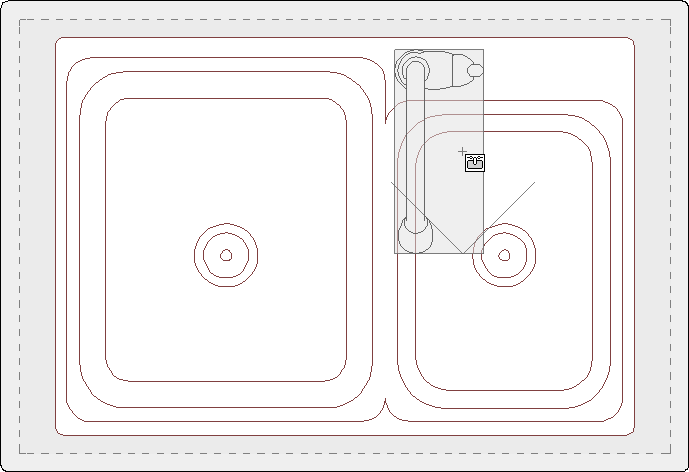
Single control fixtures such as levers are recommended in barrier-free designs because they do not require strong grips to use them.
- Move your cursor into the drawing area and click on the cabinet to place the faucet. Once placed, its position on the cabinet can be adjusted using its Move
 edit handle.
