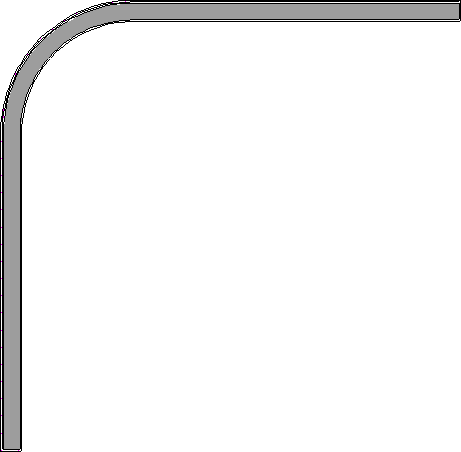
QUESTION
I would like to draw a curved wall that connects smoothly to two straight walls, with a specific radius. How can this be done?
ANSWER
A curved wall can be specified to connect smoothly to two straight walls using the Make Arc Tangent edit button and specifying your desired radius.
To create a wall that is tangent to the end of two straight walls
- Draw two straight walls using one of the Wall tools, such as the Straight Exterior Wall
 tool, leaving an opening for the curved wall section.
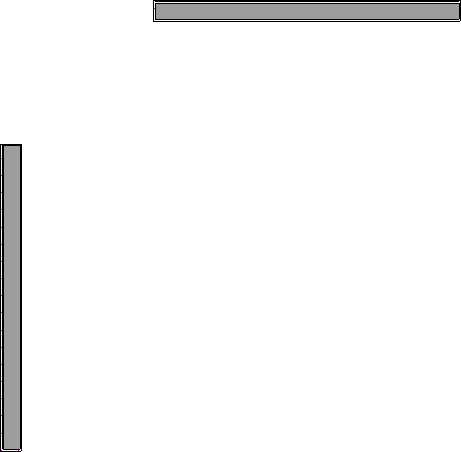
- Draw a curved wall of the same type using one of the Wall tools, such as the Curved Exterior Wall
 tool, connecting the straight walls, as shown below.
Approximate the curve as best as you can but don't try to get it exact, it will be perfected in the following steps.
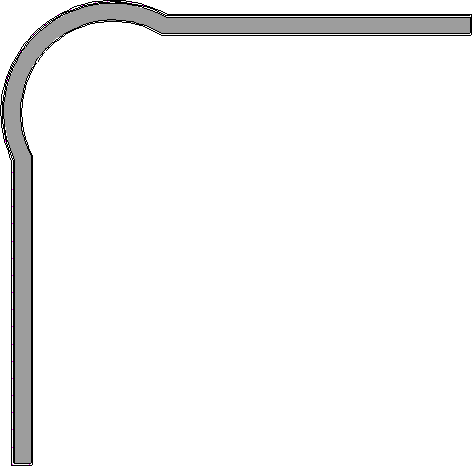
- Select the curved wall and click the Make Arc Tangent
 edit tool that displays on the Edit toolbar.
The Make Arc Tangent edit tool will not be available if the two straight walls are parallel, or if the arc is too extreme in relation to the straight walls.
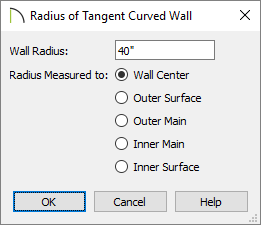
- In the Radius of Tangent Curved Wall dialog, specify a Wall Radius and the connected walls will be shortened or lengthened to accommodate this new radius.
Wall Center is selected by default, but if you prefer, you can specify the radius from the other wall layer options shown.
- Click OK to see the results.