QUESTION
I would like to create a half-hip roof. Is it possible to do this automatically?

ANSWER
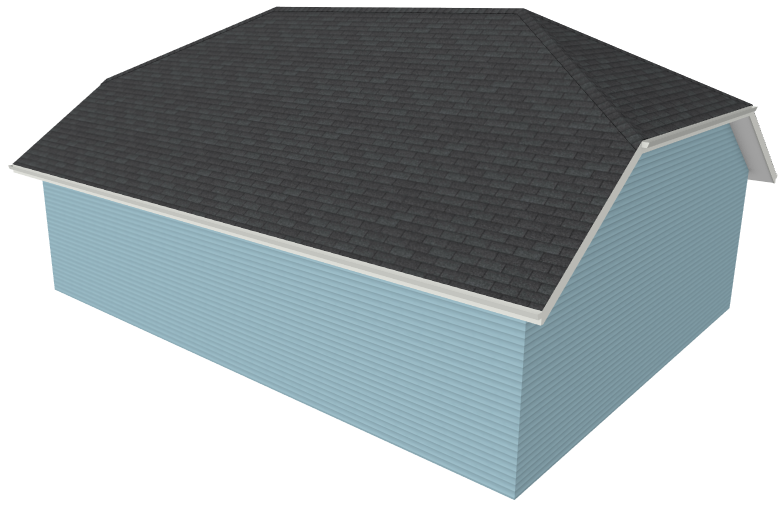
A half-hip roof is a combination of gable and hip roof styles in which a hip roof plane builds upward from a partial gable wall.
To create an automatic half-hip roof
-
Open
 a Chief Architect plan in which you would like to create a half-hip roof.
In this example, a simple 30' x 40' building with 109 1/8" ceiling height is used.
- Click on a wall that you would like to build a half-hip roof above to select it, then click the Open Object
 edit button.
- On the Roof panel of the Wall Specification dialog:
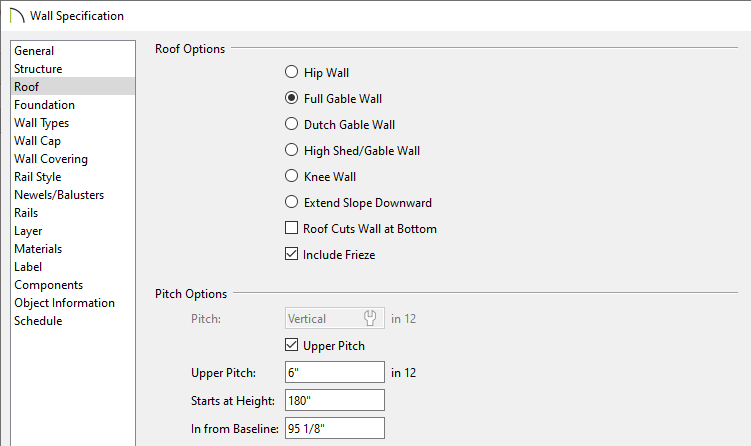
- Select Full Gable Wall under the Roof Options section.
- Check the Upper pitch box.
- There are two ways to specify where the upper pitch, which will form the half hip, begins: Starts at height and In from Baseline.
Type a value in the Starts at height field to specify the height that the half hip roof plane begins at, or type a value in the In from Baseline field to specify the distance in from the baseline, which is found above the exterior surface of the wall's framing layer. The program will calculate the other value automatically when you press the Tab key.
In this example, type "180" in the Starts at Height field, then press the Tab key on your keyboard. Notice that Chief Architect calculates the In from Baseline figure automatically.
- Click OK to close the dialog and apply your changes.
- If Auto Rebuild Roofs is not enabled, navigate to Build> Roof> Build Roof
 from the menu to open the Build Roof dialog, check the Build Roof Planes box, then click OK to generate a half-hip roof.
- Take a Perspective Full Overview
 to see the results.