QUESTION
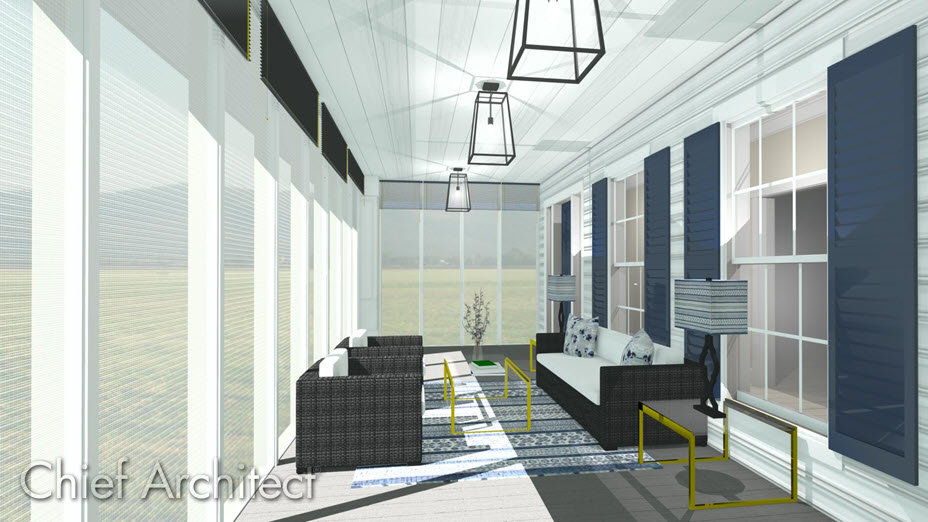
How can I create a screened-in porch in Chief Architect?
ANSWER
Screened panels can be created by applying a mesh material to the glass in a window and then using copies of this window to form a porch.
To create a screen porch
- Select Build> Window> Window
 and place a window into a wall that defines your porch.
- Select 3D> Create Orthographic View> Cross Section/Elevation
 and take a cross section of the screen porch wall containing the window.
- In the newly generated view, select your window and using the edit handles:
- Adjust the top height of the window to match the top of your wall.
- Adjust the bottom height of the window to the height where you want the bottom of your screen to start.
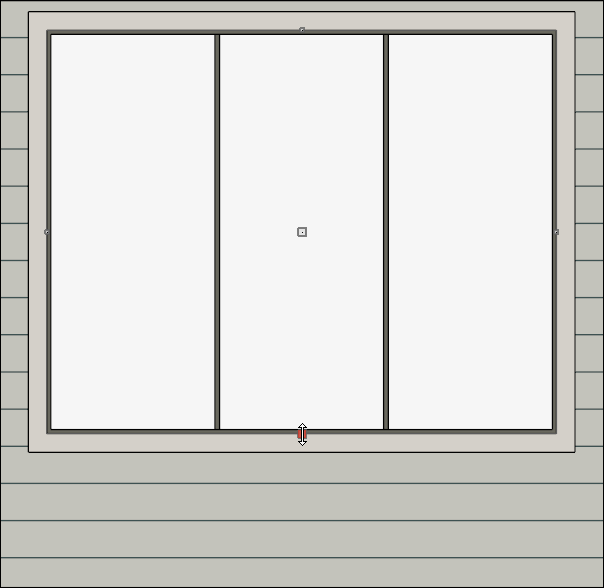
- Using the Select Objects
 tool, select the window and click the Open Object
  edit button.
- On the General panel of the Window Specification dialog that opens, change the Window Type to Fixed Glass.
- Access the Casing, Lintel, Sill/Threshold, Sash, Frame, and Lites panels to adjust these various components associated with the window.
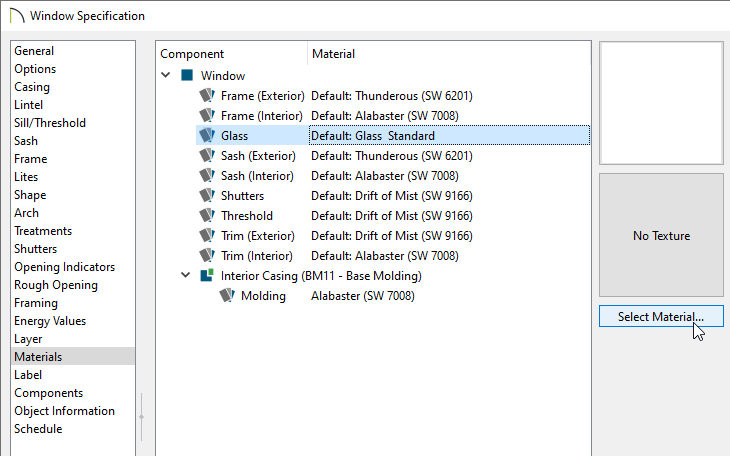
- Select the Materials panel, select the Glass component, then click on the Select Material button.
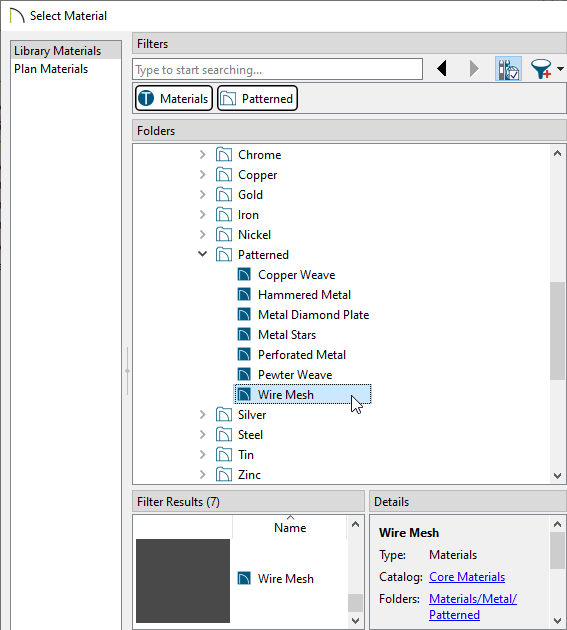
- On the Library Materials panel of the Select Material dialog that opens, navigate to Core Catalogs> Materials> Metal> Patterned> Wire Mesh, select it, then click OK.
In X16 and prior versions, navigate to Chief Architect Core Catalogs> Materials> Fabric & Wall Coverings> Sheers & Shades> Screen> Screen instead.
Additional mesh materials, such as Square Mesh, can be located in the Materials Wire and Lattice bonus catalog. For more information on obtaining additional catalogs, please see the Related Articles section below.
- Make any other adjustments to the window, then click OK once more to close the dialog.
You can now create as many copies of this window as needed using the various edit tools.
Additional catalogs can be found in the 3D Library for furnishing your porch room. For more information on obtaining additional catalogs, please see the Related Articles section below.
