Chief Architect Help Database - Article Number:  83

How to Create a Manual Attic Wall

The information in this article applies to:
  • Chief Architect X5
  • Chief Architect X4
  • Chief Architect X3
  • Chief Architect X2
QUESTION

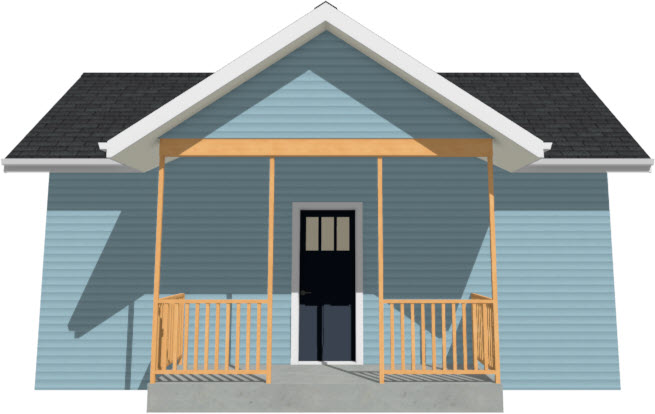
I have a gap between my deck beam and the gable roof above it.  There is no ceiling in the Deck  room, so no gable roof generates above this area.  How can I fill in the gap with a manual attic wall?

ANSWER

It's easy to manually create attic walls to fill in gaps, such as in gables where the program can't determine one is needed, or if you have turned off the automatic generation of Attic Walls.


Manually adding a gable wall

  1. Launch Chief Architect and Open the plan in which you need to manually draw in the gable wall.
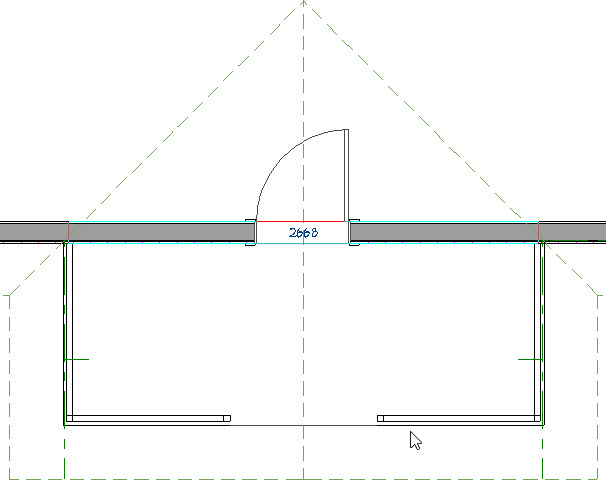


    In the example above, we want to fill in the gap between the beam above the deck railing and the underside of the gable roof planes, while still not having a ceiling over this area.


  2. In your 2D floor plan view, and locate the deck railing that you want to draw in the attic wall above.


  3. Next, select Tools> Reference Floors> Up One Floor .


  4. Go to Tools> Reference Floors> Reference Display , so that you can see a red outline of the Deck Railing below.


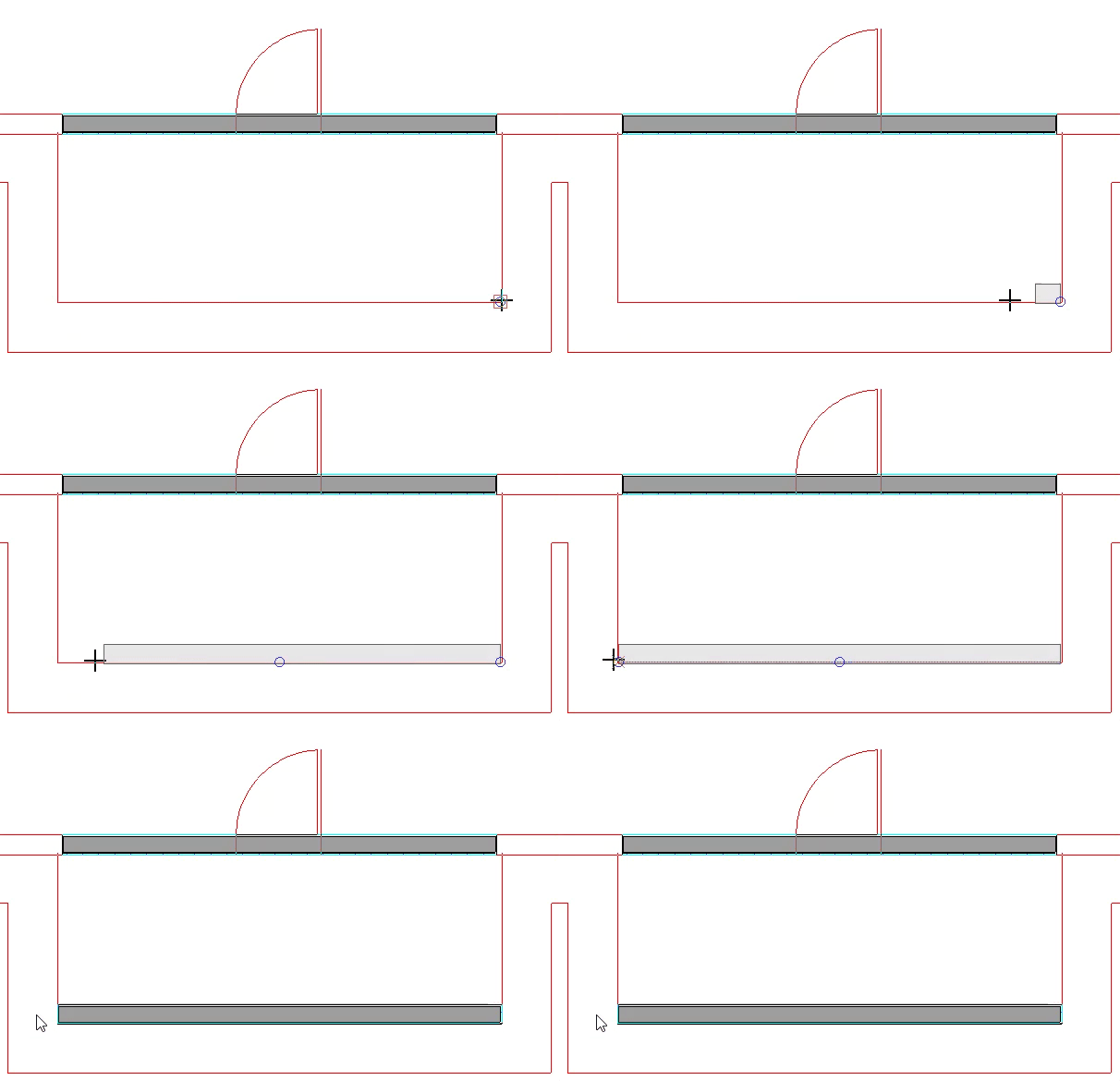
  5. From the menu, go to Build> Wall> Straight Exterior Wall , then click and drag in the wall the same length as the Deck Railing below it.


    If your upper floor is on the Attic level (Floor A), and you receive a warning message about drawing objects on the Attic level, click OK.


  6. Once placed, use the Select Objects tool to select the Wall, and click on the Open Object edit button to display the Wall Specification dialog.


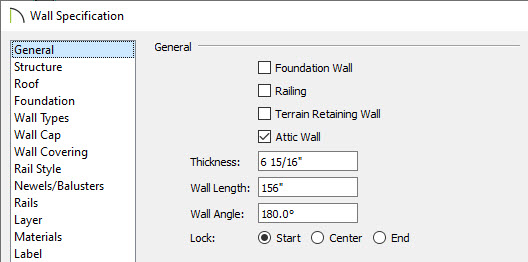
  7. On the General tab, place a checkmark next to Attic Wall, then click OK.


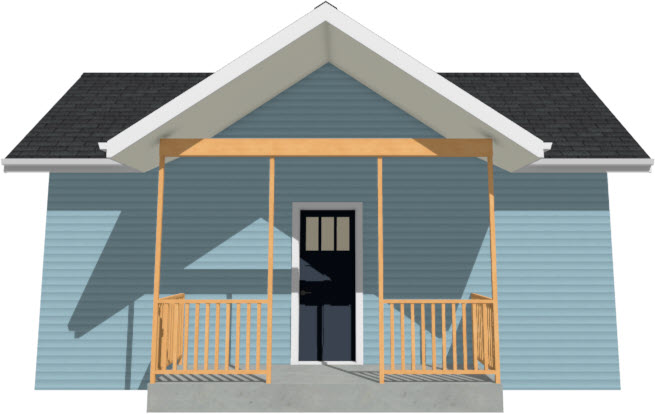
  8. Finally, generate a 3D Full Camera view to see the results of your filled in gable end.


MORE INFORMATION

Article Number 593: How can I turn off the display of Attic walls?

Last updated on: Mar 28, 2013


The Chief Architect support team has compiled a list of articles with common questions and answers.


Find answers on ChiefTalk

Answers to many how-to and technical questions can be found 24 hours a day, 7 days a week on our online forum, www.ChiefTalk.com. ChiefTalk is visited not only by our software users, but also by members of our training, support, and engineering teams who are well-versed in using the software and are happy to help you. On ChiefTalk, you can discover tools and techniques to bring your design ideas to life.