Chief Architect Help Database - Article Number: 907
How to Specify on Center Spacing for Wall Framing
The information in this article applies to:- Chief Architect X5
- Chief Architect X4
- Chief Architect X3
- Chief Architect X2
- Chief Architect X1
I see wall framing materials in the library with on center spacing of 16" and 24". How do I specify different spacing?
There are two ways to specify the on-center spacing of wall studs:
- Globally, so all framed walls in a plan have the same stud spacing.
- Individually for each wall type used in a plan.
Note: In Chief Architect X1 and prior, wall stud spacing could only be specified by wall type.
To specify a wall stud spacing value for all walls in a plan
- Open the plan in which you would like to specify a single wall framing spacing value.
- Select Edit> Default Settings
from the menu, then double-click on "Framing".
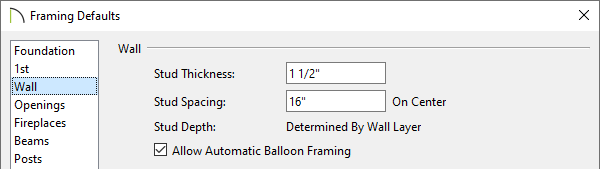
- On the Wall tab of the Framing Defaults dialog:
- Make sure that Use Wall Framing Material is unchecked.
- Specify the desired Stud Spacing value. This value is measured from stud center to stud center.
- Click OK to close the dialog and apply your change.
- Make sure that Use Wall Framing Material is unchecked.
The next time you build wall framing, the default spacing you defined will be used by all framed walls in the plan.
To specify wall stud spacing for an individual wall type
If you need to have different stud spacing in various walls in your plan, you will need to specify the spacing for each wall type being used. This is accomplished by selecting a framing material for the wall type's Main Layer that has the desired spacing value associated with it.
- Open the plan in which you would like to specify more than one wall framing spacing value.
- Select Edit> Default Settings
from the menu, then double-click on "Framing."
- On the Wall tab of the Framing Defaults dialog:
- Make sure that Use Wall Framing Material is checked.
- Click OK to close the dialog and apply your change.
- Make sure that Use Wall Framing Material is checked.
- Select Library> Library Browser
from the menu and browse to to Materials> Framing.
- The easiest way to create a custom framing material is to make a copy of an existing material and then edit it.
- Expand the Framing library folder, right-click on a wood or steel framing material, and select Copy from the menu.
- Browse to one of your custom Library Browser folders category, right-click on it and select Paste from the menu.
- The easiest way to create a custom framing material is to make a copy of an existing material and then edit it.
- Right-click on the newly-created copy of the framing material and select Open from the menu.
On the General tab of the Define Material dialog:
- Type a short, descriptive name for the new material. In this example, Fir Stud 16" OC is renamed Fir Stud 12" OC.
- Change the Spacing OC value to the on center spacing that you require. In this example, 12" is used.
Note: Spacing OC is only available when the material's Type is "Framing".
- If your plan was created using a metric template plan, specify the Spacing OC value in millimeters (mm) instead of inches (").
- Click OK to close the dialog and apply your changes to your new custom framing material.
- Type a short, descriptive name for the new material. In this example, Fir Stud 16" OC is renamed Fir Stud 12" OC.
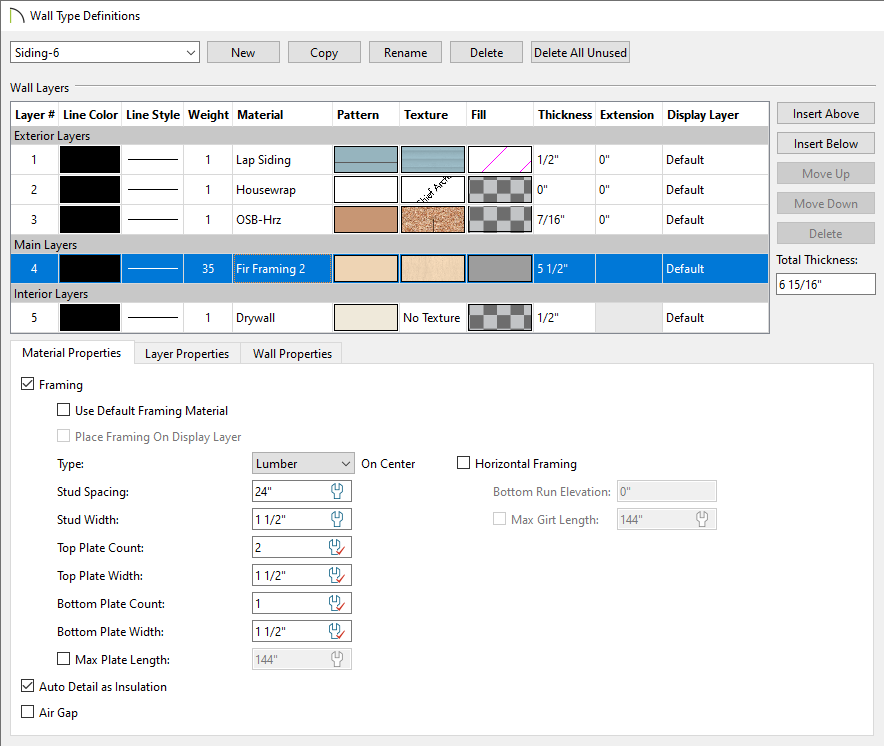
- Select Build> Wall> Define Wall Types
from the menu. In the Wall Type Definitions dialog:
- Select a wall type that you wish to assign a custom stud spacing value or create a custom wall type.
- Select the wall type's framing layer by either clicking on it in the preview diagram or in the list of layers on the left side of the dialog.
- On the left side of the dialog box, make sure that the framing layer is specified as the Main Layer.
- With the wall's framing layer selected, click the Library Material button on the right side of the dialog box.
- Select a wall type that you wish to assign a custom stud spacing value or create a custom wall type.
- In the Select Library Objects dialog:
- Browse to your new custom framing material, select it, and click OK.
- Click OK once more to close the Wall Type Definitions dialog, as well.
- Browse to your new custom framing material, select it, and click OK.
The next time you build wall framing in this plan, any walls using the wall type you just edited will use the on center stud spacing that you specified in your custom framing material.
Last updated on: Mar 29, 2013
My Cart