I would like to design a structure in which I need to have two walls side-by-side for bearing, sometimes known as marriage walls. How can I model this in Chief Architect?

Creating marriage walls in Chief Architect is easily done by creating a custom Wall Type and using the Double Wall directives located on the Structure panel of the Wall Specification dialog. The Double Wall options specify how a selected straight wall frames when it is parallel to, and touching a second wall.
For the purposes of this example, a basic shell of the plan below is used.
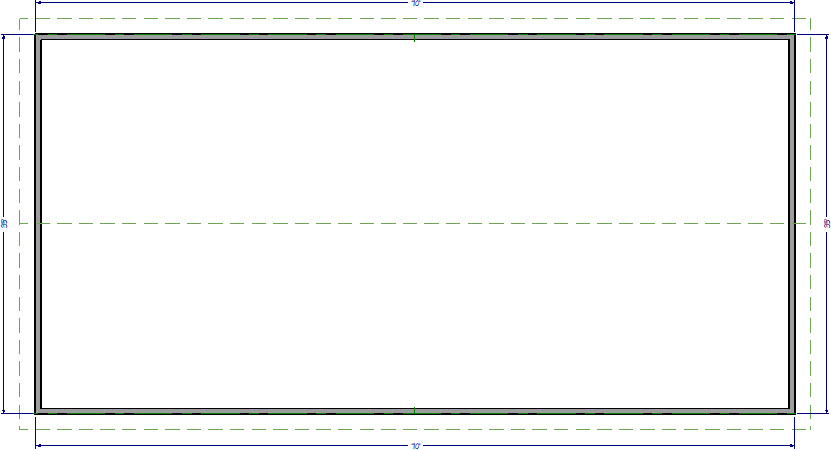
Both the left and right exterior walls are set to be full gable walls and the roof has been built creating a basic gable roof style. The default Interior-6 wall type is used for the two interior walls.
 and in the Wall Type Definitions dialog that displays: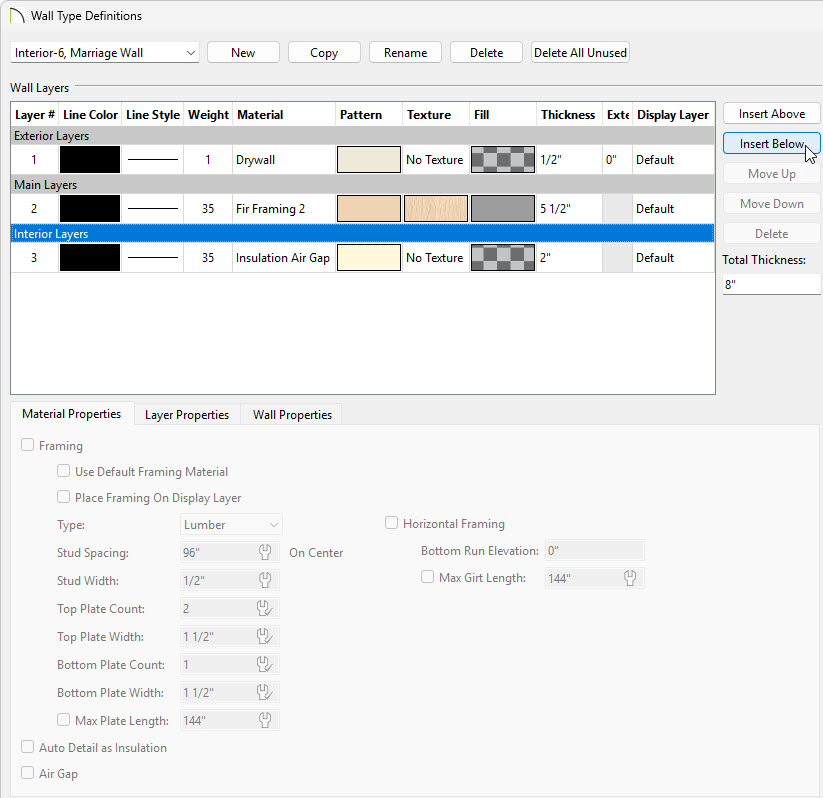
 , then click and drag to draw the two walls near each other in the same Start to End direction.
 tool to select the first wall, hold down the Shift key on your keyboard, then click on the second wall so that both walls are selected.
 edit tool to display the Wall Specification dialog for both of these walls.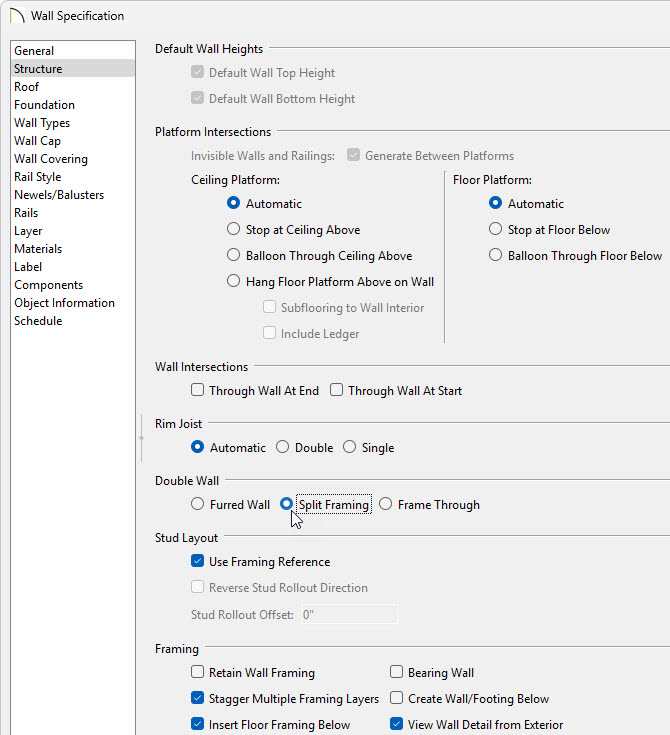
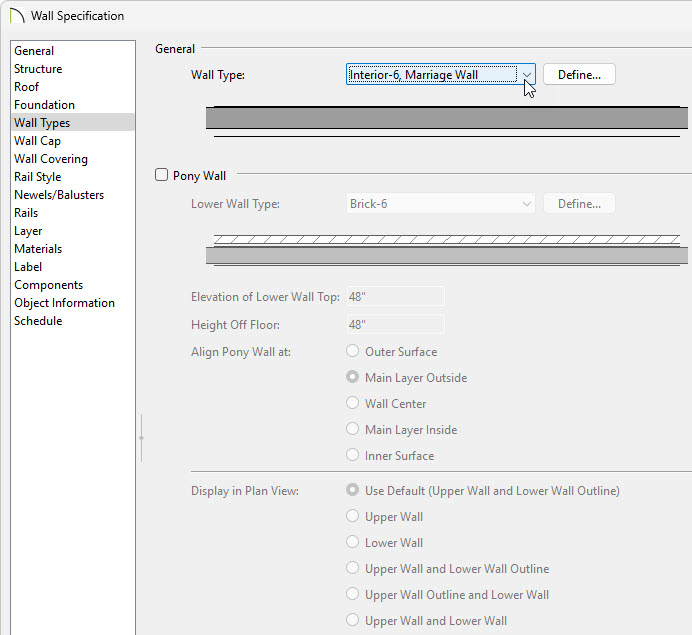 tool select the wall who's air gap layer is facing the wrong direction and use the Reverse Layers
  edit tool to flip the wall.
 edit handles to move them into contact with one another.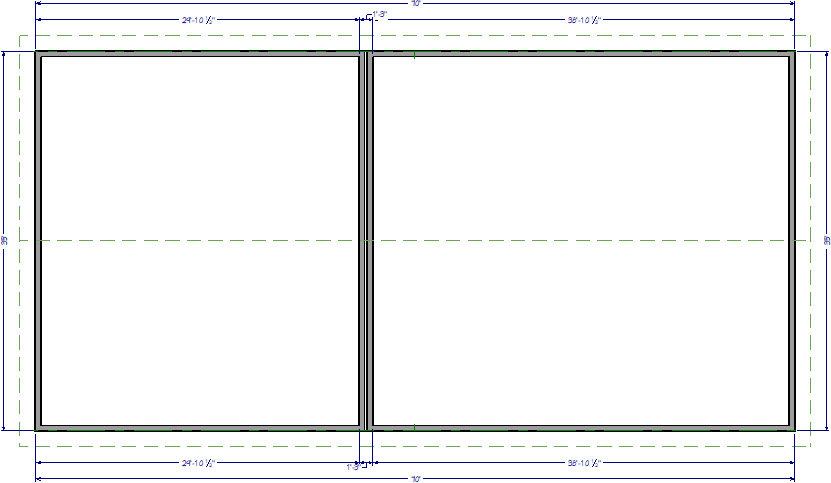
 to display the Build Foundation dialog: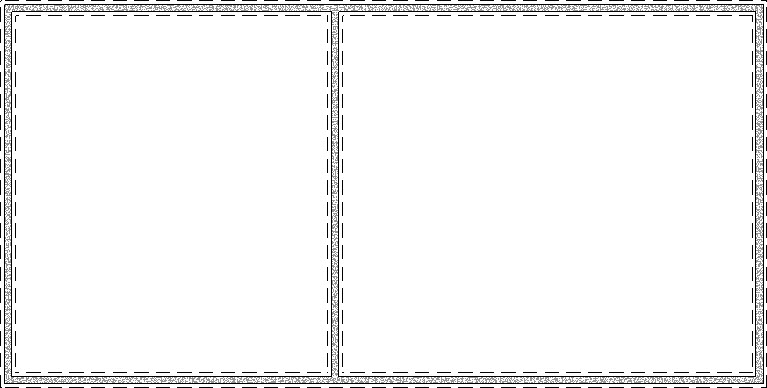
 from the menu.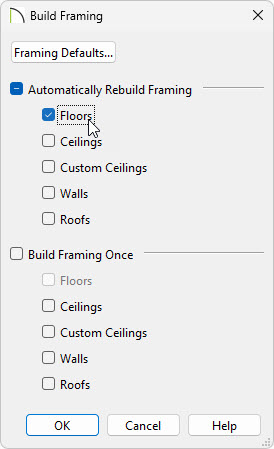
If the floor framing does not generate to your liking, consider using the Joist Direction tool to define the direction that joists are laid out. For more information on this tool, please see the Related Articles section below.
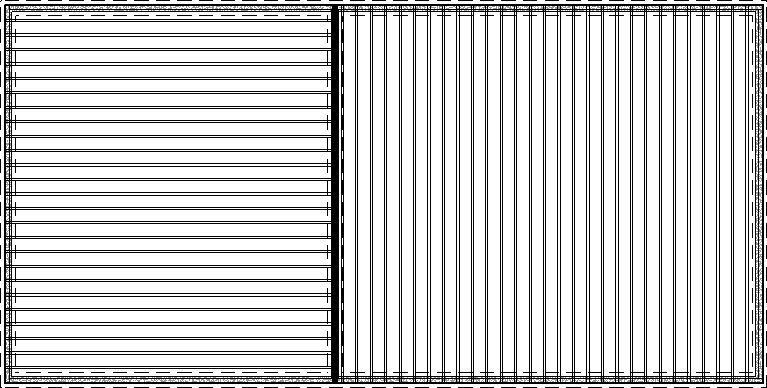
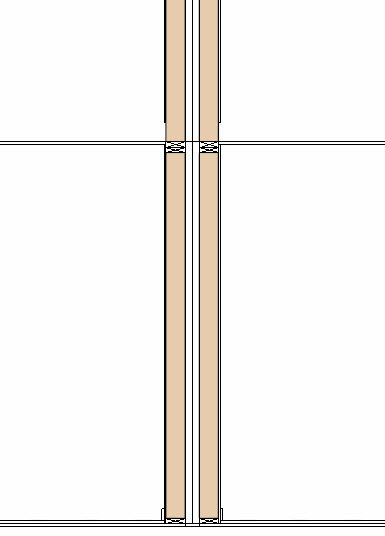
The cross section view above is an example based on the basic plan used in this article. Recall that building your framing is one of the last steps when designing a plan in Chief Architect, after adding interior walls, doors, doorways, windows, etc.
