QUESTION
How do I create a split level floor plan?

ANSWER
A split level, sometimes referred to as a bi-level or tri-level, is a building where the floor level in one part of the structure is located about halfway between the floor and ceiling levels of another part of the structure. You can easily create a split level in Chief Architect by controlling the floor and ceiling heights of different rooms in a plan.
To create a split first floor level
- Launch Chief Architect and create a New Plan
 .
.
- Select Build> Wall> Straight Exterior Wall
 , then click and drag to draw a simple rectangular structure.
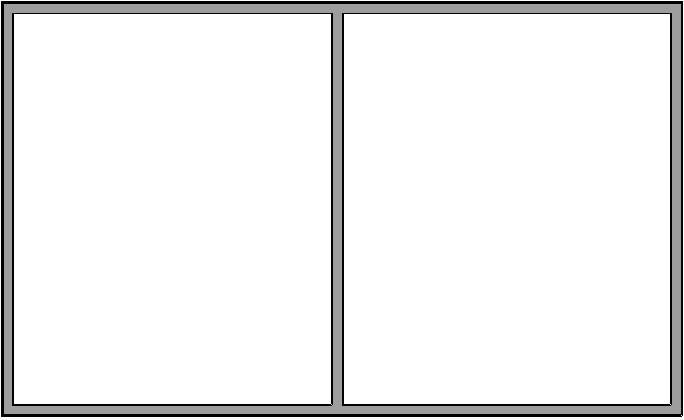
- Still using the Straight Exterior Wall tool, draw a wall that divides the structure into two rooms.
- Select the dividing wall and click the Open Object
 edit button. On the Roof panel of the Wall Specification dialog:
- Check the box beside Lower Wall Type if Split by Butting Roof.
- Select an interior wall type that is structurally similar to your exterior wall from the drop-down list and click OK.
For example, if your exterior wall type is "Siding-6", select "Interior-6" from the drop-down list.
- Click the Select Objects
 button, then click in an empty space in one of the two room areas of your drawing to select it.
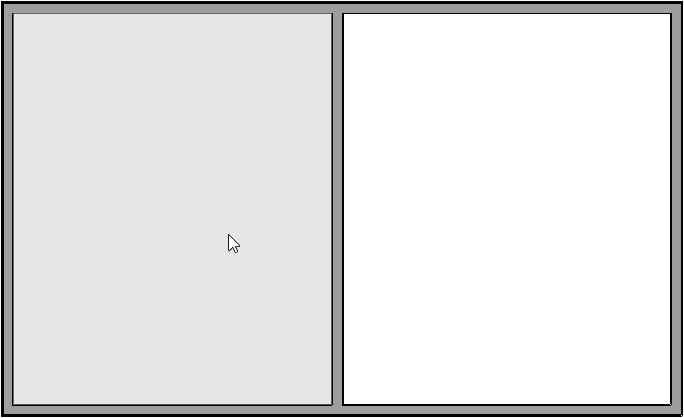
In this example, the roof on the left side is selected.
- Click the Open Object edit button, and on the Structure panel of the Room Specification dialog:
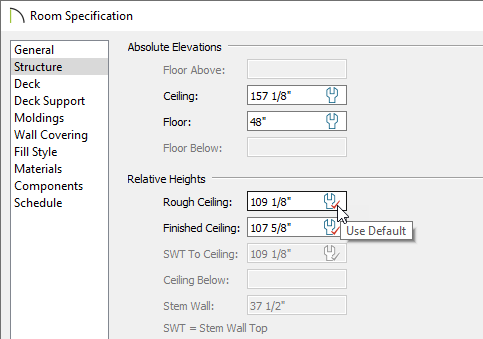
- Raise the height of Floor. In this example, this value is increased to 48".
- Press the Tab key on your keyboard to update the dialog and notice that the Relative Ceiling heights become smaller.
- Select the wrench icon in the Rough Ceiling field, then press the Tab key to restore a full height ceiling to this room.
- Click OK to close the dialog and apply your change.
- Select 3D> Create Perspective View> Perspective Floor Overview
 to see the results so far.
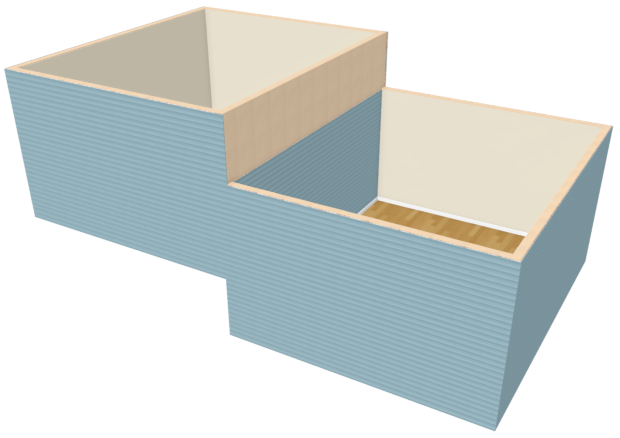
- The wall that divides the structure into two halves should have its exterior siding surface facing the room with the lower floor height.

- If it does not, click the Select Objects button, then click on the wall.
If the room is selected, first, press the Tab key or click the Select Next Object  edit button to select the wall instead.
- With the wall selected, click the Reverse Layers
 edit button.
- Remember that this wall has a Lower wall type when split by butting roof specified. When a roof is built over this structure, this wall should only display siding on the outside of the structure.
To add a foundation
In a split level home, part of the foundation is typically a slab or crawl space, and part is a full height basement - often, a daylight basement.
- Select Build> Floor> Build Foundation
 from the menu to open the Build Foundation dialog. On the Foundation panel:
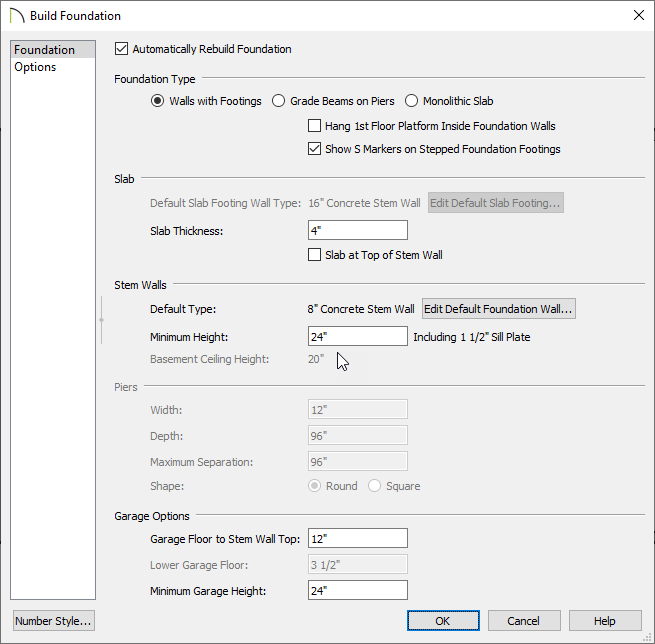
- Leave Automatically Rebuild Foundation unchecked.
- Select Walls With Footings as the Foundation Type.
- Specify the Minimum Height under the Stem Walls heading.
In this example, a height of 24" is used.
- Make any other needed changes, then click OK, then OK again to close the dialog and generate a foundation on Floor 0 based on the 1st floor plan.
- While still on Floor 0, create a Perspective Floor Overview to see what this foundation looks like.
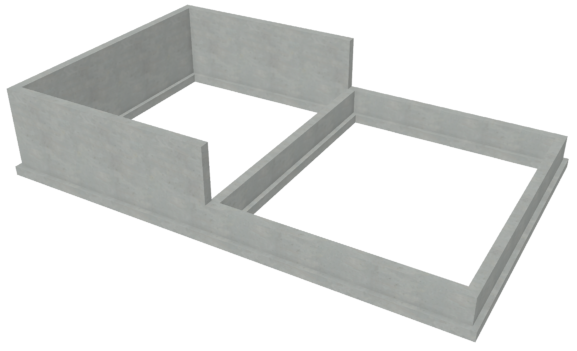
- Notice that the Minimum Stem Wall height is applied to the part of the structure with the lower, default floor height. The stem walls under the area with the raised floor are taller but have the same footing height.
- Return to floor plan view, click the Select Objects button, then click within the left room on the foundation to select it.
- Click the Open Object edit button, and on the Structure panel of the Room Specification dialog:
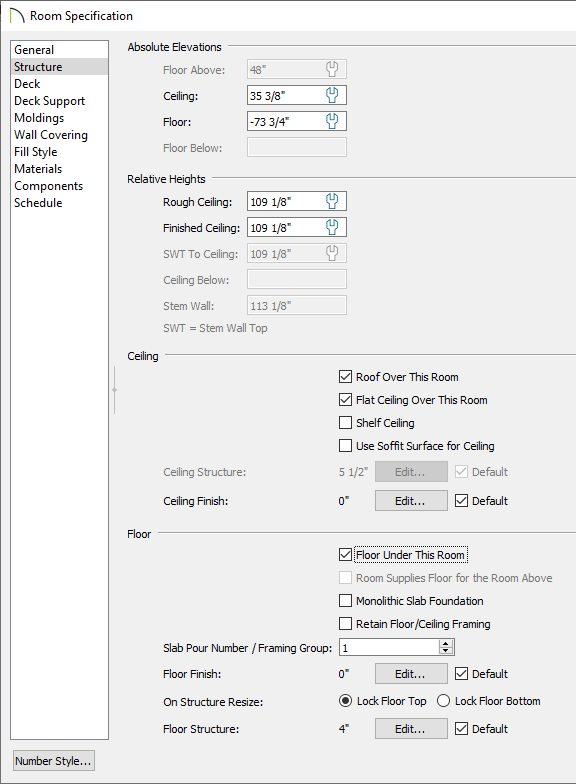
- Notice that the Stem Wall height value is equal to the Minimum Stem Wall Height that you specified in the Build Foundation dialog plus the height of the Floor of the room above.
- Increase the Rough Ceiling value so that the room is full height.
In this example, it's raised to 109 1/8".
- Press the Tab key and notice that the Stem Wall height increases to accommodate the new ceiling height.
- Also on the Structure panel, make sure that the box beside Floor Under This Room is checked.
- Click OK to close the dialog and apply your change.
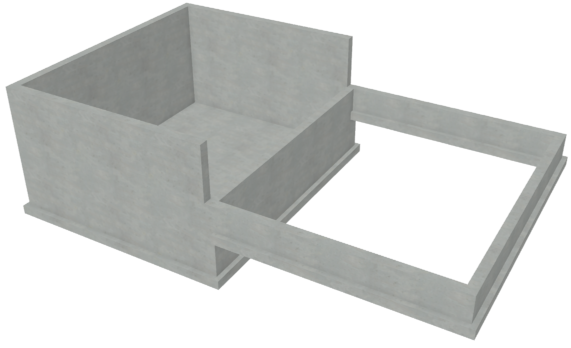
- A Perspective Floor Overview should now look similar to the image below
To add a second floor
If you build an additional floor above the first floor level, bear in mind that the ceiling heights on Floor 1 will be reset to the default.
- Select Build> Floor> Build New Floor
 from the menu.
- Derive new 2nd floor plan from the 1st floor plan.
- Specify the desired default Ceiling height in the Floor 2 Defaults dialog and hit OK to build an additional floor level.
- Divide the second floor the same as the first floor. Select Tools> Floor/Reference Display> Reference Display
 to turn on the reference display so the walls can be accurately aligned between the floors.
- Once the dividing wall is placed, select it and click the Open Object edit button. On the Roof panel of the Wall Specification dialog:
- Check the box beside Lower Wall Type if Split by Butting Roof.
- Select an interior wall type that is structurally similar to your exterior wall from the drop-down list and click OK.
- Go Down One Floor
 to Floor 1, then select the room with the raised Floor height and click the Open Object edit button.
- On the Structure panel, select the wrench icon located in the Rough Ceiling field to set it to the default, then click OK.
- Select the dividing wall on the first floor, and click the Open Object edit button. On the Wall Types panel, select an interior wall type, then click OK.
- Go Up One Floor
 and repeat this process for the room area directly above the one you just modified, however, don't make any additional Wall Type modifications to the dividing wall like mentioned in Step 4.
- Once all floor levels are in place and the ceiling heights are specified as needed, you can build the roof and draw interior walls as needed.
