Chief Architect Help Database - Article Number:  940

How to Import a PDF File

The information in this article applies to:
  • Chief Architect X5
  • Chief Architect X4
  • Chief Architect X3
  • Chief Architect X2
QUESTION

I have a PDF document that I need to import into Chief Architect. How do I do this?


ANSWER

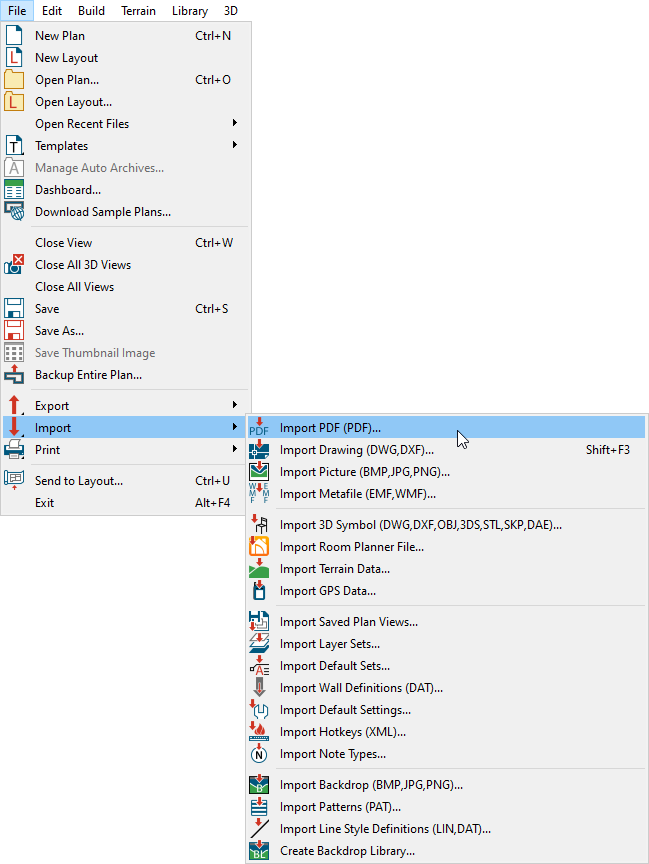
To import a PDF file in Chief Architect X5 or newer

  1. From the drawing that you need to bring the PDF file into click File> Import> PDF... 


  2. Select the PDF file that you wish to import and click Open.


  3. Select which pages you wish to import and click OK.


While you can’t use the Import function to get a PDF file into Chief Architect in X4 and earlier versions, you can use the Adobe Reader Snapshot tool to copy the PDF as an image, and paste it into Chief Architect.

To  import a PDF file in Chief Architect X4 and prior

  1. Open your PDF file in Adobe Reader.


  2. From the menu, select Edit> Take a Snapshot.


  3. Click and drag a box around the area you want to copy.


  4. Open the Chief Architect plan you want to paste into, then select Edit> Paste> Paste .


  5. Choose Picture from the Paste Image dialog and click on OK.

    Note that the resulting image looks best if you have the PDF document opened to a 100% or larger view.


Last updated on: Feb 07, 2013


The Chief Architect support team has compiled a list of articles with common questions and answers.


Find answers on ChiefTalk

Answers to many how-to and technical questions can be found 24 hours a day, 7 days a week on our online forum, www.ChiefTalk.com. ChiefTalk is visited not only by our software users, but also by members of our training, support, and engineering teams who are well-versed in using the software and are happy to help you. On ChiefTalk, you can discover tools and techniques to bring your design ideas to life.