QUESTION
What can I do to adjust how a specific object is reported to a Materials List?
ANSWER
The properties located on the Components panel of an objects specification dialog controls how an object is reported to a Materials List in Chief Architect.
To adjust how objects are reported to the materials list
- Using the Select Objects
 tool, click on the object that you want to adjust.
In this example, a door is selected.
- With the object selected, click the Open Object
 edit button to open its Specification dialog.
- On the Components panel:
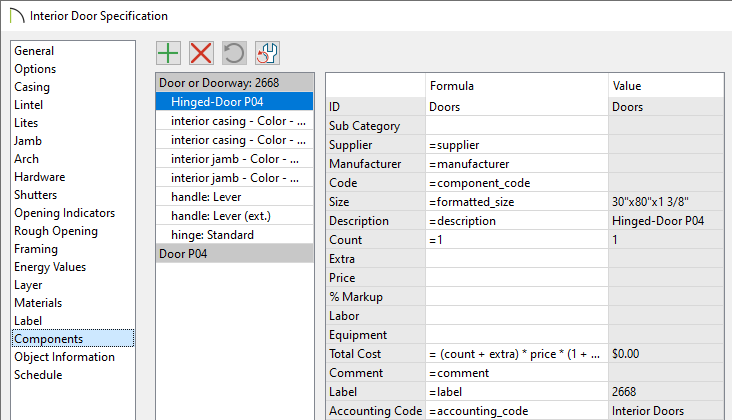
- Click on a line item to select it and display its Materials List information to the right.
- To change a specific line item, focus on the Formula column, then double-click on the cell that contains the information that you want to adjust. For example, double-clicking on the ID Formula cell will allow you to access a drop-down menu to choose what category the object will reported to.
- When an ellipses (...) is present in a cell, you may notice that information in that cell is not editable. This typically indicates that the information is populated from another location, such as the Object Information panel.
- When a component is selected, click the Add Line Item
 button to add a new component to the list, or click the Remove Line Item
  button to remove the selected line item. Click the Restore
  button to restore components that have been removed, or click the Revert
  button to reset any formulas that were customized.
- The Value column displays the results from any formula specified in the Formula column, and is for reference only.
- Once all desired changes have been made, click OK to close the dialog.
- Select Tools> Materials List> Calculate Materials for All Floors
 from the menu to create a new Materials List.
