QUESTION
When drawing a hole within a slab, I receive one of the following messages:
- "#272011651 - A slab hole must be placed inside a slab."
- "#272011652 - A slab hole with footing must be placed inside a slab."
- "#272032552 - The hole must be placed inside the object."
What do these messages mean?
ANSWER
By definition, a hole in an object such as a slab, must be completely contained within that object. The hole cannot touch the edge of the object, extend past the edge of the object, or be contained by multiple objects.
To draw a slab hole
- Select Build> Slab> Slab
 or Slab with Footing
  from the menu, then click and drag to draw a rectangular slab.
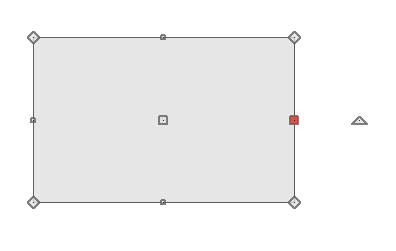
- Click on the slab to select it and edit its size and shape as needed.
- Select Build> Slab> Slab Hole
 or Slab Hole with Footing
  from the menu, then click and drag to draw a small rectangular hole entirely within the existing slab.
The Create Hole  edit tool also allows you to draw a hole inside of a selected slab or slab with footing.
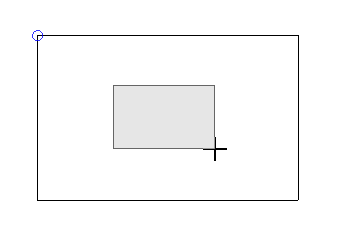
- Once drawn, slab holes can be edited much like slabs can. The only restriction is that they must be contained entirely within one individual slab object.
- Take a Camera
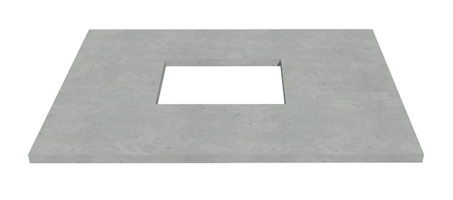
 view to see the results.
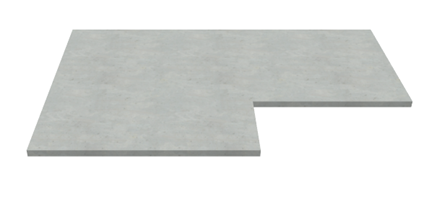
If you need to create a cutout in the slab's perimeter rather than add a hole to its interior, you can add breaks to its edges.
To customize a slab's edges
- Click on the slab to select it, then click the Add Break
 edit button.
- Click on an edge of the slab where you would like to add a corner. Notice that a new diamond-shaped edit handle is created.
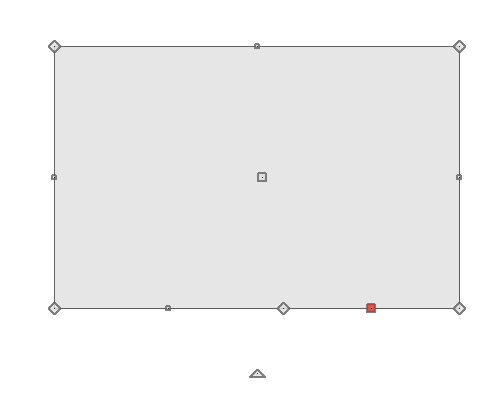
- Click-and-drag one of the square edit handles to move the edge on either side of the new corner.
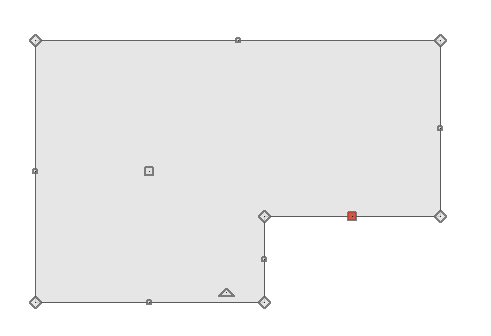
- The new edge can also be moved using dimensions.
- You can also click-and-drag the diamond edit handle at the new corner to change its location and the angles of the adjacent edges.