I want to draw a custom molding profile and add it to my library. Alternatively, I found a molding profile in the library that is similar to what I need, but I would like to make some minor changes to it. How would I go about this?

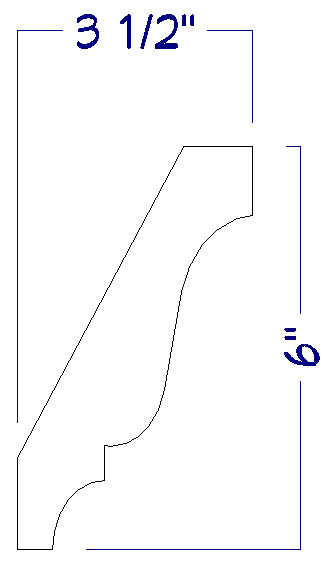
Custom molding profiles can be drawn in either floor plan view or in a CAD detail window and should be drawn at their actual size.
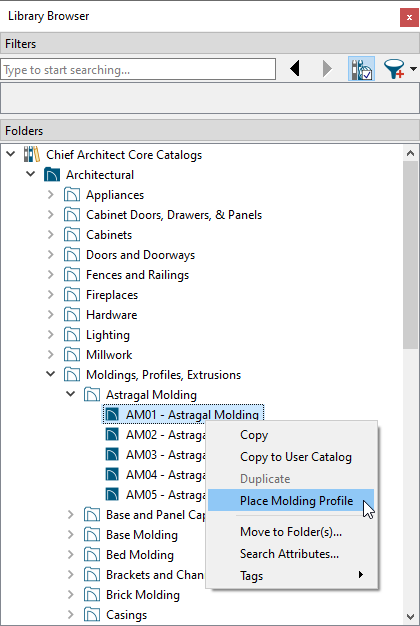
You can easily make changes to an existing molding profile in the library and then save your edited profile into the User Catalog for future use.
 from the menu.
For window casing, base or crown molding, or a chair rail, the back of the molding (the part that is against the wall) should be drawn vertically so that it forms the left side of the polyline.

 edit button.
 from the menu to open the Library Browser window.
If you right-click on a molding profile that is in the User Catalog, selecting the Open Object option will open a Molding Specification dialog where the Molding Height, Molding Width, Profile Rotation*, and a variety of other properties can be modified.
*Profile Rotation is only available in X13 and newer program versions.
 tool, click on the molding profile polyline to select it. edit button to add the modified molding profile to the User Catalog in the Library Browser.
To learn more about molding profiles, refer to your programs Help documentation, as well as the Related Articles section below.
