Chief Architect Help Database - Article Number:  852

How to Create a Deck Around an Above-ground Pool or Spa

The information in this article applies to:
  • Chief Architect X5
  • Chief Architect X4
  • Chief Architect X3
  • Chief Architect X2
  • Chief Architect X1
QUESTION

My clients need a deck built around their existing above-ground pool. How can I design it for them in Chief?


ANSWER

You can easily drop a pool or spa into a deck by specifying part of the deck room as "Open Below".


To drop a pool into a deck platform

  1. Open the plan in which you would like to position a pool or spa in a deck platform. 


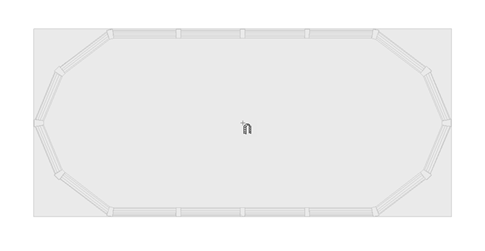
  2. If you have not done so already, select Library> Library Browser  from the menu, then browse to the Fixtures (Exterior) category and select an above ground pool to place in your plan. Move your cursor into the drawing area and click to place the pool at that location.


    • A selection of pools and related objects can be found in the Pools, Spas & Waterfront library as well as in the Bonus Pools library.

    • In this example, Exteriors> Recreation> Pools, Spas, & Waterfront> Pools> Oval Pools> Oval Above Ground Pool - Large is used.


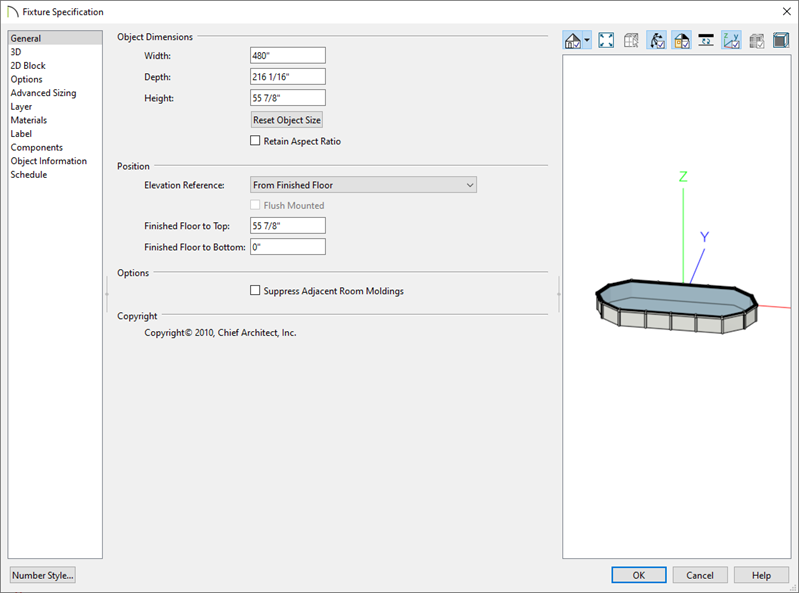
  3. Click the Select Objects  button, then click on the pool to select it and click the Open Object  edit button.  On the General tab of the Fixture Specification dialog:


    • Specify the size of the actual pool used in your project.

    • Make a note of the pool's Height value and click OK.


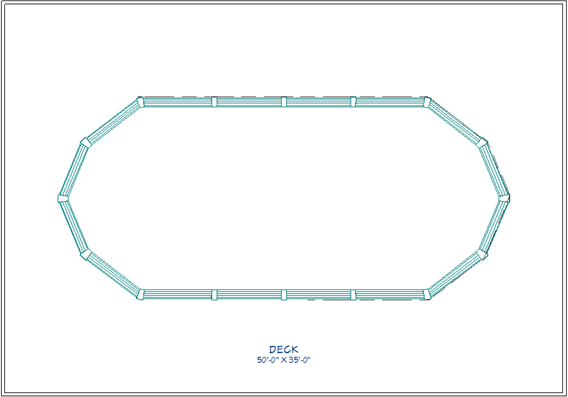
  4. Select Build> Decks> Straight Deck Railing  from the menu, then click and drag to draw deck railings around the pool, creating a Deck room.
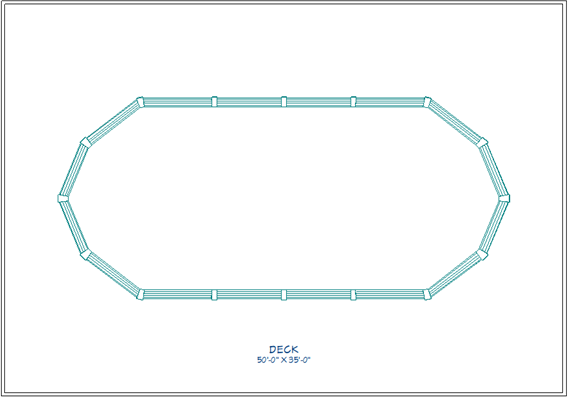


  5. Click the Select Objects  button, then click on the deck railings and move them as needed to create a deck of the desired size and position.


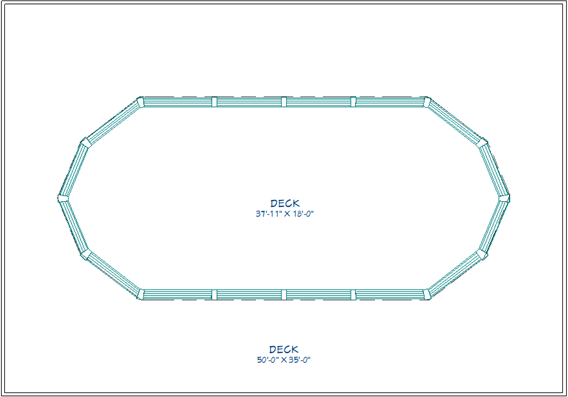
  6. Build> Walls> Invisible Wall  from the menu, then click and drag to draw a second room entirely inside the first one. Trace along the edges of your pool.


    • If your pool is round or has rounded edges, you can instead use the Curved Deck Edge  tool and then make your railing walls invisible.

    • To learn how to create a perfectly round room, see article 763 in this database: How to create a completely circular wall

       
  7. Using the edit handles, position the deck edges so that they align with the outside edges of the pool symbol.


  8. Starting in Chief Architect X4, an invisible wall is automatically drawn any time you draw a room inside of another room.  This is to avoid an issue with creating open below rooms inside of other rooms.

    If you are using Chief Architect X3, be sure and manually draw an invisible wall from your interior deck room to the exterior wall of your deck.  This step is very important. If you do not connect the deck edges to the outer railing, the deck platform will continue through the open area. For more, see article 50 in this database:  Setting a room to be "Open Below" has no effect.


  9. Click the Select Objects  button, then click in an empty space in the larger rectangular Deck room to select it and click the Open Object  edit button. 


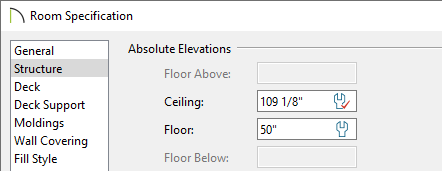
    • On the Structure tab of the Room Specification dialog, specify the Floor as the same or slightly less than the pool's Height value, then click OK.

      In Chief Architect X2 and prior, the Floor Height value was located on the General tab of the Room Specification dialog.

    • In this example, the pool's Height is 55 7/8", and the Floor height for the deck is specified as 50". 


  10. With the Select Objects  tool still selected, click in the new Deck room to select it and click the Open Object  edit button. 

    • It is likely that you will select the pool instead of the room.  Click the Select Next Object  edit button or press the Tab key until the room is selected.


  11. On the General tab of the Room Specification dialog, select Open Below from the Room Type drop-down list.


    • On the Structure tab, uncheck Roof Over This Room.


    • Click OK to close the dialog and apply your changes.


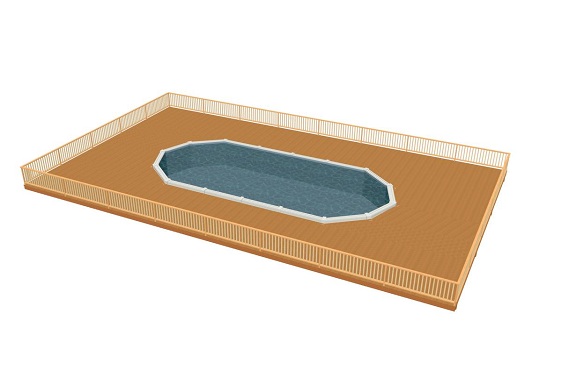
  12. Select 3D> Create Perspective View> Full Overview  from the menu to see the results.

    In Chief Architect X1 and prior, use 3D> Create Render View> Render Full Overview.
MORE INFORMATION

To download a library of Bonus Pools and other bonus libraries, visit our Content Resources page.

Last updated on: Mar 29, 2013


The Chief Architect support team has compiled a list of articles with common questions and answers.


Find answers on ChiefTalk

Answers to many how-to and technical questions can be found 24 hours a day, 7 days a week on our online forum, www.ChiefTalk.com. ChiefTalk is visited not only by our software users, but also by members of our training, support, and engineering teams who are well-versed in using the software and are happy to help you. On ChiefTalk, you can discover tools and techniques to bring your design ideas to life.