I would like to design my own custom muntins for a window or door. How can I do this?
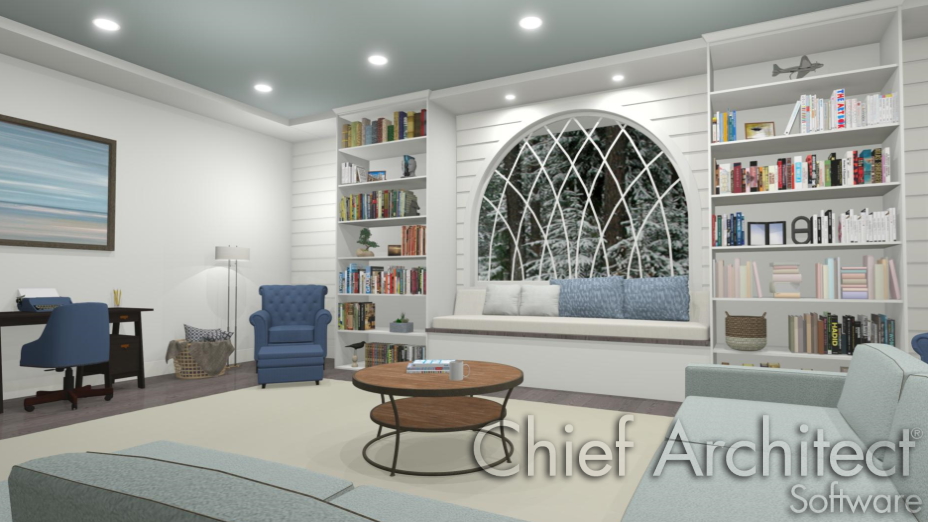
Custom muntins are created by drawing their pattern using the CAD tools in a cross section/elevation view, blocking the pattern to create a CAD block, and then selecting the window or glass door and clicking on the Load Muntins edit button. The CAD block should cover at least half the glass horizontally and one quarter of the area vertically, but should not overlap the sash, frame, or casing by more than five percent in any direction.
 the plan in which you would like to create custom muntins within.
 , then create a view of the wall the window or glass door is in.
 tool to focus in on the window or glass door.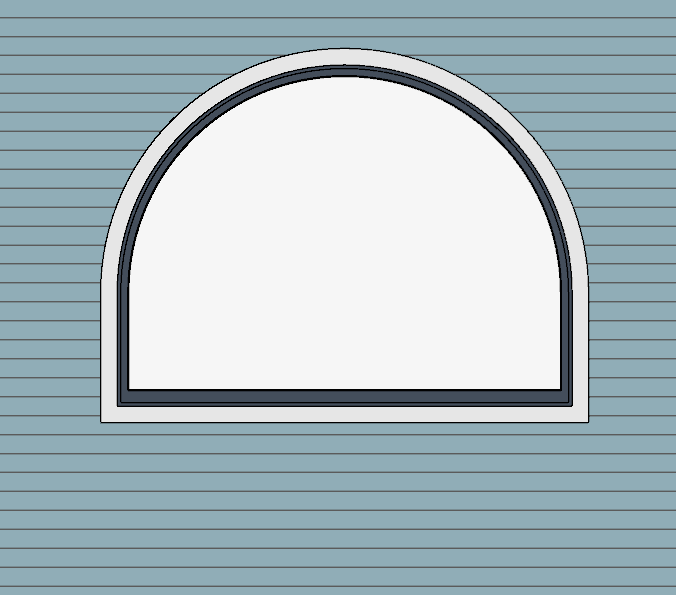
 and Draw Arc
  tools to design the desired muntins.
Try to make them start and end as close to the edge of the glass as possible. Keep in mind that you will want to use two arcs to create a full circle.
 tool, then click the Make CAD Block
  edit button.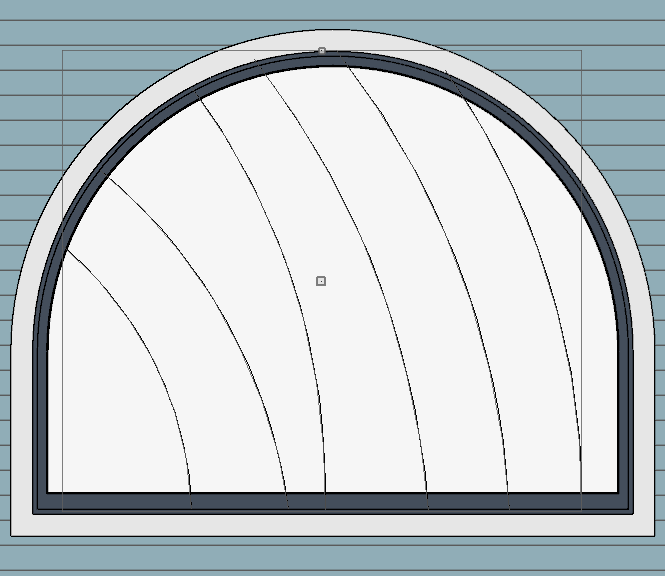
 edit button, select the Reflect About
  secondary edit button, then hover your cursor over the window. When the gray dashed line meets up with the center of the window vertically, click once to create a reflected copy of the CAD block.
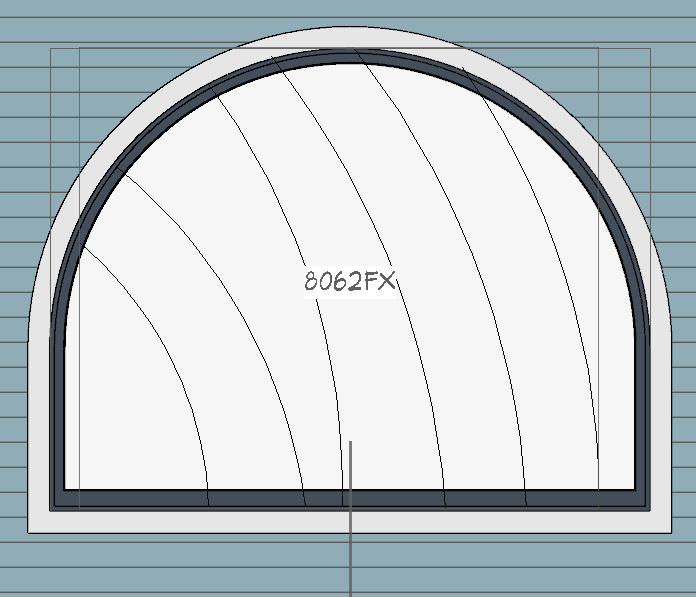 tool, click on the window or glass door to select it, then click the Load Muntins
  edit button to convert the CAD block(s) into custom muntins.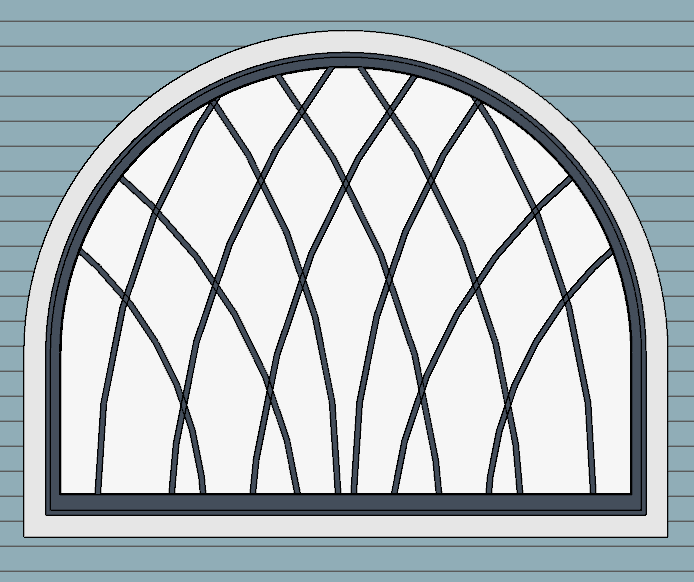
 edit button. The muntins disappear and the original CAD block takes their place.
 , Box Windows
  , and mulled units. To create custom muntins for a Bow Window
  , you must draw them on the one component that is selectable. When the muntins are loaded, they will be applied to all of the components