QUESTION
Most of my roof has an 8:12 pitch, but the shed roof over the porch has a pitch that is only 3:12. What do I need to do to automatically build a roof with more than one pitch, such as in the image below?

ANSWER
In Chief Architect, you can quickly build an automatic roof based on the settings in the Build Roof dialog. If you need different settings for a particular roof plane in your plan, you can specify these specific settings on the Roof panel of the Wall Specification dialog for the wall that this roof plane will bear on when built.
To specify the pitch for a single automatic roof plane
- Using the Select Objects
 tool, click on the wall that the roof section you wish to change will bear on to select it, then click the Open Object
  edit button.
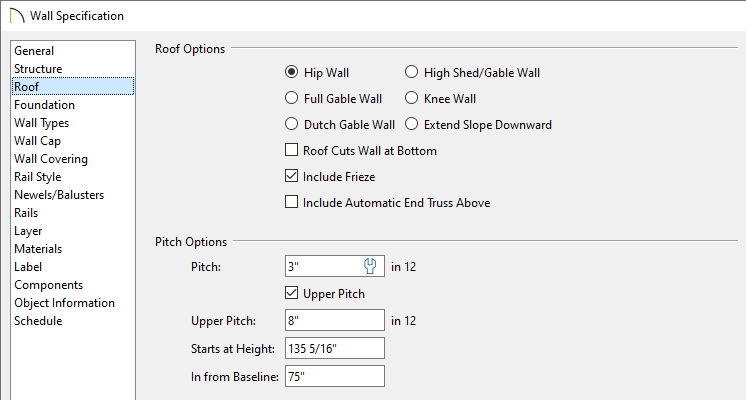
- On the Roof panel of the Wall Specification dialog, specify the desired Pitch.
You can also specify how far this roof pitch builds into the structure before it meets a second, steeper pitch. To do this, check the box beside Upper to enable the settings that follow, and then:
-
Specify the desired Upper Pitch.
In this example, an 8" in 12" is specified.
-
Specify where tostart the upper pitch - by either entering a value in the Starts at Height field or In from Baseline field.
In this example, the porch room is 75" deep, and we want the pitch to change where the porch meets the main structure, so we will specify our value using the In from Baseline field.
- Repeat steps 1 and 2 for all walls that will support a roof plane with a non-default pitch.
- If your roof is not set to auto rebuild, navigate to Build> Roof> Build Roof
 from the menu, and in the Build Roof dialog that opens, check either the Build Roof Planes or Auto Rebuild Roofs box, then click OK.
