Chief Architect Help Database - Article Number:  446

How to Create a Custom Cabinet Symbol and Add it to the Library

The information in this article applies to:
  • Chief Architect X5
  • Chief Architect X4
  • Chief Architect X3
  • Chief Architect X2
QUESTION

I want to create a custom kitchen cabinet island, or other type combination symbol, and add it to the Library Browser.  How can I accomplish this task?

ANSWER

Cabinets can be edited and combined to create a wide variety of custom cabinetry and furniture, and then be saved in the Library Browser for future use.

There are several ways to achieve this goal - the approach that you choose will depend on the complexity of the symbol that you want to create.  In this article, we will walk you through:

  • Customizing a single cabinet and adding it to the library 
  • Blocking a group of cabinets blocked together and adding the block to the library 
  • Converting multiple cabinets into a single symbol and adding it to the library


To edit a single cabinet and add it to the Library Browser:

  1. Launch Chief Architect and select File> New Plan  to start a brand new, blank plan.


  2. From the menu, select Build> Cabinet> Base Cabinet   and click in the plan to place it.


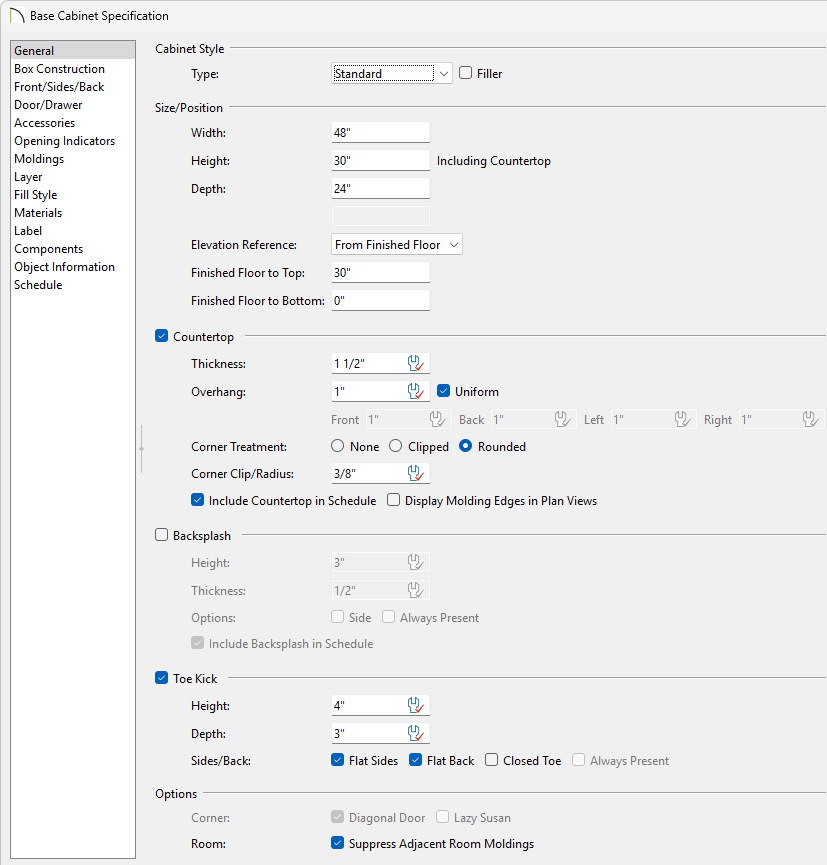
  3. Next, use the Select Objects  tool to select it, and click on the Open Object  edit tool to display the Base Cabinet Specification dialog.


  4. Make any necessary modifications to your base cabinet in this dialog.

    For the purposes of this example, we did the following: 


    • On the General tab, we edited the base cabinet's Width value to be 72", set the Backsplash Height and Thickness to 0", and increased the Toe Kick Height to 24".

    • On the Front tab, we deleted the doors placed by default, leaving us with just 8" drawers, and clicked on the Triple Face option.

    • On the Door/Drawer tab, we set the Drawer Handle to one from the Library Browser called "Dual Tone Pull H," and under the Feet section, used the Library button to browsed to Manufacturer Libraries> Adams Wood Products> Island Legs> A0913-35-35 and applied these as our cabinet legs.

      In Chief Architect X2, this setting change was made on the Hardware tab.

    • Finally, we selected the Materials tab and set a Cherry (red) material to the various components of the cabinet, and clicked OK to apply the changes.


  5. Now that we have finished modifying our single cabinet, we are ready to add it to the Library Browser.

    With the cabinet still selected, click on the Add to Library   edit tool.


  6. Once the object is added to the Library Browser, we will right click on it in the Library, and select Rename to give our newly created object a short, descriptive name.

    For the purposes of this example, we named the cabinet "3 Drawer Desk".


  7. Once the cabinet has been renamed, we will click and drag it to place it in the Cabinets folder that we created in our User Libraries.


  8. You can now use your customized cabinet in future plans.


Now that we know how to modify a single cabinet and add it to the Library Browser, let's see how to block a group of cabinets together, and add them to the Library Browser.


To create an architectural block and add it to the Library Browser:


  1. Let's begin by starting a New Plan .


  2. In the plan, place and edit your cabinets to create the type of configuration that you want, whether it is for an entire kitchen, a cabinet island, an entertainment center, hutch, etc.


  3. Once you have your cabinet configuration set up the way you want in, in your 2D floor plan view, use the Select Objects  tool to drag a marquee around the cabinets.


    Tip: If a tool other than Select Objects is active, you can only select objects of that type using the marquee select.

    For example, if the Base Cabinet  tool is active, you can only group select base cabinets, any other objects in the area will not be selected when you drag a marquee around them.


  4. Once you have all of your cabinets selected, click on the Make Architectural Block   button on the edit toolbar.

    Now all of the cabinets will be grouped together, and can be selected and moved as an entire group, rather than individually.


  5. Once you have created your architectural block out of cabinets, click on the Add to Library   edit tool.

    Note: If we tried just group selecting the cabinets, and adding them to the Library Browser using the Add to Library edit tool, without first making an Architectural Block, each cabinet would be added to the Import category individually, rather than as a grouped set of objects.


  6. Now our group of cabinets has been added to the Library Browser, in the User Catalog category, with the name of Architectural Block.

    • As we did when we just added a single cabinet to the Library Browser, we will now right click on the name in the Library Browser and select Rename.


    • For the purposes of this example, we named our group of cabinets to Cherry Red Hutch Block.

One advantage to blocking a group of cabinets together and adding them to the Library Browser as we did above is that when we place one of these architectural blocks from the Library Browser, we can then explode it in the plan and make modifications to its individual objects.

If we want to ensure that all of these objects always stay grouped together, however, without allowing for them to be broken apart at a later time, we can to create a symbol out of them.

Let's take a look at our last example of the hutch.


To convert a group of objects into a single symbol: 

  1. From the menu, select 3D> Create Perspective View> Perspective Full Overview .


  2. With a 3D view of the cabinets forming the hutch active, from the menu select Tools> Symbol> Convert to Symbol  .


    Tip: You can create your own symbols in Chief Architect using a combination of architectural and CAD-based objects, and a wide variety of unique objects can be created using the Primitive Tools.

    For more information on creating custom 3D symbols, see Article Number 761 in this free online Help Database entitled "How to model custom 3D objects" at: http://www.chiefarchitect.com/support/displayfaq.php?faqNumber=761


  3. In the Convert to Symbol dialog, you can select a category for the symbol, and choose the option Add to Library


  4. Check Show Advanced Options and click OK to be able to enter in more detailed information on your symbol in the Symbol Specification dialog.


    • Some of the options you have include displaying the symbol's size in its label, whether it sits on the floor or inserts into a cabinet front or countertop, its 2D CAD symbol, as well as many other options. 

    • For more information on the items on the various tabs in this dialog, click on the Help button located at its lower right corner to launch the software's context sensitive Help.

    • For the purposes of our example, we will set the Symbol Name to Cherry Red Hutch Symbol, set the Display Size to Width x Depth x Height, and click OK.


  5. After we click OK, notice that your mouse cursor has changed to be able to place the newly created symbol, and that the Symbol Name we entered of Cherry Red Hutch Symbol is shown in the Library Browser under the Import category.

    • If you want, you can place a copy of your newly created symbol next to the original hutch architectural block.  Because this plan is empty aside from the hutch, you need to click close enough to the hutch that the new symbol can use it as a reference to orient itself in space.


  6. Since the symbol is already appropriately named, we will just move the Cherry Red Hutch Symbol to our User Libraries folder for Cabinets.


  7. Next, return to floor plan view to place the symbol that was just created.


  8. Use the Select Objects  tool to select the symbol, and click on the Open Object  edit tool to open the Furniture Specification dialog. 


    • Notice that we still have a great deal of control over the size, materials, and layer that this object is located on and can adjust these, but we will no longer have the ability to explode it into individual cabinet components.
RELATED INFORMATION

Article Number 753: How to create an entertainment center

Article Number 809: How to convert an object into a symbol

Last updated on: Mar 29, 2013


The Chief Architect support team has compiled a list of articles with common questions and answers.


Find answers on ChiefTalk

Answers to many how-to and technical questions can be found 24 hours a day, 7 days a week on our online forum, www.ChiefTalk.com. ChiefTalk is visited not only by our software users, but also by members of our training, support, and engineering teams who are well-versed in using the software and are happy to help you. On ChiefTalk, you can discover tools and techniques to bring your design ideas to life.