How do I create a beam?
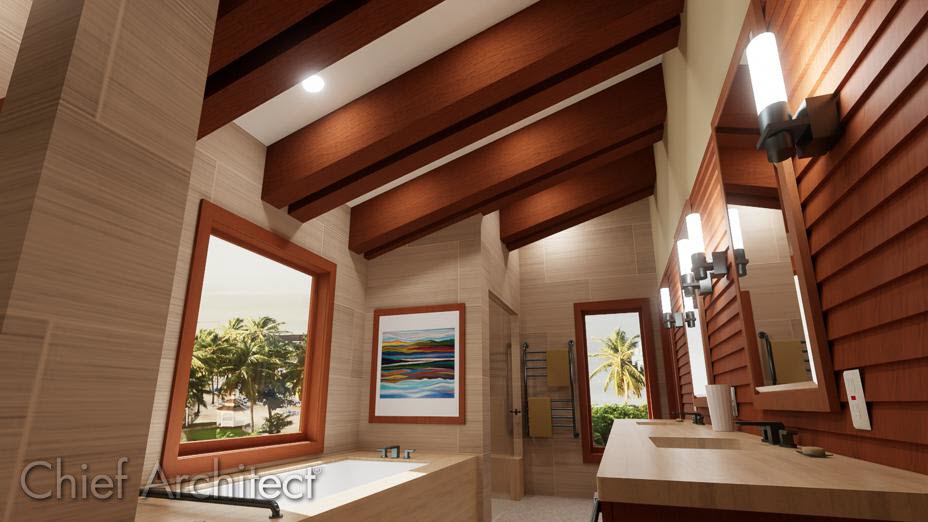
Floor/Ceiling Beams and Roof Beams are not automatically generated: they can only be drawn manually.
There are three types of beams you can create in Chief Architect: floor, ceiling and roof beams.
 , navigate to Framing> Manual Framing, then click Edit. , navigate to Framing> General Framing, then click Edit.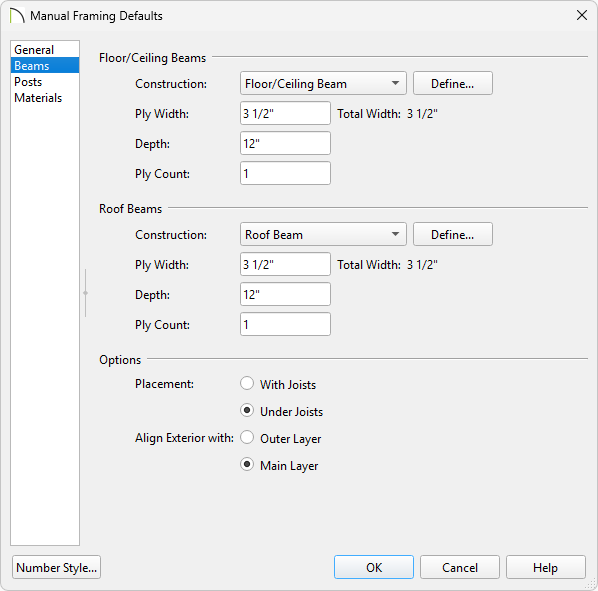
 or Roof Beam
  , depending on the type of beam you want to create.
Remember the floor framing is drawn on the floor below the floor in question. If you want to draw a floor beam for Floor 1, draw this object on Floor 0.
tool active, click and drag within a floor/ceiling platform to create a floor/ceiling beam. tool active, click and drag within a roof plane to create a roof beam.  or Multiple Copy
  edit tools to replicate the beam across the room or structure.
Note: Information on using these tools can be found in the program's Help documentation. Additionally, you can review the following training video on using Multiple Copy.
