My plan includes a feature that I would like to be able to see through. How can I edit a library material so that it can be partially transparent?
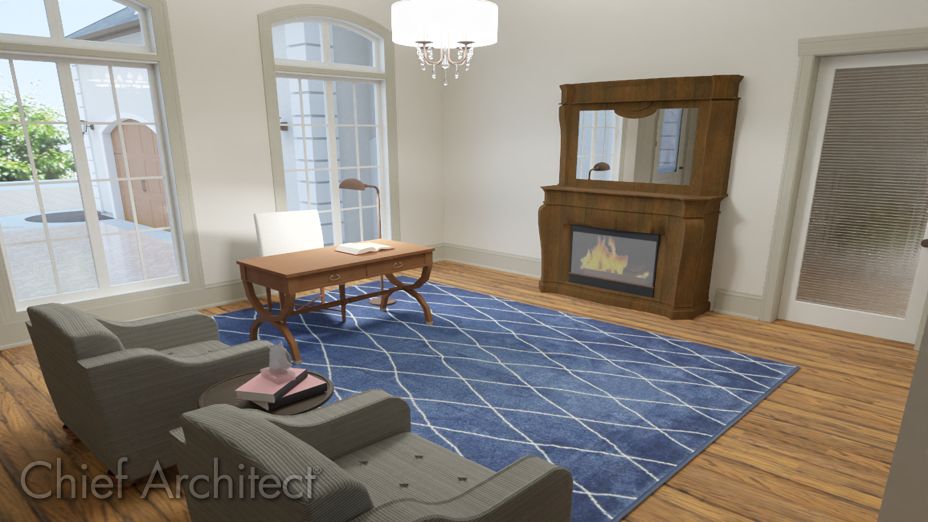
Many of the materials in the library are set up to be opaque, so that they appear totally solid. In some situations, though, transparency can be a helpful attribute.
Note: On a Mac, hold down the Control key while clicking to initiate a right-click command. More information about right-click commands on Apple input devices can be found in the following Apple resource: Right-click on Mac.
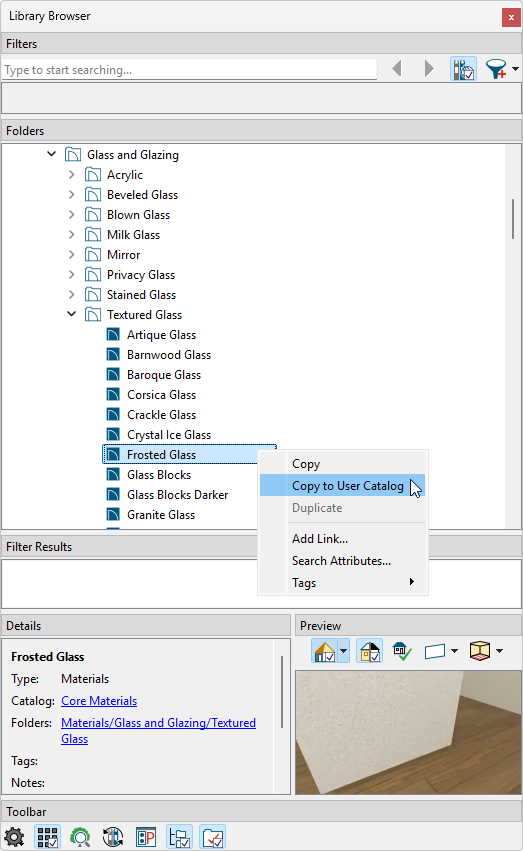
You can also add the material to your User Catalog directly from the Define Material dialog. While in a camera view, navigate to 3D> Adjust Materials> Adjust Material Definition, click on where the material appears in your view, and in the lower right corner of the Define Material dialog, click on the Add to Library button.
 .
.Transparent materials are not diffusive, specular, or rough, but do allow you to specify how light bends when passing through the material.
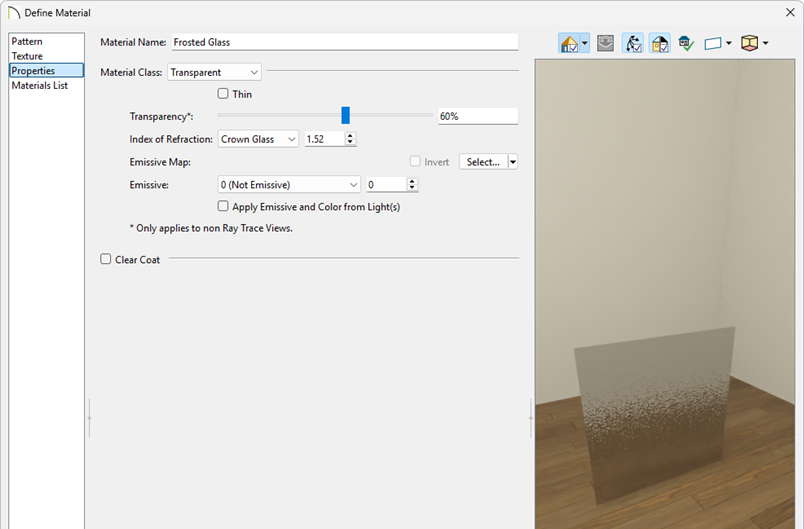
Note: The Transparency setting controls how opaque or transparent a material is. Most materials are opaque while some materials, such as glass, are partially transparent. In some situations, materials with transparency can slow down rendering speed. A transparency of 0%, with the slider all of the way to the left, is completely opaque. This control is only available for Transparent, Translucent, and General materials. This option is not available when Metallic is checked and does not affect the appearance of Transparent materials in ray traced views.
