When I build framing for my model, the entire structure frames quite nicely. However, despite my best efforts, the floor and ceiling will not frame. Why won't the framing generate in these areas?
Framing for the floor and ceiling will not generate, even if there is sufficient platform thickness for each, if certain attributes within the Room Specification dialog are set incorrectly. See the procedure below to ensure that these attributes within the Room Specification dialog are not conflicting with the framing of your model.
Trey ceiling framing is part of the custom ceiling framing component in Chief Architect. If you have recently created a trey ceiling, but you notice that the framing hasn't updated to accommodate the trey, try rebuilding your custom ceiling framing.
In X13 and newer versions, you can also select the trey ceiling polyline in your plan and click the Build Framing for Select Object(s) edit button to build the necessary framing.
 tool, click in a room in which floor and/or ceiling framing is not generating correctly, then click the Open Object
  edit button.
 Note: If all rooms on a particular floor are not generating floorand/or ceiling framing correctly, the floor and/or ceilingStructure properties may have been modified in the Default Settings. Ifthis is the case, navigate to Edit> Default Settings, expand the Floors andRooms category, expand the Floor Levels then select and edit the specific levelneeded. Once in this dialog, the selected floor level Defaults will replaceRoom Specification in the steps below.
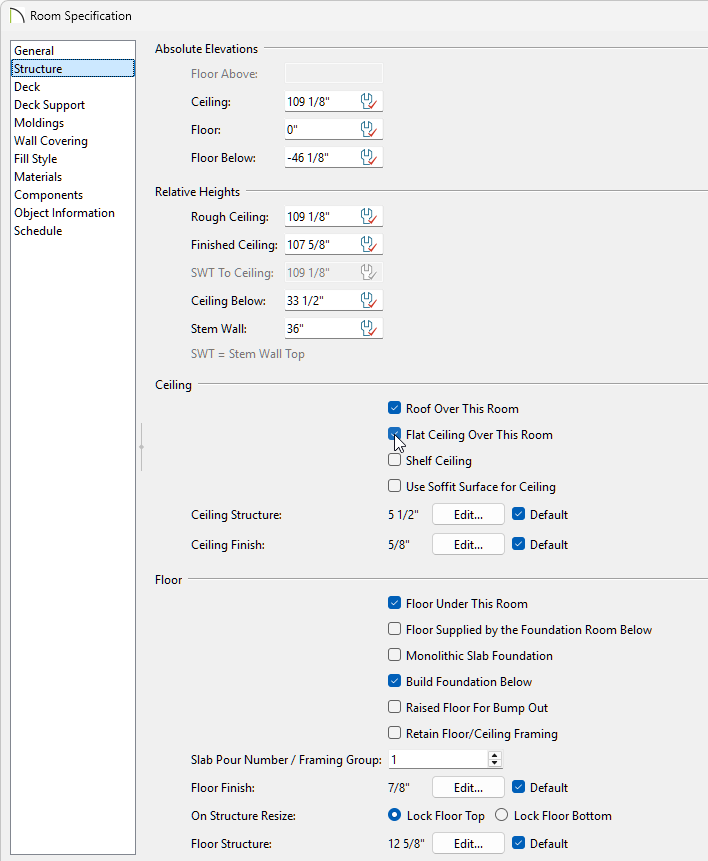
If Flat Ceiling Over This Room is unchecked, the ceiling follows the underside of the roof or manually drawn ceiling planes.
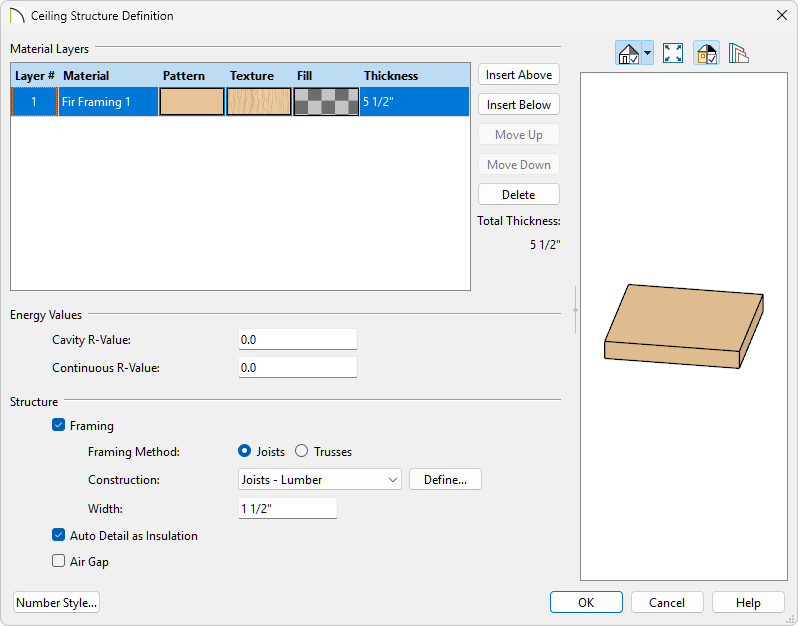
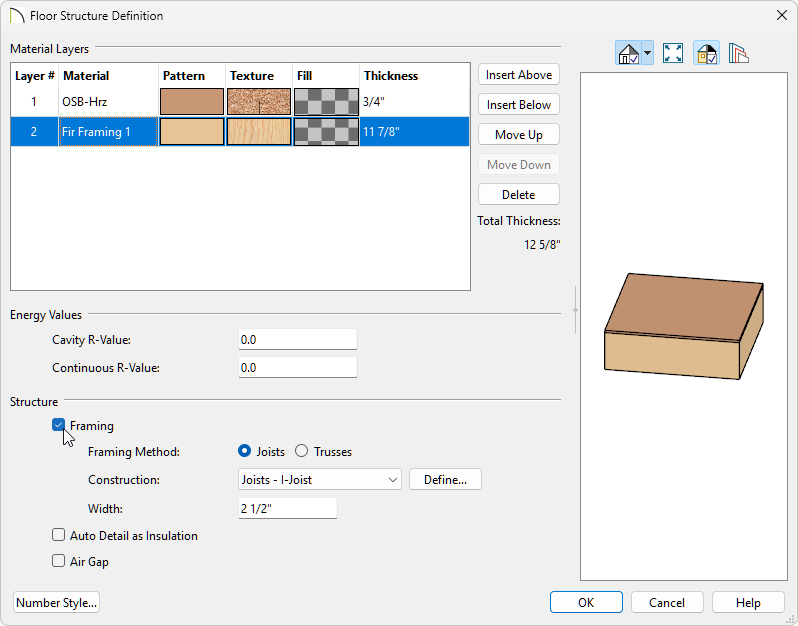
The Framing Checkbox is how we tell the software what to build joists with, so be sure to only mark your Framing material and not your OSB material as framing. If you mark your OSB material as framing you will have 3/4" thick joists atop your actual joists.
 from the menu.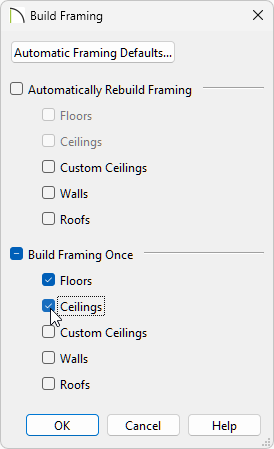
You can also check the box for Automatically Rebuild Framing for Floors and Ceilings so that framing will be regenerated automatically anytime a change is made to the model.
