I would like to add curved stairs or add a spiral staircase to my plan. How can I do this?

Curved staircases can be created in Chief Architect using the Curve to Left and Curve to Right stair tools. In addition to these tools, straight staircases can be curved by holding down the Alt or Option key on your keyboard. Spiral staircases are best created using the Spiral Staircase objects located in the library.
 or Curve to Right
  from the menu, then click once in a floor plan to add curved stairs at that location.
 tool, select the stairs, and use the edit handles that display to adjust the stair to your liking.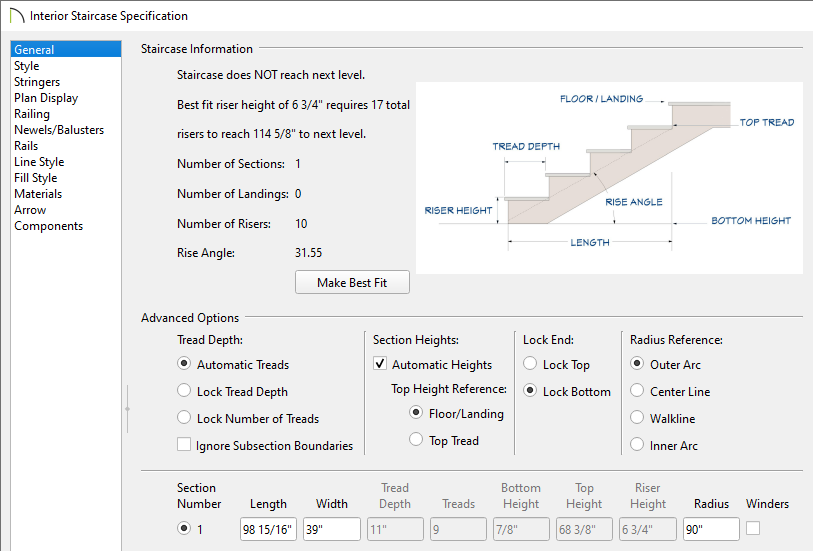
In X16 and newer versions, once you have made stylistic changes to your staircase you can add it to your User Catalog for future use. Please see the appropriate resource located in the Related Articles section below to learn more.
 from the menu, then click and drag to draw a run of straight stairs. button, click on the staircase to select it.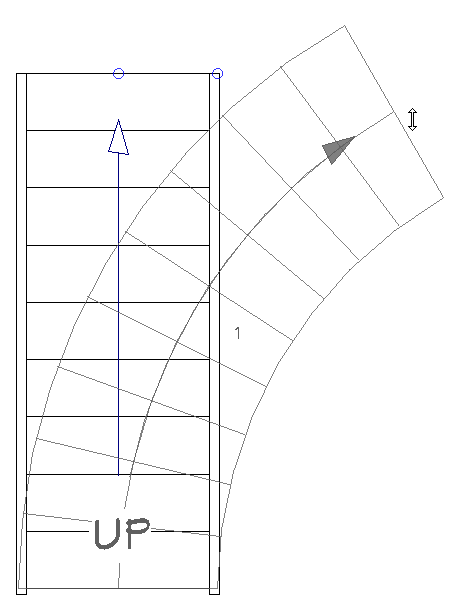
Note: The Alt/Option key and the right mouse button/action are shortcuts for the Alternate edit behavior. If you would like to enable this edit behavior for the left mouse button/action, navigate to Edit> Edit Behaviors> Alternate.
In addition to the Alternate edit behavior, stairs can be converted from straight to curved, and vice versa, using the Change Line/Arc edit tool.
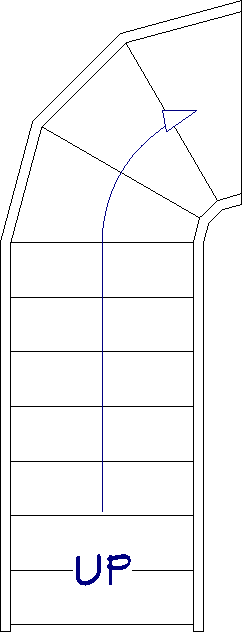
 tool. Segments are denoted by their segment number and have separate edit handles for each section.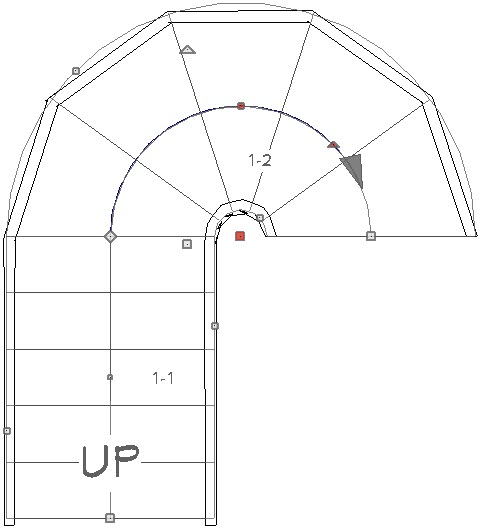
In X16 and newer versions, once you have made stylistic changes to your staircase you can add it to your User Catalog for future use. Please see the appropriate resource located in the Related Articles section below to learn more.
 to open the library, then browse to Core Catalogs> Architectural> Staircases> Spiral.
 icon. Click once to place the selected spiral staircase at that location.
 view to see the results.
To create a stairwell, or opening, for your stairs to come up through, please see the appropriate resource located in the Related Articles section below.
