
Chief Architect As-Built App
Capture 3D floor plans of rooms by scanning or drawing on your iPhone. Make edits and import them directly into Chief Architect X18 to begin remodeling. The As-Built app helps you quickly document existing room conditions. Even your clients can scan their rooms for you, saving you time.
Remodeling has never been easier!



How does As-Built work?
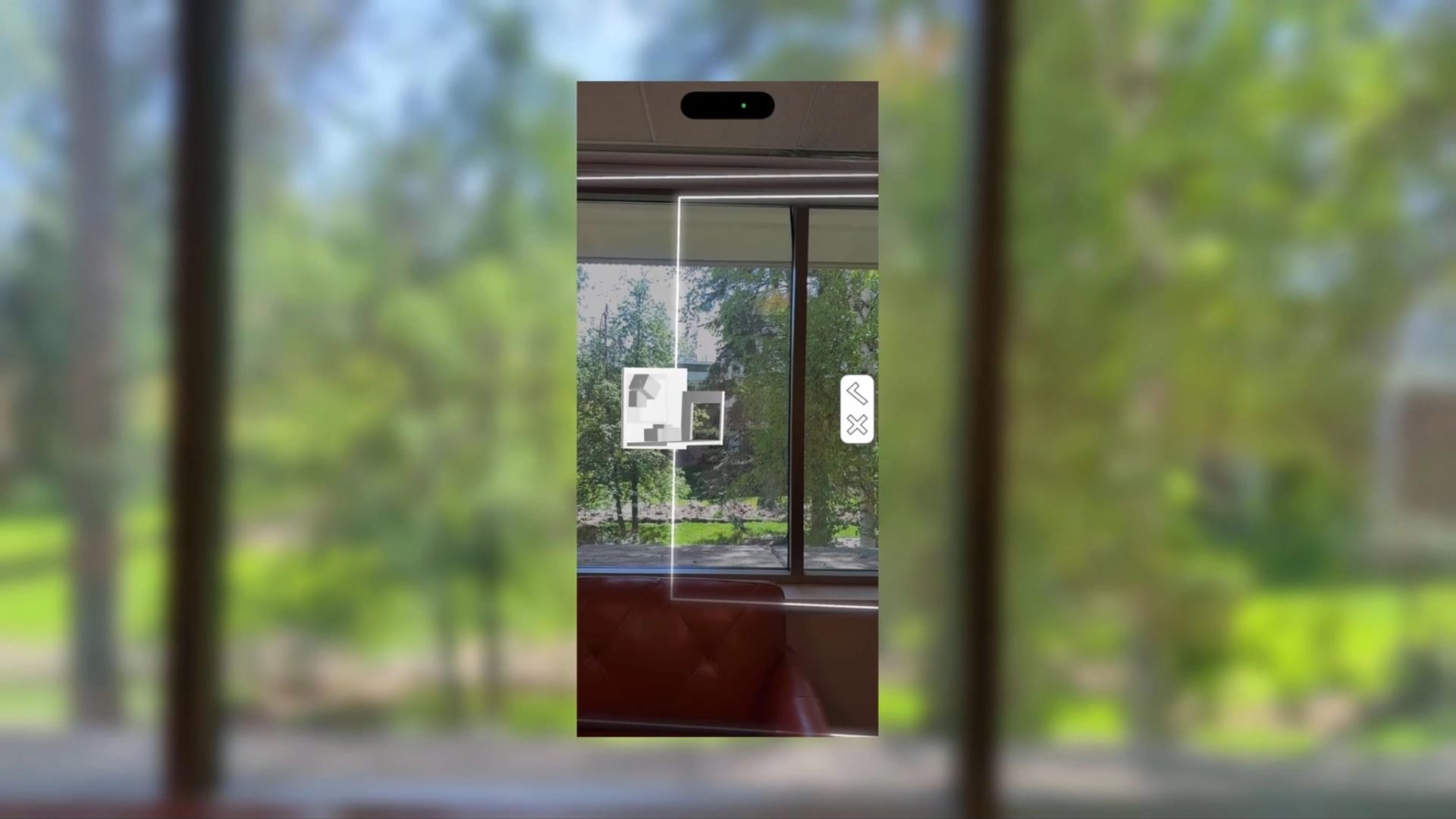
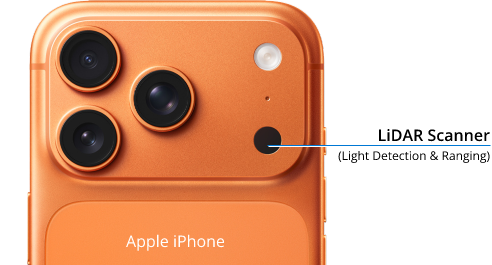
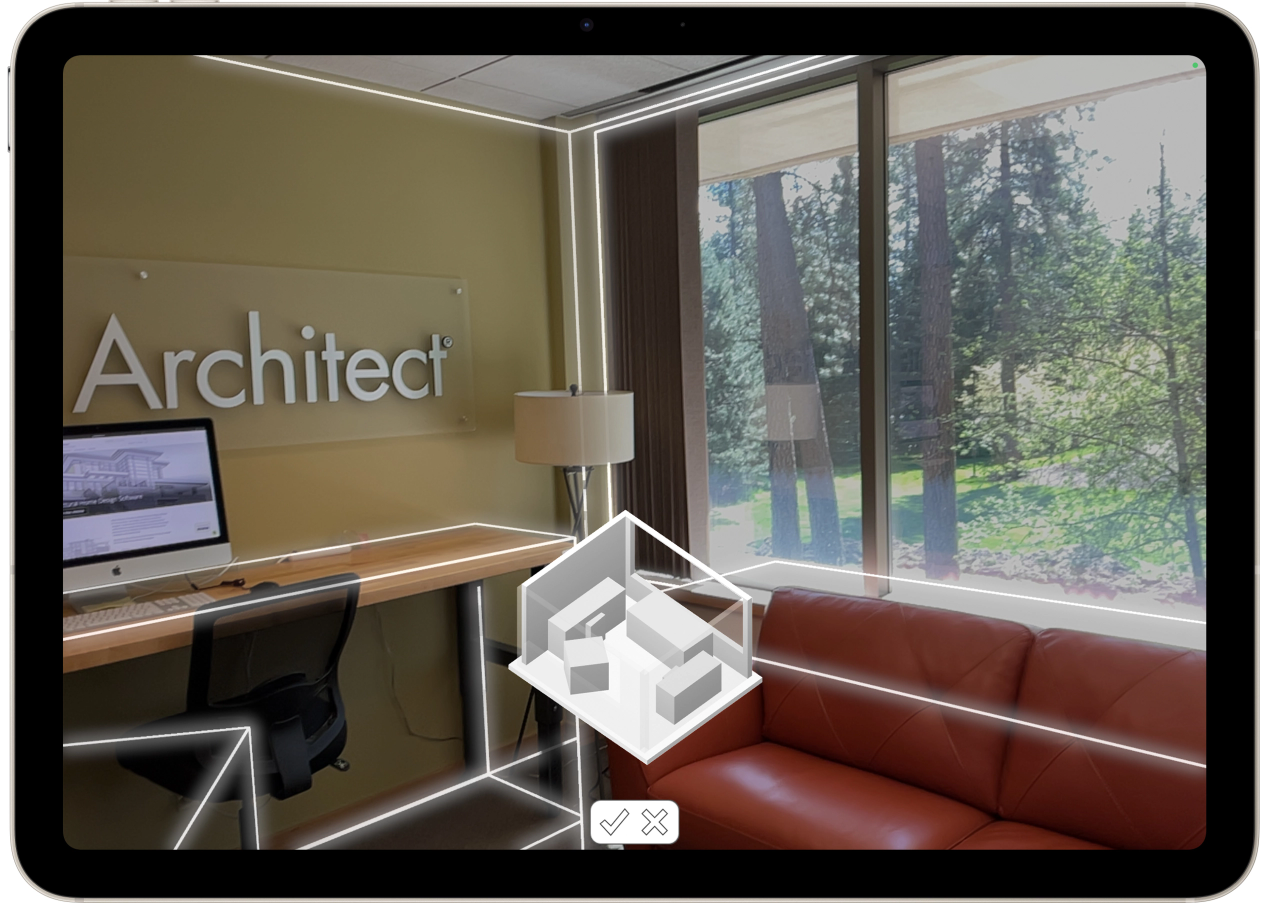
The As-Built app uses the built-in LiDAR sensors on your iPhone or iPad to construct a 3D model of your space. As you point your device around the room, moving up and down, you see the 3D model take shape. LiDAR (Light Detection and Ranging) is a sensing technology that uses pulsed lasers to measure distances and create 3D models.
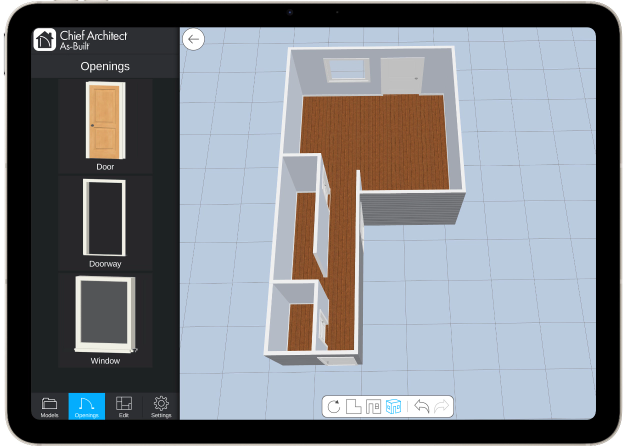
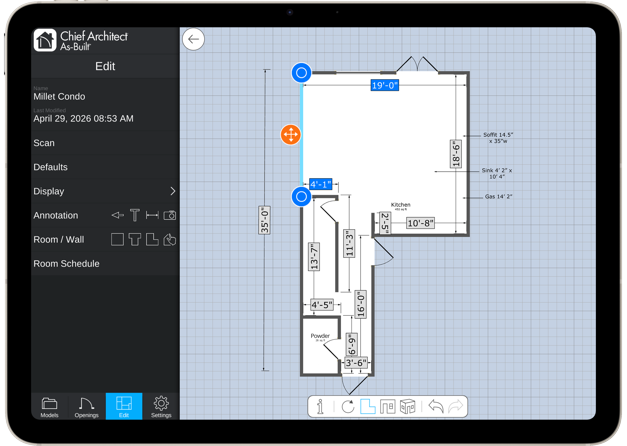
Once the scan is complete, you can view the result in 3D and further edit it, for example, by entering exact dimensions from the screen or using a connected Bluetooth laser for precise measurements. There are also tools to add text notes, as well as room and wall tools to refine the space. When you're done, share the model on the Chief Cloud and access it with Chief Architect's desktop design software to begin the remodel process.

Importing & Remodeling with Chief Architect Software
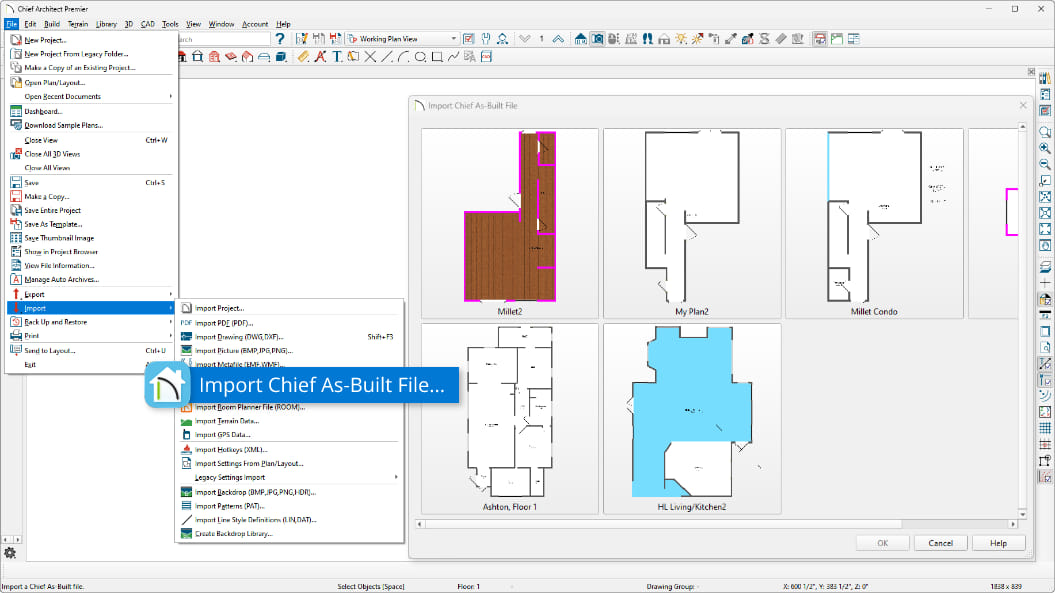
When the As-Built scan process is complete, share the 3D model on the integrated Chief Cloud. Once on the cloud, import directly into Chief Architect and begin your remodel with the software's powerful 3D home design tools.
Pricing
The As-Built app is free to use. Accessing the 3D models from the Chief Cloud is also free. Get started and try it today. If you're not already a Chief Architect customer, create a new account for Chief Cloud access.
Download Chief Architect As-Built

Chief Architect As-Built Frequently Asked Questions
-
 How do I start scanning a room with the As-Built app?
Please see our As-Built blog article on best practices and using the app.
-
Can my client scan a room and share the 3D model with me?
Yes—once the room is scanned, place the model on the Chief Cloud, then use the sharing link. The sharing link generates a share code that can be used to access the model. Note, if your client does not have a Chief Architect account, they will need to create one.
-
What gets imported from the 3D model into Chief Architect?
Walls, windows, doors, annotations, and dimensions for ceiling and window height.
-
Will the LiDAR scanner detect soffits?
The AI models behind the technology do not detect soffits. You can add a text annotation about soffits, and if it's important, create the soffit after the model is imported into Chief Architect.
-
How accurate are the dimensions of the 3D model?
Typically, LiDAR is accurate to within fractions of an inch to a few inches. It can depend on the room you are scanning. If higher precision is needed, we recommend refining the scanned 3D model using measurements from a Bluetooth laser meter.
-
Can I scan multiple rooms with the app?
Yes, you can scan several rooms as part of the 3D model.
-
Can I scan multiple floors with the app?
You need to scan each floor separately. When you import into Chief Architect, you can stack and assemble the floors.
-
What devices does the As-Built app run on?
Apple iPhone and iPad. Please refer to our system requirements.
-
What is the cost of the As-Built app?
The app is free to use. Accessing the 3D models from the Chief Cloud is also free.
-
Can I export an image of the floor plan?
Exporting an image is not currently available. You can use the built-in screen capture to create the image.
-
Can I export a CAD file?
Exporting a CAD file, like DXF, is not currently available.
System Requirements
- iOS/iPadOS 18 or newer
- iPhone 12 Pro / Pro Max or newer
- iPad Pro 11-inch & 13-inch (M5, 2025) recommended
- See all supported devices
- Transfer/import capabilities require Chief Architect X18 or newer