I have created a number of custom backdrop images. I have copied the images from my digital camera to my desktop, and now I would like to make them usable in Chief Architect. How do I add them to the program?

Backdrops are images that display behind the model in 3D views, and new backdrops can be created using a variety of graphic file formats such as .BMP, .JPG, .PNG, .HDR, and .WEBP. In this article, we will cover the following topics:
 .
.
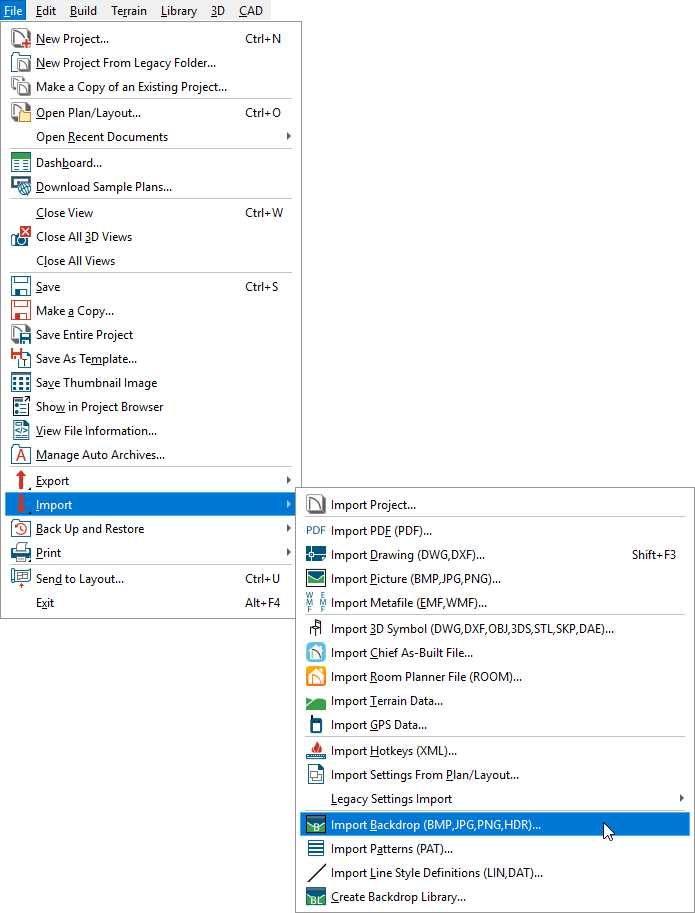
Note: In X16 and newer you are able to import .HDR files which can be used to create high-quality backdrops, and can also provide more realistic scene lighting in GPU ray traced views. A collection of HDR backdrops are also available for download in the Backdrops No.2 HDRI bonus catalog.
For more information on HDR backdrops, please access your program's documentation.
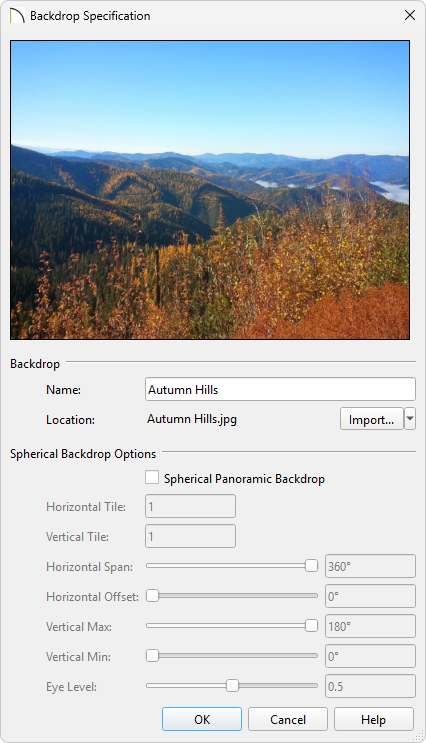

Note: The Spherical Backdrop Options should only be used if the selected backdrop was specially created to serve as a spherical panoramic backdrop. When enabled, the image will be projected onto a sphere that surrounds the model in camera views. When you import a .HDR file it will automatically come in as a spherical backdrop.
Some experimenting with the angle values may be necessary to achieve the desired results. You may prefer to do this after adding the backdrop to a plan.
 .
.
 to open the Select a Backdrop Folder dialog.
 , expand the Camera Tools category, select a camera tool that you'd like a custom backdrop to be applied to, such as Full Camera, then click Edit.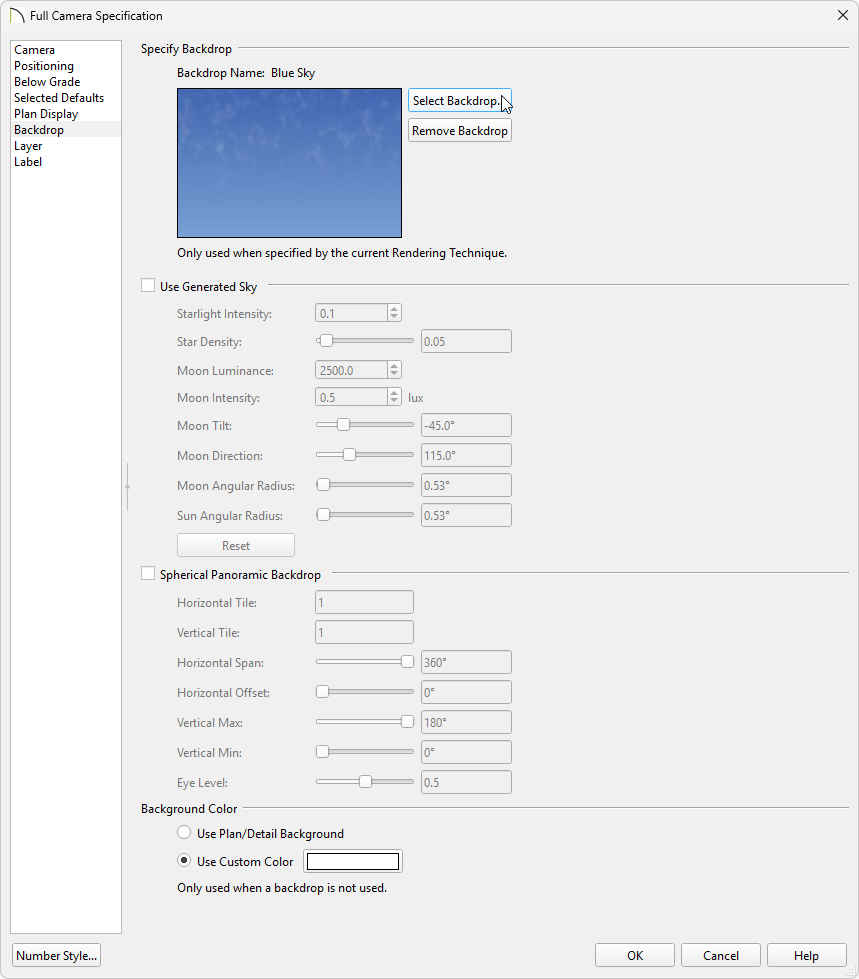
Note: For more information on the various options located on the Backdrop panel, please refer to your program's documentation, which can be accessed by clicking the Help button at the bottom of the Specification dialog.
 view to see the custom backdrop image displayed behind the model.
Certain rendering techniques, such as Vector View and Glass House, are not setup to display backdrops by default. To adjust this setting, navigate into Edit> Default Settings, expand 3D View Defaults, select Rendering Techniques, then click Edit. In the Rendering Technique Defaults dialog, select the rendering technique in which the specified backdrop is not displaying in, check the Use Backdrop... box, then click OK.
 or 3D> Create Orthographic View
  , select a camera tool of your choice, then create a camera view.
 .
.Note: If a camera view is not saved in the plan you're working in, and the view is subsequently closed, the backdrop will no longer appear when a new camera view is taken unless the backdrop was specified in the default settings.
