Locating Your Computer's Specifications


Reference Number: KB-03129
Last Modified: July 14, 2026

This article also applies to the following legacy products:
Pro | Architectural | Suite

QUESTION

How can I check my computer's specifications to see if it meets the System Requirements for Chief Architect or Home Designer?


ANSWER

If you have Chief Architect X18, Home Designer 2027, or a newer version installed on your computer, the most efficient way to view your computer's specifications is directly within the software; simply navigate to Help> System Information from the menu.

If you're using a prior version, have not yet installed the software, or are unable to launch the program due to reasons that you suspect are related to your computer's specifications, you can use native operating system utilities to locate this information. 

On a Windows computer, it is recommended to use the DirectX Diagnostic Tool to find all of your computer's specifications, while on an Apple macOS system, it is recommended to use the About This Mac menu option. 


To find your computer's specifications on a Microsoft Windows system

  1. Press the following keys on your keyboard at the same time: Windows + R.


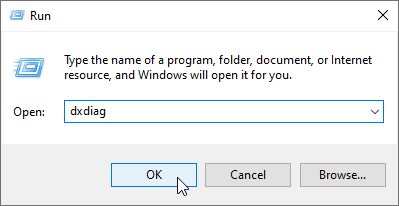
  2. In the Run dialog that appears, type: dxdiag , then click OK.

    Type dxdiag in the Run dialog box


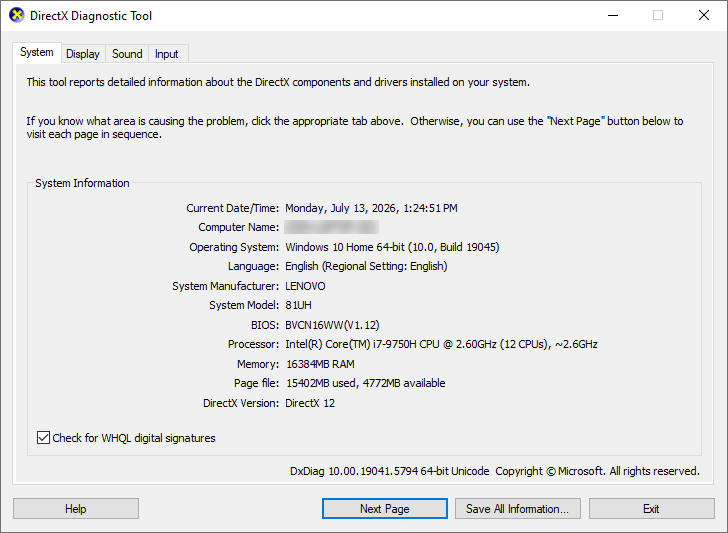
  3. The DirectX Diagnostic Tool dialog will appear. On the System tab, the Operating System, System Manufacturer, System Model, Processor, and Memory will be listed.

    System tab of the DirectX Diagnostic Tool


  4. On the Display tab, the graphics device will be listed in the Device section on the left, while the driver information will be listed in the Drivers section on the right. You may see multiple Display tabs with a number in each if multiple monitors are connected to the system. 

    If your computer has more than one graphics card, such as in the case where you have both integrated and dedicated graphics, you may see an additional Render tab with graphics information. 

    Note: To view a complete list of Intel graphics models that the current version of Chief Architect products are compatible with, please see the Related Articles section below.

    The latest graphics driver is recommended for optimal performance.
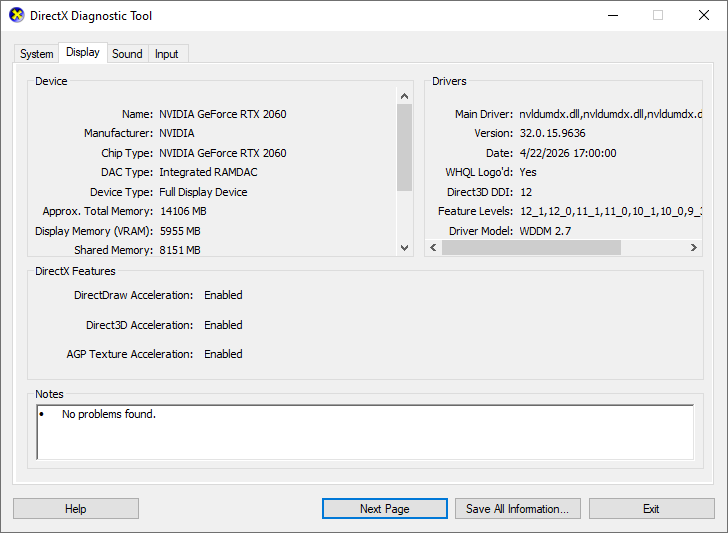

    The Display and Render tabs show the video cards that the computer may have

    If you're experiencing a graphics or video card related error message or are unable to generate optimal 3D camera views, it's possible that your graphics card is not supported, the display driver installed is in need of an update, or there is a compatibility issue with your particular graphics card model. Please ensure that your graphics card meets the system requirements and proceed to follow the steps in the appropriate troubleshooting article linked in the Related Articles section below.


  5. Compare you computer's specifications to the System Requirements for your Chief Architect or Home Designer product. 

    For prior version of Chief Architect and Home Designer, please see the appropriate resource in the Related Articles section below. 

Return To Top


To find your computer's specifications on a Apple macOS System

  1. Click on the Apple  icon in the upper left-hand corner of the screen, then click About This Mac.


  2. In the dialog window that appears, some basic details about your system will appear, including the Chip, Memory, and macOS version. Note this information, then click the More Info button.

    In prior macOS versions, this area may look a bit different. Instead, you may see tabs at the top, such as Overview, Displays, and Storage that can be accessed.

    Note: To view a complete list of Mac models that the current version of Chief Architect products are compatible with, please see the Related Articles section below.
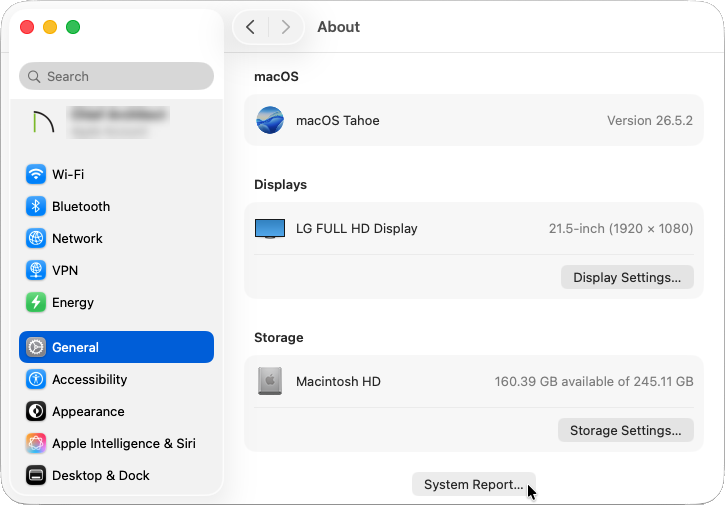
  3. In the dialog that displays, scroll down to the bottom of the About section and take note of the Storage that is available. To see in-depth information about your system, click on the System Report button. 

    In prior macOS versions, the System Report button is located on the Overview tab mentioned in Step 2 above. 

    General> About section of a Mac


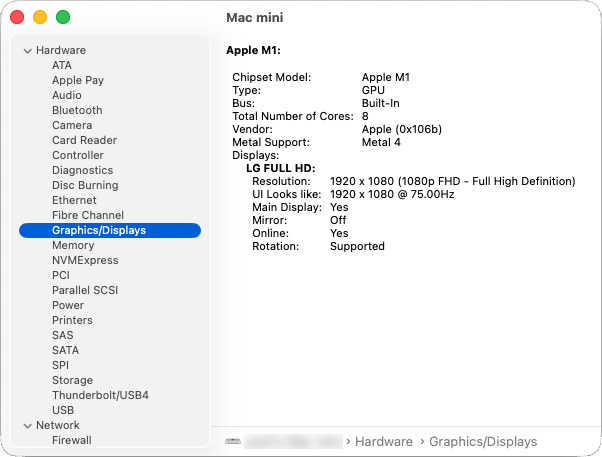
  4. On the left side of the dialog that displays, select the Graphics/Displays option to see in-depth information about the graphics and displays that are connected. The Chipset Model should match the Chip listed in Step 2 above if you're using an M-series Mac.

    Graphics/Display section within the System Report

    If you're experiencing a graphics or video card related error message or are unable to generate optimal 3D camera views, it's possible that your graphics card is not supported, the display driver installed is in need of an update, or there is a compatibility issue with your particular graphics card model. Please ensure that your graphics card meets the system requirements and proceed to follow the steps in the appropriate troubleshooting article linked in the Related Articles section below.


  5. Compare you computer's specifications to the System Requirements for your Chief Architect or Home Designer product. 

    For prior version of Chief Architect and Home Designer, please see the appropriate resource in the Related Articles section below. 

Return To Top