I have walls drawn at off angles in my design. Is there an easy way to draw additional walls at a particular angle value or increment?
The angle increment, as well as additional, custom snap angle values can be specified in the General Plan Defaults. This allows for line-based objects, such as walls, to be drawn at specific angles as long as Angle Snaps are enabled.
Angle increments will only work with Angle Snaps enabled. You can toggle Angle Snaps by navigating to Edit> Snap Settings> Angle Snaps. When Angle Snaps are disabled, an icon will follow your cursor signifying that they are disabled, which is often undesired. To learn more about snaps and behaviors, please access the "Working with Edit Behaviors" resource in the Related Articles section below.
This article will cover the following:
After importing a DWG of a floor plan that contains walls or lines at off angles, it may be necessary to first determine the angle value of the components. To do so, follow the instructions in the first or second section below.
 tool, click on the line and use the Open Object
  edit tool to open the Line/Polyline Specification.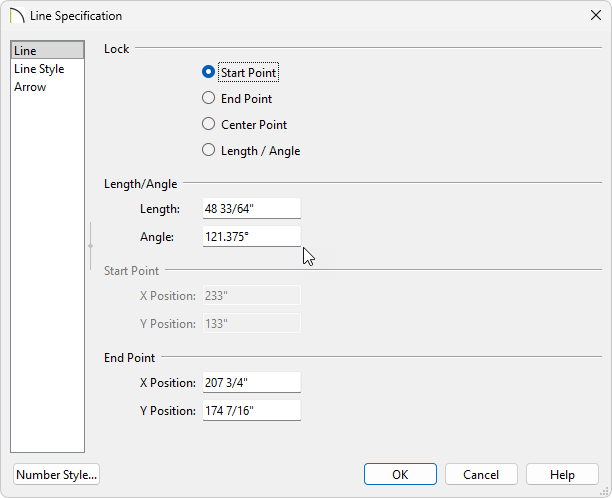
Additionally, you could use the Angular Dimension tool to measure the angle of the selected line.
 and use the Draw Line tool to draw a horizontal line from your angled line.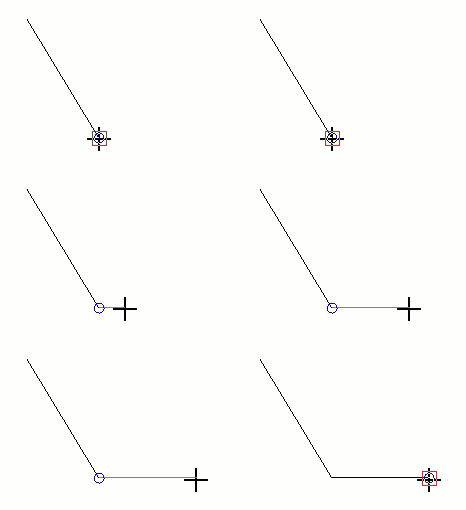
 to select the tool. tool, click on your horizontal line and then click into the drawn angular dimension value to open the Set Angular Dimension dialog.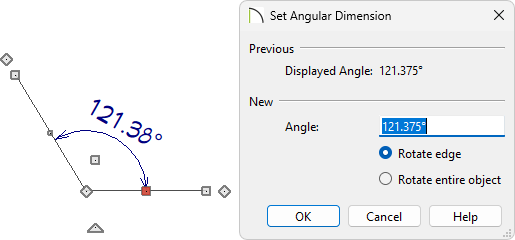
Now that we have our needed angle, we are ready to add it as an allowed angle.
 , and in the Default Settings dialog that displays, select Plan, then click Edit.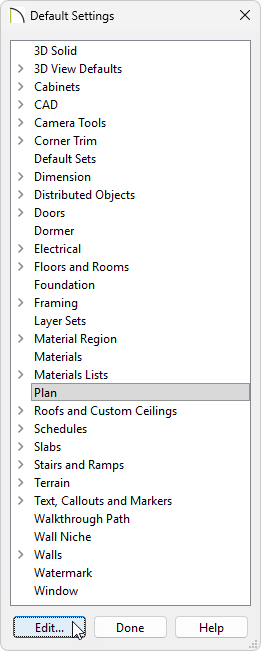
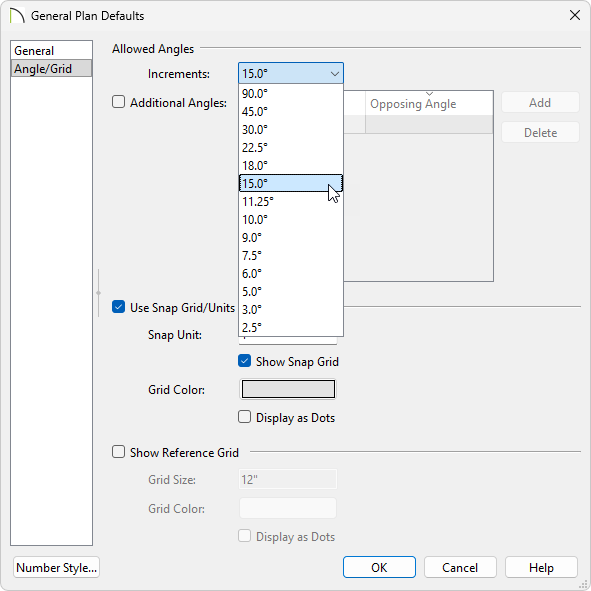
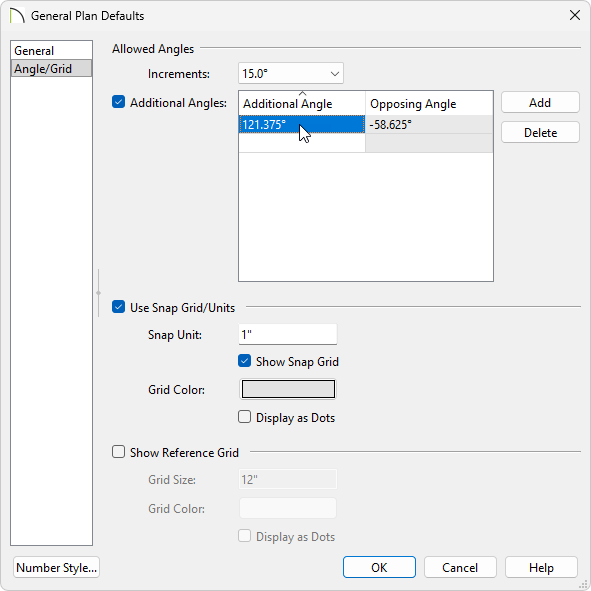 or a Wall
  tool is used, the specified angle value will be recognized.
